Click to see the answer
import os
from dotenv import load_dotenv

load_dotenv()This first part will show you how to build a vector database, i.e., the “augmented” knowledge aimed to guide your LLM’s responses.
The simplified workflow will be as follows:
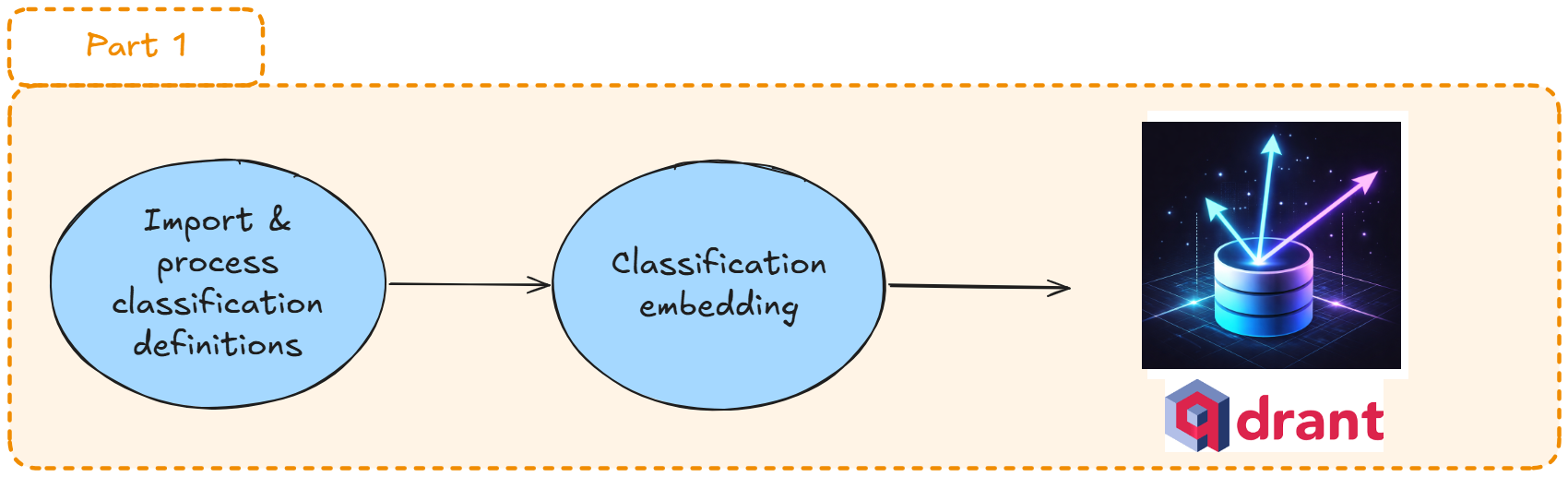
Time to import our data: the official NACE2.1 definitions!
The data are stored in the s3 storage system of the SSPCloud platform (uploaded from Eurostat)
Now let’s choose an embedding model. We will use qwen3-embedding-8b, available on HuggingFace (like all other models provided by llm.lab).
For later use, we need to know the dimension of the vectors output by our model: 4096 (see the model card on HuggingFace).
EMB_MODEL_NAME = "qwen3-embedding-8b"
emb_dim = 4096client_qdrant and the method create_collection to create a new Qdrant collection (e.g: a new vector database). For example, call it nace-collection.from qdrant_client.models import Distance, VectorParams
COLLECTION_NAME = "nace-collection"
# Delete the collection if necessary
if client_qdrant.collection_exists(collection_name=COLLECTION_NAME):
client_qdrant.delete_collection(collection_name=COLLECTION_NAME)
# Create the collection
client_qdrant.create_collection(
collection_name=COLLECTION_NAME,
vectors_config=VectorParams(
size=emb_dim,
distance=Distance.COSINE
)
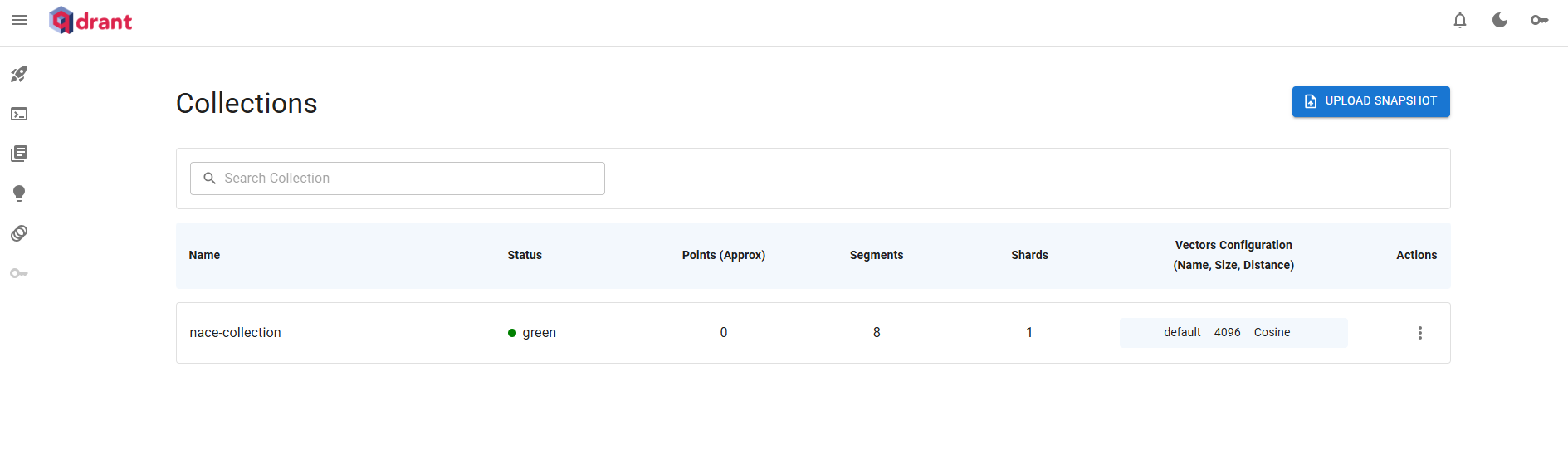
)So far, you should see your new empty collection from Qdrant’s UI:
It’s now time to embed your NACE descriptions (the text attribute of each NaceDocument built earlier) using your client_llmlab connection.
a) Enrich your NaceDocument class:
vector (initialized to None, not set by the constructor) that will hold the embedding vector.get_embeddings method that calls the embedding model via client_llmlab and stores the result in self.vector.b) Run the method on a couple of documents only (no need to fire 1,047 requests at this stage).
c) Inspect the embedding vectors: what is their dimension? what do the values look like?
client_llmlab.embeddings.create
The OpenAI-compatible API exposes embeddings through client.embeddings.create(...). In pseudo-code, the call looks like this:
response = client_llmlab.embeddings.create(
    model = <name of an embedding model from Exercise 1>,
    input = <the text you want to embed>,
)
The returned response object follows the OpenAI schema — the embedding vector itself lives inside response.data[...]. Browse the object (or check the OpenAI docs) to find where exactly.
💡 Tips:
try / except block so a failed request doesn’t silently corrupt your data.input accepts either a single string or a list of strings — pick whichever fits your method best.from dataclasses import dataclass, field
from typing import Optional, List
@dataclass
class NaceDocument:
code: str
heading: str
level: int
parent_code: Optional[str] = None
includes: Optional[str] = None
includes_also: Optional[str] = None
excludes: Optional[str] = None
text: str = field(init=False)
vector: Optional[List[float]] = field(default=None, init=False)
@classmethod
def from_raw(
cls,
raw: dict,
with_includes_also=True,
with_excludes=False,
) -> "NaceDocument":
for key in ("CODE", "HEADING", "LEVEL"):
if not raw.get(key):
raise ValueError(f"Missing required field: {key}")
level = int(raw["LEVEL"])
if not (1 <= level <= 4):
raise ValueError(f"Invalid level: {level}")
obj = cls(
code=str(raw["CODE"]).strip(),
heading=_clean(raw["HEADING"]),
level=level,
parent_code=_clean(raw.get("PARENT_CODE")),
includes=_clean(raw.get("Includes")),
includes_also=_clean(raw.get("IncludesAlso")),
excludes=_clean(raw.get("Excludes")),
)
obj.text = obj.to_embedding_text(
with_includes_also=with_includes_also,
with_excludes=with_excludes,
)
return obj
def to_embedding_text(
self,
*,
with_includes_also: bool = False,
with_excludes: bool = False,
) -> str:
parts = []
parts.append(f"# Code: {self.code}")
parts.append(f"# Title: {self.heading}")
if self.includes:
parts.append("")
parts.append("## Includes:")
parts.append(self.includes.strip())
if with_includes_also and self.includes_also:
parts.append("")
parts.append("## Also includes:")
parts.append(self.includes_also.strip())
if with_excludes and self.excludes:
parts.append("")
parts.append("## Excludes:")
parts.append(self.excludes.strip())
output = "\n".join(parts)
output = output.replace("\\n", "\n")
return output.strip()
def get_embeddings(
self,
client_llmlab,
emb_model: str,
verbose = False,
) -> List[float]:
try:
response = client_llmlab.embeddings.create(
model=EMB_MODEL_NAME,
input=self.text
)
self.vector = response.data[0].embedding
if verbose:
return self.vector
except Exception as e:
raise RuntimeError(f"Embedding failed for doc {self.code}: {str(e)}")# Recreate your NACE documents (that class has been updated)
sample_size = 10
nace_documents = []
for nace_code in nace[:sample_size]:
nace_documents.append(
NaceDocument.from_raw(
raw=nace_code,
with_includes_also=True,
with_excludes=True
)
)
for nace_doc in nace_documents:
nace_doc.get_embeddings(
client_llmlab,
EMB_MODEL_NAME,
)print("\nPrinting the first document:")
print(nace_documents[0])
print("\nPrinting the embedding vector of the first document:")
print(nace_documents[0].vector)
print(f"\nLength of this vector: {len(nace_documents[0].vector)}")
Printing the first document:
NaceDocument(code='A', heading='AGRICULTURE, FORESTRY AND FISHING', level=1, parent_code=None, includes='This section includes the exploitation of vegetal and animal natural resources, comprising the activities of growing of crops, raising and breeding of animals, harvesting of timber and other plants, and the production of animal products from a farm or natural habitats.', includes_also='This section also includes organic agriculture, aquaculture, the growing of genetically modified crops and the raising of genetically modified animals.', excludes='This section excludes undifferentiated subsistence goods-producing activities of households, which are classified in class 98.10.', text='# Code: A\n# Title: AGRICULTURE, FORESTRY AND FISHING\n\n## Includes:\nThis section includes the exploitation of vegetal and animal natural resources, comprising the activities of growing of crops, raising and breeding of animals, harvesting of timber and other plants, and the production of animal products from a farm or natural habitats.\n\n## Also includes:\nThis section also includes organic agriculture, aquaculture, the growing of genetically modified crops and the raising of genetically modified animals.\n\n## Excludes:\nThis section excludes undifferentiated subsistence goods-producing activities of households, which are classified in class 98.10.', vector=[0.013850217685103416, 0.008861792273819447, -0.015023965388536453, -0.00039063775329850614, 0.021831698715686798, 0.0006345571018755436, -0.0171367097645998, -0.01537608914077282, -0.0070131397806108, -0.01032897550612688, -0.040142156183719635, 0.043663397431373596, 0.021127451211214066, -0.00034478824818506837, 0.008803104050457478, 0.012441720813512802, 0.024883441627025604, -0.01901470497250557, 0.009507352486252785, 0.06760784238576889, 0.01901470497250557, 0.02159694954752922, 0.003095758380368352, 0.010915849357843399, 0.030282679945230484, 0.0030664147343486547, 0.025587690994143486, 0.005281862802803516, 0.012324346229434013, -0.042020153254270554, -0.02781780995428562, -6.0062848206143826e-05, 0.0003172785509377718, 0.01971895433962345, -0.04507189616560936, -0.00258224387653172, -0.006749046966433525, 0.007071827072650194, 0.007981481030583382, -0.00428417744114995, -0.015141339972615242, -0.008216231130063534, -0.025587690994143486, 0.0001843149948399514, 0.004753676243126392, 0.00495908223092556, -0.016901960596442223, 0.024061819538474083, -0.003711975645273924, -0.0026702750474214554, 0.01795833371579647, -0.01631508767604828, 0.021244825795292854, 0.009800789877772331, -0.01390890497714281, 0.003183789551258087, -0.00944866519421339, -0.004636301659047604, -0.020540576428174973, 0.019249456003308296, -0.0008656386053189635, 0.0058687361888587475, -0.000825291033834219, 0.023709693923592567, -0.0010270288912579417, -0.0041961465030908585, -0.0024208538234233856, -0.010035539045929909, -0.00015497131971642375, -0.002640931401401758, -0.0054579246789216995, -0.016901960596442223, -0.0031397738493978977, -0.022770697250962257, 0.00583939254283905, -0.03521241620182991, -0.0207753274589777, -0.015141339972615242, 0.024648692458868027, 0.0001494693715358153, 0.0018413159996271133, -0.005399237386882305, -0.032864924520254135, -0.01390890497714281, -0.00651429733261466, 0.0026996186934411526, -0.01701933518052101, 0.0016872617416083813, -0.02171432413160801, -0.022770697250962257, -0.006162173114717007, 0.021244825795292854, -0.002303479006513953, 0.029108932241797447, 0.012969907373189926, 0.018427832052111626, -0.0022154480684548616, -0.04577614367008209, 0.00019531887664925307, -0.0034185389522463083, -0.002714290516451001, 0.02417919412255287, -0.015728212893009186, 0.015610838308930397, 0.0016139025101438165, -0.010035539045929909, -0.007746731862425804, -0.001650582067668438, 0.019484205171465874, 0.0031544456724077463, -0.01126797404140234, 0.009566039778292179, 0.009859477169811726, -0.013850217685103416, -0.020188452675938606, -0.0032131331972777843, -0.007981481030583382, -0.007629357278347015, 0.005927423480898142, -0.00129112193826586, 0.01038766372948885, -0.0021274168975651264, -0.0002659271121956408, 0.012324346229434013, -0.0015111996326595545, -0.018427832052111626, -0.0116787850856781, -0.020540576428174973, -0.009859477169811726, 0.011561410501599312, 0.003741319291293621, -0.016667211428284645, 0.0047830198891460896, 0.014613153412938118, -0.009566039778292179, -0.014084966853260994, 0.02523556537926197, 0.002376838121563196, 0.01725408434867859, 0.020305827260017395, -0.018662581220269203, 0.004665645305067301, 0.03239542618393898, 0.019132079556584358, -0.008274918422102928, -0.008861792273819447, 0.009859477169811726, 0.008450980298221111, 0.004548270720988512, 0.017606208100914955, 0.001525871455669403, -0.00991816446185112, 0.013380718417465687, -0.003051742911338806, -0.007864106446504593, -0.00768804457038641, -0.006690359208732843, 0.010622412897646427, -0.00768804457038641, -0.019601579755544662, -0.022301198914647102, 0.00563398702070117, 0.003990740515291691, 0.003462554421275854, -0.01314596924930811, -0.018427832052111626, 0.010211600922048092, 0.006250204052776098, 0.007981481030583382, 0.008098856545984745, 0.01079847477376461, -0.004108115565031767, -0.016432462260127068, 0.00991816446185112, -0.00815754383802414, -0.009331290610134602, 0.004812364000827074, 0.01126797404140234, -0.004254833795130253, -0.0005025105201639235, 0.014847902581095695, -0.016432462260127068, 0.0010123570682480931, 0.026409313082695007, -0.014437091536819935, 0.0039027095772325993, 0.0116787850856781, -0.01490658987313509, -0.00019531887664925307, -0.014084966853260994, 0.02899155765771866, -0.0018486519111320376, 0.007306576706469059, 0.02253594808280468, -0.0005575299728661776, -0.0011664113262668252, 0.003667960176244378, 0.014671840704977512, -0.00020448878058232367, 0.008392293006181717, 0.018193082883954048, -0.0233575701713562, 0.018193082883954048, 0.0005135144456289709, -0.013087281957268715, -0.008744416758418083, -0.007042483426630497, 0.021127451211214066, -0.003389195306226611, -0.0116787850856781, 0.028639433905482292, -0.015962962061166763, 0.0009353298228234053, -0.002787649864330888, 0.006690359208732843, -0.010094226337969303, 0.006220860406756401, 0.02605718933045864, -0.013380718417465687, -0.023240195587277412, -0.0030077274423092604, -0.028404682874679565, -0.01214828435331583, -0.0032864923123270273, -0.0036532883532345295, -0.001085716183297336, -0.010563725605607033, -0.025822440162301064, 0.0014671840472146869, -0.008274918422102928, 0.01437840424478054, 0.002684946870431304, -0.006103485822677612, -0.011737472377717495, 0.021362200379371643, -0.016901960596442223, -6.418930570362136e-05, 0.0006235532346181571, 0.01449577882885933, -0.008861792273819447, -0.01314596924930811, -0.009624728001654148, -0.023827068507671356, -0.03051742911338806, 0.014261029660701752, -0.00019256790983490646, -0.004548270720988512, -0.01537608914077282, -0.017723584547638893, 0.006220860406756401, -0.01390890497714281, 0.015610838308930397, -0.003462554421275854, 0.014613153412938118, -0.0014745199587196112, 0.016667211428284645, 0.0018779956735670567, 0.019484205171465874, -0.018662581220269203, -0.005252519156783819, 0.029461055994033813, -0.00012471064110286534, 0.0010930520948022604, -0.01179615966975689, -0.005516611970961094, -0.005545955616980791, 0.0032131331972777843, -0.03309967368841171, 0.004724332597106695, -0.02241857349872589, 0.004166802857071161, 0.0005465260474011302, 0.003667960176244378, 0.00247954111546278, -0.013967592269182205, -0.010094226337969303, -9.903492173179984e-05, 0.007042483426630497, 0.006484953686594963, -0.002963711740449071, -0.036386165767908096, 0.004372208379209042, 0.0061328294686973095, -0.04953213408589363, -0.008216231130063534, -0.009096541441977024, 0.016901960596442223, 0.0021274168975651264, -0.003125102026388049, 0.01449577882885933, 0.006484953686594963, 0.04319389909505844, 0.001159075414761901, 0.017371458932757378, -0.02629193849861622, -0.0029490399174392223, -0.0342734195291996, -0.011913534253835678, 0.01525871455669403, 0.012030909769237041, -0.021831698715686798, 0.011972222477197647, -0.004665645305067301, -0.006367579102516174, -0.012383033521473408, -0.0012984579661861062, -0.0002861008979380131, -0.008216231130063534, 0.015962962061166763, 0.004812364000827074, -0.006572984624654055, 0.008627042174339294, -0.016784586012363434, -0.014319716952741146, -0.0006418930133804679, 0.006484953686594963, -0.0116787850856781, 0.001936682965606451, -0.001034364802762866, 0.014730527997016907, 0.005751361604779959, -0.0233575701713562, -0.026878811419010162, 0.015845587477087975, 0.00048417074140161276, -0.002758305985480547, 0.016432462260127068, 0.004694988951086998, -0.008450980298221111, -0.017488833516836166, 0.020188452675938606, -0.02793518453836441, -0.02441394329071045, -0.00036312805605120957, 0.01983632892370224, -0.02253594808280468, -4.126455314690247e-05, 0.01525871455669403, 0.04037690535187721, -0.005340550094842911, 0.01619771309196949, -0.020892702043056488, -0.020305827260017395, 0.01437840424478054, -0.010505038313567638, -0.009389977902173996, -0.0140262795612216, 0.0085683548822999, -0.0020247141364961863, 0.010739787481725216, 0.006983796134591103, 0.014143654145300388, -0.019601579755544662, 0.012383033521473408, -0.010974536649882793, 0.010035539045929909, -0.0015038637211546302, -0.02629193849861622, 0.03497766703367233, -0.0007152522448450327, -0.007746731862425804, 0.0028023216873407364, 8.803104719845578e-05, -0.007306576706469059, 0.015962962061166763, 0.011502723209559917, -0.024061819538474083, 0.020892702043056488, -0.019484205171465874, 0.01983632892370224, -0.003125102026388049, 0.0085683548822999, -0.010974536649882793, 0.0034185389522463083, -0.034742917865514755, 0.0002585912006907165, -0.011620097793638706, -0.011620097793638706, 0.006103485822677612, -0.022066447883844376, -0.011209286749362946, 0.006631671916693449, -0.007482638582587242, 0.0040494282729923725, 0.006367579102516174, 0.019601579755544662, -0.014554466120898724, -0.014671840704977512, -0.008627042174339294, 0.02441394329071045, -0.006983796134591103, 0.0002604251785669476, -0.005604643374681473, 0.024766067042946815, 0.0035212417133152485, -0.009976851753890514, -0.003169117495417595, 0.0008326269453391433, 0.008920479565858841, -0.003873365931212902, 0.025939814746379852, 0.003990740515291691, 0.024648692458868027, -0.012617782689630985, 0.012206971645355225, -0.0039027095772325993, 0.0039320532232522964, 0.00718920212239027, 0.015962962061166763, 0.012265658937394619, -0.016432462260127068, 0.004020084161311388, -0.007159858476370573, 0.020071078091859818, -0.006866421550512314, -0.0008179551223292947, 0.02875680848956108, 0.002244791714474559, -0.0415506549179554, -0.010739787481725216, 0.01449577882885933, 0.031221676617860794, -0.02347494475543499, -0.01302859466522932, -0.012559095397591591, 0.017606208100914955, -0.002318150829523802, 0.021244825795292854, 0.01214828435331583, 0.01038766372948885, 0.00633823499083519, 0.005956767126917839, -0.004871051292866468, -0.027583060786128044, -0.007453294936567545, -0.0033745234832167625, 0.024531317874789238, 0.012089597061276436, -0.0019073393195867538, -0.01525871455669403, 0.01126797404140234, -0.0016579179791733623, -0.002244791714474559, -0.03333442285656929, 0.025118190795183182, -0.0037266474682837725, -0.02171432413160801, -0.0035065698903054, 0.022183822467923164, -0.007511982694268227, -0.010622412897646427, 0.013850217685103416, -0.026878811419010162, -0.005428581032902002, -0.008803104050457478, 0.0054579246789216995, 0.0073946076445281506, 0.0011664113262668252, 0.011033223941922188, -0.02417919412255287, 0.005810048896819353, -0.010622412897646427, 0.02969580516219139, -0.0025675720535218716, -0.012735158205032349, -0.004900394938886166, 0.03239542618393898, 0.007864106446504593, 0.008274918422102928, 0.016432462260127068, 0.015845587477087975, 0.01889733038842678, -0.00903785414993763, -0.01038766372948885, -0.013204656541347504, 0.0007079163333401084, 0.01701933518052101, -0.017488833516836166, 0.002142088720574975, 0.016784586012363434, 0.004020084161311388, -0.024883441627025604, 0.0116787850856781, 0.024883441627025604, -0.0058687361888587475, 0.024766067042946815, 0.009976851753890514, -0.02065795101225376, -0.0026702750474214554, 0.008861792273819447, -0.0034185389522463083, -0.0035212417133152485, -0.005369893740862608, -0.006602328270673752, -0.016901960596442223, 0.0054579246789216995, 0.004694988951086998, 0.008803104050457478, -0.0018779956735670567, 0.011091911233961582, 0.0050471131689846516, 0.005105800461024046, -0.007482638582587242, -0.003125102026388049, 0.012383033521473408, 0.03967265784740448, -0.005311206448823214, -0.005751361604779959, 0.012441720813512802, -0.0342734195291996, 0.04319389909505844, -0.008392293006181717, -0.008744416758418083, 0.015141339972615242, 0.007423951290547848, -0.012030909769237041, -0.0016432461561635137, -0.011972222477197647, -0.012383033521473408, 0.011502723209559917, -0.0037559913471341133, -0.006925108842551708, 0.0022007760126143694, -0.014730527997016907, 0.011620097793638706, -0.028639433905482292, 0.0015552151016891003, 0.011502723209559917, 0.006925108842551708, -0.0015111996326595545, -0.004020084161311388, -0.00024575332645326853, -0.0034478825982660055, -0.06056535989046097, 0.0015845587477087975, -0.009272603318095207, 0.007423951290547848, -0.010622412897646427, 0.01390890497714281, -0.012793845497071743, -0.017723584547638893, -0.008979166857898235, -0.0004951746086589992, -0.008392293006181717, -0.001034364802762866, 0.02711356244981289, -0.0015845587477087975, 0.0016725898021832108, 0.015023965388536453, -0.002684946870431304, 0.011620097793638706, -0.003961396869271994, 0.05211437866091728, -0.012911220081150532, -0.004254833795130253, -0.003169117495417595, -0.0057220179587602615, 2.6821959181688726e-05, 0.005428581032902002, 0.009800789877772331, -0.0037559913471341133, -0.015493463724851608, -0.00014855238259769976, -0.016667211428284645, -0.020188452675938606, -0.0044602397829294205, 0.00903785414993763, -0.0002989387430716306, -0.0029930556192994118, 0.005663330666720867, 0.0025235565844923258, 0.01807570829987526, 0.02899155765771866, -0.007511982694268227, -0.0022007760126143694, 0.005692674312740564, 0.02887418307363987, 0.0005135144456289709, 0.01971895433962345, -0.01701933518052101, 0.0006162173231132329, -0.02617456391453743, 0.003462554421275854, 0.000594209530390799, 0.006367579102516174, -0.012030909769237041, -0.015141339972615242, -0.002186104189604521, 0.00583939254283905, -0.007922793738543987, 0.032160673290491104, -0.0026262595783919096, 0.008216231130063534, -0.005898079834878445, -0.02429656870663166, 0.0011957549722865224, 0.01437840424478054, -0.0140262795612216, 0.005604643374681473, -0.0018926674965769053, -0.02441394329071045, 0.008392293006181717, 0.011561410501599312, -0.0016872617416083813, -0.02159694954752922, -0.0024942129384726286, -0.0017752926796674728, -0.01437840424478054, 0.0031397738493978977, -0.037559911608695984, 0.006191516760736704, 0.010915849357843399, -0.01490658987313509, -0.013732843101024628, -0.006367579102516174, 0.02617456391453743, 0.01995370350778103, -0.0006895764963701367, -0.005281862802803516, 0.008979166857898235, -0.015962962061166763, 0.01725408434867859, 0.0041961465030908585, -0.013439405709505081, 0.021831698715686798, -0.004254833795130253, 0.006778390612453222, 0.01126797404140234, -0.008509667590260506, -0.002112745074555278, 0.004753676243126392, 0.012441720813512802, 0.01126797404140234, -0.016432462260127068, -0.008920479565858841, -0.0014084967551752925, 0.0028023216873407364, -0.007746731862425804, -0.014437091536819935, 0.003594601061195135, -0.01449577882885933, -0.014319716952741146, -0.0233575701713562, 0.009859477169811726, -0.00583939254283905, 0.0024942129384726286, 0.014554466120898724, 0.0024648692924529314, -0.016784586012363434, -0.011150599457323551, -0.018427832052111626, -0.016432462260127068, 0.01701933518052101, -0.005927423480898142, 0.02605718933045864, -0.01032897550612688, 0.01525871455669403, 0.031221676617860794, -0.028639433905482292, 0.012559095397591591, -0.027348311617970467, 0.010681100189685822, 0.005017769522964954, -0.018779955804347992, -0.007746731862425804, -0.01349809393286705, 0.005516611970961094, -0.006044798530638218, 0.010739787481725216, -0.031221676617860794, 0.007629357278347015, 0.01302859466522932, 0.007453294936567545, 0.02347494475543499, -0.006103485822677612, -0.020071078091859818, 0.041081152856349945, -0.001650582067668438, 0.002450197469443083, -0.015728212893009186, -0.004166802857071161, 0.015845587477087975, -0.01267646998167038, 0.02253594808280468, 0.010915849357843399, -0.012206971645355225, 0.013967592269182205, 0.017840959131717682, -0.007511982694268227, -0.005898079834878445, -0.04413289576768875, -0.024766067042946815, 0.003873365931212902, -0.0010930520948022604, -0.004929738584905863, 0.0035799292381852865, 0.026526687666773796, -0.03192592412233353, -0.003095758380368352, 0.017840959131717682, -0.005369893740862608, -0.007981481030583382, 0.01701933518052101, -0.025939814746379852, -0.00768804457038641, -0.026644062250852585, 0.004929738584905863, -0.012969907373189926, 0.0016432461561635137, -0.005692674312740564, -0.0036532883532345295, -0.00991816446185112, -0.005399237386882305, 0.00026409313431940973, 0.008392293006181717, -0.0488278865814209, 0.06103485822677612, -0.019484205171465874, -0.000517182401381433, -0.014730527997016907, 0.004313521087169647, 0.031221676617860794, -0.011444035917520523, 0.012089597061276436, -0.016901960596442223, -0.023122821003198624, 0.0031104302033782005, 0.010505038313567638, 0.01214828435331583, 0.035681918263435364, -0.01525871455669403, -0.0028316653333604336, -0.014143654145300388, 0.025822440162301064, -0.011091911233961582, 0.020305827260017395, -0.009507352486252785, -0.0029783835634589195, -0.003873365931212902, -0.011150599457323551, 0.0024208538234233856, 0.007130514830350876, -0.031221676617860794, 0.02417919412255287, -0.00633823499083519, 0.017840959131717682, 0.002112745074555278, 0.040142156183719635, -0.02065795101225376, 0.013732843101024628, 0.036386165767908096, -0.006983796134591103, 0.009155228734016418, 0.013204656541347504, -0.00768804457038641, 0.004342864733189344, -0.019132079556584358, -0.011972222477197647, -0.0036239447072148323, 0.01267646998167038, 0.017371458932757378, 0.0078054191544651985, -0.023005446419119835, -0.004665645305067301, 0.007365263998508453, 0.007981481030583382, 0.012852532789111137, 0.004518927074968815, -0.003330507781356573, -0.014261029660701752, 0.025822440162301064, 0.004166802857071161, 0.010622412897646427, 0.040142156183719635, 0.01983632892370224, -0.011091911233961582, 0.004342864733189344, 0.011561410501599312, -0.003594601061195135, -0.009742102585732937, -0.0037853349931538105, 0.003301164135336876, -0.012383033521473408, -0.003022399265319109, -6.464780017267913e-05, -0.001936682965606451, 0.020892702043056488, 0.032160673290491104, 0.025822440162301064, 0.03239542618393898, -0.007864106446504593, -0.02899155765771866, -0.0029783835634589195, -0.0008106192108243704, 0.007922793738543987, -0.008803104050457478, -0.01701933518052101, 0.015845587477087975, 0.019601579755544662, -0.01889733038842678, -0.015962962061166763, 0.00563398702070117, -0.007746731862425804, -0.016784586012363434, 0.004694988951086998, 0.014613153412938118, -0.008392293006181717, -0.0058687361888587475, 0.010094226337969303, 0.014847902581095695, 0.009389977902173996, 0.015728212893009186, 0.011209286749362946, 0.01807570829987526, -0.030282679945230484, 0.013732843101024628, -0.0085683548822999, -0.011737472377717495, 6.78572614560835e-05, -0.01901470497250557, -0.0016579179791733623, 0.012324346229434013, 0.023005446419119835, -6.327231676550582e-05, -0.004254833795130253, -0.020892702043056488, -0.006925108842551708, 0.01971895433962345, 0.007511982694268227, -0.015141339972615242, 0.010915849357843399, -0.0073946076445281506, -0.014730527997016907, -0.004753676243126392, -0.000594209530390799, 0.006572984624654055, 0.003961396869271994, -0.0008106192108243704, 0.0036826319992542267, -0.01490658987313509, 0.03779466077685356, 0.009976851753890514, 0.007453294936567545, -0.018193082883954048, -0.0171367097645998, 0.01795833371579647, 0.000193484898773022, 0.017371458932757378, -0.00651429733261466, 0.009507352486252785, -0.011033223941922188, -0.006925108842551708, -0.0059861112385988235, -0.0026996186934411526, -0.00991816446185112, 0.022301198914647102, -0.006250204052776098, -0.0057220179587602615, -0.01537608914077282, 0.007864106446504593, -0.0116787850856781, -0.021127451211214066, 0.004254833795130253, -0.012383033521473408, 0.009976851753890514, 0.007277233060449362, 0.002303479006513953, 0.00768804457038641, -0.025470316410064697, 0.017840959131717682, -0.004665645305067301, -0.0029050244484096766, 0.010211600922048092, 0.007629357278347015, -0.0207753274589777, 0.003330507781356573, -0.012089597061276436, 0.006837077904492617, 0.002406182000413537, -0.020540576428174973, -0.007981481030583382, 0.004724332597106695, 0.014202341437339783, -0.001159075414761901, 0.0026996186934411526, -0.007922793738543987, -0.015141339972615242, 0.0019220111425966024, 0.0017239412991330028, -0.024061819538474083, 0.005956767126917839, 0.004254833795130253, -0.01631508767604828, -0.005810048896819353, 0.005076456815004349, -0.012089597061276436, 0.03615141659975052, 0.010915849357843399, -0.00633823499083519, -0.009624728001654148, 0.007277233060449362, 0.0009756773943081498, -0.009507352486252785, 0.007159858476370573, -0.02535293996334076, 0.02441394329071045, -0.04413289576768875, -0.012206971645355225, -0.00407877191901207, 0.00258224387653172, 0.018779955804347992, 0.0006822405848652124, -0.023240195587277412, 0.0044602397829294205, 0.005399237386882305, 0.017371458932757378, -0.010974536649882793, 0.002684946870431304, 0.01631508767604828, -0.0030810865573585033, 0.011913534253835678, 0.01214828435331583, 0.01795833371579647, -0.0035799292381852865, 0.0005098464898765087, 0.011091911233961582, -0.004489583428949118, 0.009800789877772331, 0.014437091536819935, -0.008274918422102928, -0.011033223941922188, 0.03169117495417595, -0.014084966853260994, -0.008040168322622776, -0.023709693923592567, 0.005193831864744425, -0.006895765196532011, 0.021831698715686798, 0.0009683414828032255, -0.013439405709505081, -0.009566039778292179, -0.010270288214087486, 0.017606208100914955, 0.014143654145300388, 0.007365263998508453, -0.010505038313567638, -0.004724332597106695, 0.007746731862425804, -0.03849891200661659, 2.6363464712630957e-05, -0.005193831864744425, -0.015023965388536453, -0.004871051292866468, 0.02347494475543499, 0.007864106446504593, 0.0050471131689846516, -0.007335920352488756, 0.012324346229434013, 0.008216231130063534, 0.0010490366257727146, -0.03802940994501114, 0.015141339972615242, 0.03896841034293175, 0.011913534253835678, 0.013087281957268715, 0.0034772262442857027, -0.008216231130063534, -0.003389195306226611, 0.023005446419119835, -0.035447169095277786, -0.0008289589895866811, -0.003594601061195135, -0.004108115565031767, -0.014143654145300388, 0.010563725605607033, -0.002611587755382061, 0.022888071835041046, -0.0019073393195867538, -0.004636301659047604, 0.004137459211051464, -0.00991816446185112, -0.0029490399174392223, 0.0004805027856491506, 0.006250204052776098, 0.00563398702070117, -0.00903785414993763, 0.0037853349931538105, 0.0016212384216487408, -0.016432462260127068, -0.05680936574935913, -0.01126797404140234, -0.017371458932757378, 0.01537608914077282, 0.006015454884618521, 0.009742102585732937, -0.03896841034293175, -0.0020247141364961863, -0.0058687361888587475, 0.011091911233961582, -0.005516611970961094, 0.05047113075852394, 0.010211600922048092, -0.0029930556192994118, -0.012559095397591591, -0.02171432413160801, -0.019484205171465874, -0.0006785726291127503, 0.028639433905482292, -0.0041961465030908585, 0.0007849434623494744, 0.008920479565858841, 0.010270288214087486, 0.005575299728661776, -0.006954452488571405, -0.012617782689630985, 0.012911220081150532, 0.008803104050457478, 0.01619771309196949, -0.02523556537926197, -0.01631508767604828, -0.01525871455669403, 0.022301198914647102, 0.0029783835634589195, 0.009683415293693542, 0.007277233060449362, -0.01390890497714281, 0.026878811419010162, -0.014084966853260994, -0.008685729466378689, -0.0002659271121956408, 0.01537608914077282, 0.001034364802762866, 0.012969907373189926, -0.020188452675938606, -0.015728212893009186, 0.030282679945230484, -0.0011664113262668252, -0.04601089283823967, 0.011091911233961582, 0.01889733038842678, -0.0016139025101438165, 0.012735158205032349, -0.004988425876945257, -0.0040494282729923725, -0.01214828435331583, 0.014671840704977512, -0.00032461449154652655, 0.03403867036104202, -0.0140262795612216, 0.010505038313567638, 0.005780705250799656, 0.029343681409955025, -0.0007445958908647299, 0.0023621662985533476, 0.005340550094842911, 0.002450197469443083, -0.006631671916693449, -0.017723584547638893, 0.0015845587477087975, 0.010446351021528244, 0.00022557955526281148, -0.008685729466378689, 0.03450816869735718, 0.0171367097645998, -0.013439405709505081, -0.012324346229434013, 0.005223175510764122, -0.011854846961796284, 0.021244825795292854, 0.0023915099445730448, -0.019132079556584358, 0.01701933518052101, 0.006074142176657915, -0.0033598514273762703, 0.002846337156370282, -0.018545206636190414, -0.019601579755544662, -0.004724332597106695, 0.006367579102516174, -0.007277233060449362, -0.040142156183719635, -0.0037853349931538105, 0.002068729605525732, -0.002406182000413537, 0.007101170718669891, 0.020423201844096184, 0.007864106446504593, 0.0050471131689846516, -0.009507352486252785, -0.007746731862425804, -0.009624728001654148, 0.005369893740862608, -0.02241857349872589, 0.0057220179587602615, -0.007042483426630497, -0.01267646998167038, 0.023827068507671356, 0.009683415293693542, 0.01437840424478054, 0.002171432366594672, 0.02969580516219139, -0.015845587477087975, 0.0015185355441644788, -0.0023328226525336504, -0.004929738584905863, 0.020540576428174973, 0.0032424768432974815, -0.024883441627025604, -0.0029490399174392223, 0.0001494693715358153, -0.0022154480684548616, -0.0050471131689846516, 0.003227805020287633, -0.009859477169811726, -0.016549836844205856, 0.016784586012363434, -0.0003667960118036717, -0.0015405432786792517, 0.012617782689630985, -0.0010270288912579417, -0.007453294936567545, 0.0010930520948022604, 0.00563398702070117, -0.019249456003308296, -0.02347494475543499, 0.023005446419119835, 0.018545206636190414, 4.882971916231327e-05, -0.011561410501599312, -0.04953213408589363, 0.01971895433962345, 0.014789215289056301, -0.0054579246789216995, -0.015493463724851608, -0.03967265784740448, -0.0032424768432974815, 0.017840959131717682, 0.0014598481357097626, 0.012617782689630985, -0.005135144107043743, 0.00944866519421339, -0.007101170718669891, -0.01267646998167038, 0.01795833371579647, 0.006367579102516174, 0.018779955804347992, -0.003169117495417595, -0.008216231130063534, 0.00583939254283905, -0.020071078091859818, -0.008274918422102928, 0.016901960596442223, 0.01537608914077282, -0.018545206636190414, -0.0068077342584729195, 0.002318150829523802, 0.016549836844205856, 0.004988425876945257, -0.009272603318095207, 0.013322031125426292, 0.004313521087169647, 0.012617782689630985, -0.010505038313567638, -0.0008949823095463216, -0.004900394938886166, -0.004372208379209042, -0.005663330666720867, 0.009859477169811726, -0.015845587477087975, -0.007218545768409967, -0.00123977055773139, -0.004137459211051464, -0.002714290516451001, 0.0009536696597933769, 0.003433210775256157, 0.01179615966975689, -0.0007042483775876462, 0.002274135360494256, -0.004489583428949118, 0.008509667590260506, -0.011620097793638706, -0.025000816211104393, 0.026409313082695007, 0.015493463724851608, 0.006954452488571405, -0.010622412897646427, 0.015728212893009186, -0.008098856545984745, 0.0029783835634589195, -0.012911220081150532, -0.023944444954395294, 0.010681100189685822, -0.0001118727886932902, -0.009683415293693542, 0.008509667590260506, -0.01701933518052101, -0.028287308290600777, -0.02359231933951378, 0.006719702854752541, -0.005545955616980791, -0.004342864733189344, -0.01079847477376461, -0.007981481030583382, 0.003125102026388049, 0.003990740515291691, 0.004929738584905863, 0.005399237386882305, -0.024531317874789238, 0.019484205171465874, -0.006925108842551708, -0.010094226337969303, 0.011620097793638706, 0.0019513547886162996, -0.011620097793638706, -0.043898146599531174, -0.002640931401401758, -0.011620097793638706, 0.004636301659047604, -0.0031104302033782005, 0.025705065578222275, -0.017488833516836166, 0.0027436341624706984, 0.010681100189685822, -0.018545206636190414, -0.02441394329071045, -0.0233575701713562, 0.01901470497250557, 0.013087281957268715, -0.0034038671292364597, -0.0022154480684548616, -0.010446351021528244, -0.07511982321739197, -0.0015698869246989489, -0.008685729466378689, -0.0022154480684548616, -0.01079847477376461, -0.002450197469443083, 0.0003429542703088373, -0.011033223941922188, -0.044602397829294205, -0.008803104050457478, 0.020540576428174973, -0.02417919412255287, -0.0040494282729923725, 0.0018413159996271133, 0.021127451211214066, 0.02629193849861622, 0.0073946076445281506, -0.01537608914077282, -0.023240195587277412, -0.02253594808280468, 0.01701933518052101, -0.00944866519421339, -0.006866421550512314, -0.014671840704977512, 0.025822440162301064, -0.004372208379209042, 0.022770697250962257, 0.025939814746379852, 0.0028756808023899794, 0.0035212417133152485, -0.016784586012363434, -0.015023965388536453, -0.006719702854752541, 0.003301164135336876, 0.002435525646433234, -0.009742102585732937, -0.01079847477376461, 0.00633823499083519, -0.00563398702070117, -0.019484205171465874, -0.0002145756734535098, 0.005017769522964954, 0.017840959131717682, 0.0021567605435848236, 0.008627042174339294, 0.013674155808985233, 0.0065436409786343575, 0.0034478825982660055, 0.01901470497250557, 0.0009353298228234053, -0.009272603318095207, -0.026761436834931374, 0.01971895433962345, 0.0057220179587602615, 0.0023621662985533476, 0.018662581220269203, -0.0032424768432974815, -0.011326661333441734, -0.009272603318095207, 0.009624728001654148, -0.009566039778292179, 0.013087281957268715, 0.019249456003308296, -0.0009903492173179984, 0.007981481030583382, 0.01537608914077282, 0.014202341437339783, 0.03873366117477417, -0.012969907373189926, 0.004313521087169647, -0.0029050244484096766, 0.01302859466522932, 0.014261029660701752, -0.01619771309196949, 0.0021274168975651264, -0.016667211428284645, -0.004137459211051464, -0.004694988951086998, -0.01619771309196949, -0.009272603318095207, 0.009859477169811726, 0.00247954111546278, -0.020892702043056488, -0.011737472377717495, -0.02241857349872589, -0.009683415293693542, 0.005663330666720867, 0.0026262595783919096, 0.01795833371579647, 0.005340550094842911, 0.0006749046733602881, 0.008803104050457478, 0.0050471131689846516, -0.021479574963450432, -0.0008399628568440676, 0.01525871455669403, 0.007101170718669891, 0.007981481030583382, 0.014847902581095695, -0.01525871455669403, -0.014261029660701752, 0.012265658937394619, -0.00016964315727818757, -0.014143654145300388, -0.020071078091859818, -0.021949073299765587, 0.0023621662985533476, -0.009976851753890514, 0.016784586012363434, 0.005428581032902002, 0.026526687666773796, -0.009624728001654148, 0.010974536649882793, -0.005692674312740564, 0.0044602397829294205, -0.0007629357278347015, 0.012735158205032349, 0.0467151403427124, 0.016901960596442223, -0.03192592412233353, 0.008920479565858841, 0.011385348625481129, -0.0010930520948022604, 0.01983632892370224, 0.004988425876945257, 0.01795833371579647, 0.015845587477087975, 0.012559095397591591, -0.0036532883532345295, 0.022770697250962257, -0.010152913630008698, 0.019249456003308296, -0.020892702043056488, 0.0171367097645998, 0.0008509667823091149, 0.03051742911338806, 0.004372208379209042, -0.010739787481725216, -0.015610838308930397, 0.0013571452582255006, 0.013732843101024628, -1.0831944564415608e-05, -0.00815754383802414, 0.005751361604779959, -0.026761436834931374, -0.008861792273819447, -0.004665645305067301, 0.006866421550512314, 0.007922793738543987, 0.004401552025228739, 0.008040168322622776, -0.0019660266116261482, -0.007101170718669891, -0.0031104302033782005, 0.020188452675938606, -0.014965277165174484, -0.006925108842551708, 0.009683415293693542, 0.00031911252881400287, 0.02993055433034897, -0.01126797404140234, -0.00991816446185112, -0.0015332073671743274, 0.016667211428284645, -0.014319716952741146, 0.002890352625399828, -0.008979166857898235, 0.01901470497250557, -0.009272603318095207, 0.01214828435331583, 0.03309967368841171, 0.01437840424478054, 0.0009830133058130741, 0.009155228734016418, 0.00087664247257635, 0.0035505853593349457, -0.00011233128316234797, -0.07465032488107681, -0.004254833795130253, 0.0001237936521647498, -0.0017092694761231542, 0.0008216230780817568, -0.01525871455669403, -0.00991816446185112, 0.009624728001654148, -0.0013498093467205763, -0.008333605714142323, 0.0009756773943081498, -0.019132079556584358, -0.011737472377717495, -0.0015332073671743274, -0.03967265784740448, 0.0, 0.013087281957268715, 0.0023328226525336504, -0.007864106446504593, -0.032864924520254135, 0.009742102585732937, 0.002303479006513953, 0.003741319291293621, -0.004372208379209042, -0.011385348625481129, 0.004988425876945257, -0.034742917865514755, 0.0017679567681625485, 0.0017019335646182299, -0.022183822467923164, -0.013556781224906445, 0.0233575701713562, -0.0033745234832167625, 0.021949073299765587, -0.029578430578112602, 0.005135144107043743, -0.004372208379209042, -0.01490658987313509, 0.01525871455669403, 0.013850217685103416, 0.018193082883954048, -0.006572984624654055, -0.01901470497250557, -0.0032718204893171787, -0.01490658987313509, -0.023944444954395294, 0.0027729778084903955, 0.0031397738493978977, 0.002508884761482477, 0.01901470497250557, 0.02159694954752922, 0.025470316410064697, 0.0034038671292364597, -0.0006162173231132329, 0.004812364000827074, 0.0054579246789216995, 0.005135144107043743, 0.009742102585732937, 0.0018119723536074162, 0.0033158359583467245, -0.008744416758418083, -0.0029783835634589195, -0.002376838121563196, -9.571083865012042e-06, -0.008861792273819447, 0.009742102585732937, 0.01267646998167038, 0.012089597061276436, 0.01971895433962345, -0.0063969227485358715, -0.02359231933951378, 0.024648692458868027, 0.010681100189685822, -0.004020084161311388, 0.0065436409786343575, 0.00651429733261466, -0.025470316410064697, 0.021127451211214066, 0.007922793738543987, 0.01889733038842678, 0.00030077275005169213, -0.0023328226525336504, -0.0034185389522463083, -0.012852532789111137, 0.019132079556584358, 0.014847902581095695, 0.004871051292866468, -0.01214828435331583, 0.0233575701713562, -0.021244825795292854, -0.021831698715686798, -0.0027289623394608498, 0.011854846961796284, -0.010563725605607033, -0.017723584547638893, 0.00407877191901207, -0.040142156183719635, -0.007746731862425804, -0.0026702750474214554, -0.0025969159323722124, -0.008685729466378689, -0.026644062250852585, 0.0005905415746383369, -0.00991816446185112, -0.015493463724851608, -0.012911220081150532, 0.02065795101225376, -0.030047930777072906, 0.020423201844096184, 0.014847902581095695, -0.003667960176244378, -0.012793845497071743, -0.0020980732515454292, 0.010152913630008698, 0.00651429733261466, 0.04225490242242813, 0.020071078091859818, 0.003433210775256157, 0.018779955804347992, 0.008040168322622776, 0.00944866519421339, 0.0034478825982660055, -0.01214828435331583, -0.02347494475543499, -0.0007445958908647299, -0.004724332597106695, 0.015962962061166763, -0.005428581032902002, -0.0012104269117116928, 0.012324346229434013, 0.012030909769237041, -0.014202341437339783, -0.0078054191544651985, 0.006426266394555569, -0.002274135360494256, -0.003125102026388049, -0.03521241620182991, -0.016549836844205856, 0.009683415293693542, 0.002010042080655694, -0.009507352486252785, -0.00991816446185112, 0.00495908223092556, 0.010915849357843399, -0.017840959131717682, 0.003565257415175438, -0.0026262595783919096, -0.012969907373189926, -0.007159858476370573, 0.008098856545984745, -0.02441394329071045, -0.024883441627025604, 0.0030370710883289576, 0.01525871455669403, 0.009389977902173996, 0.0036239447072148323, 0.011326661333441734, -0.005956767126917839, 0.013615468516945839, 0.0035505853593349457, 0.001936682965606451, -0.0013644811697304249, -0.018662581220269203, -0.01390890497714281, -0.019249456003308296, -0.005340550094842911, 0.006250204052776098, 0.006602328270673752, -0.01889733038842678, -0.017371458932757378, 0.0005355221801437438, -0.0065436409786343575, -0.004342864733189344, -0.0040494282729923725, -0.01032897550612688, 0.022770697250962257, -0.02781780995428562, 0.010035539045929909, -0.03802940994501114, 0.01302859466522932, 0.012441720813512802, 0.028169933706521988, -0.015845587477087975, 0.007629357278347015, -0.04507189616560936, -0.0054579246789216995, -0.00407877191901207, 0.021831698715686798, -0.00633823499083519, -0.005545955616980791, 0.009624728001654148, -0.007864106446504593, -0.005311206448823214, -0.009213916026055813, -0.010739787481725216, 0.0005465260474011302, 0.014613153412938118, -0.0207753274589777, 0.0011810831492766738, 0.0016139025101438165, -0.010563725605607033, 0.006191516760736704, -0.04694988951086998, -0.01179615966975689, -0.016549836844205856, 0.0070131397806108, -0.02535293996334076, -0.016432462260127068, 0.020423201844096184, -0.02265332266688347, 0.028639433905482292, -0.01537608914077282, 0.011502723209559917, 0.0021274168975651264, -0.005340550094842911, 0.021949073299765587, -0.01437840424478054, -0.004606958013027906, -0.002406182000413537, 0.010739787481725216, 0.010270288214087486, 0.0008803104283288121, 0.014084966853260994, 0.0003979736939072609, 0.05234912782907486, 0.008450980298221111, 0.0006639008061029017, -0.0035799292381852865, -0.0171367097645998, 0.028522059321403503, 0.027348311617970467, -0.0007445958908647299, 0.008216231130063534, 0.022183822467923164, 0.02887418307363987, 0.006308891344815493, 0.006719702854752541, -0.008098856545984745, -0.00583939254283905, -0.011091911233961582, -0.013322031125426292, -0.01795833371579647, -0.027230937033891678, -0.0035799292381852865, -0.0016139025101438165, 0.022301198914647102, -0.009683415293693542, -0.006455610040575266, -0.03309967368841171, 0.012911220081150532, -0.0016579179791733623, -0.0002897688536904752, -0.0034772262442857027, 0.008040168322622776, 0.02265332266688347, 0.0012250987347215414, -0.01267646998167038, -0.0085683548822999, -0.0058687361888587475, -0.01390890497714281, -0.0033745234832167625, 0.007159858476370573, -0.003462554421275854, -0.02065795101225376, -0.037559911608695984, 0.01701933518052101, 0.009389977902173996, -0.029461055994033813, -0.00563398702070117, 0.026526687666773796, 0.010094226337969303, 0.00040714358328841627, -0.027348311617970467, -0.011972222477197647, 0.022066447883844376, -0.0030810865573585033, 0.004342864733189344, 0.003638616530224681, 0.014965277165174484, 0.014789215289056301, -0.01983632892370224, 0.007423951290547848, 0.010035539045929909, 0.012793845497071743, 0.013263343833386898, -0.016784586012363434, -0.011502723209559917, 0.01038766372948885, 0.006308891344815493, -0.0044602397829294205, 0.002068729605525732, -0.00944866519421339, -0.02347494475543499, 0.04037690535187721, -0.011561410501599312, 0.03051742911338806, -0.013791530393064022, 0.03333442285656929, -0.017840959131717682, -0.012500408105552197, 0.0027729778084903955, 0.013322031125426292, 0.013204656541347504, -0.006455610040575266, -0.011150599457323551, -0.020892702043056488, -0.017723584547638893, 0.0017386131221428514, 0.010035539045929909, -0.02875680848956108, 0.0004988425644114614, -0.002039385959506035, 0.0007042483775876462, 0.004166802857071161, 0.005810048896819353, 0.0085683548822999, 0.0005355221801437438, 0.03615141659975052, -0.023240195587277412, -0.005281862802803516, 0.008744416758418083, -0.01179615966975689, 0.0036092728842049837, -0.020540576428174973, -0.008803104050457478, 0.015962962061166763, 0.0078054191544651985, 0.002919696271419525, 0.016901960596442223, -0.007864106446504593, 0.017606208100914955, -0.002112745074555278, -0.0028610089793801308, -1.5818079191376455e-05, 0.03779466077685356, 0.02065795101225376, 0.0171367097645998, 0.008274918422102928, 0.011854846961796284, 0.014202341437339783, -0.015610838308930397, 0.024531317874789238, -0.01349809393286705, -0.022888071835041046, 0.006074142176657915, -0.015141339972615242, -0.007130514830350876, -0.011326661333441734, 0.005105800461024046, 0.009155228734016418, 0.003389195306226611, 0.0011003880063071847, -0.03802940994501114, -0.0014671840472146869, 0.00563398702070117, -0.0012691142037510872, -0.0018266441766172647, 0.021010076627135277, -0.006455610040575266, 0.05563561990857124, -0.003565257415175438, -0.008274918422102928, -0.0013131297891959548, 0.004841707646846771, 0.00563398702070117, -0.021010076627135277, -0.02523556537926197, -0.0009096541325561702, -0.003330507781356573, -0.011385348625481129, -0.012265658937394619, -0.008392293006181717, -0.002684946870431304, 0.008216231130063534, 0.015610838308930397, 0.015610838308930397, -0.018427832052111626, 0.007423951290547848, 0.009331290610134602, 0.030047930777072906, -0.00583939254283905, 0.003183789551258087, 0.011444035917520523, 0.011737472377717495, 0.001320465700700879, 0.012559095397591591, -0.035681918263435364, -0.008450980298221111, -0.0003282824472989887, 0.032864924520254135, 0.0036532883532345295, 0.013791530393064022, -0.02253594808280468, 0.015493463724851608, 0.0036092728842049837, -0.014084966853260994, -0.0014525122242048383, -0.0009463337482884526, 0.01126797404140234, 0.01525871455669403, -0.013615468516945839, -0.020305827260017395, -0.002274135360494256, -0.015141339972615242, 0.027465686202049255, 0.005193831864744425, 0.0006125493673607707, 0.0015625510131940246, 0.009859477169811726, -0.0207753274589777, 0.009859477169811726, -0.01437840424478054, -0.014554466120898724, 0.006191516760736704, -0.004225490149110556, 0.00815754383802414, -0.008040168322622776, -0.00044015521416440606, -0.0004199814284220338, -0.01079847477376461, -0.02711356244981289, 0.014084966853260994, 0.02347494475543499, -0.014789215289056301, 0.013967592269182205, -0.01038766372948885, -0.006866421550512314, 0.0005098464898765087, -0.013380718417465687, -0.010035539045929909, -1.4327969211080926e-06, 0.0116787850856781, 0.012206971645355225, -0.010211600922048092, -0.003667960176244378, 0.00258224387653172, 0.015962962061166763, 0.0004474911547731608, -0.014437091536819935, -0.001650582067668438, -0.005369893740862608, 0.016432462260127068, 0.0024648692924529314, 0.0032718204893171787, 0.025118190795183182, 0.001188419060781598, -0.006015454884618521, 0.016667211428284645, -0.01983632892370224, -0.0078054191544651985, 0.015493463724851608, 0.009859477169811726, -0.01179615966975689, -0.01995370350778103, 0.02441394329071045, 1.0144202860828955e-05, -0.008861792273819447, -0.02711356244981289, 0.0034038671292364597, 0.0009059861768037081, -0.007482638582587242, -0.014084966853260994, -0.021949073299765587, -0.015493463724851608, -0.00015497131971642375, -0.008627042174339294, -0.03356917202472687, -0.00325714866630733, 0.009683415293693542, 0.010035539045929909, 0.005399237386882305, -0.018545206636190414, -0.0009536696597933769, 0.0037853349931538105, -0.021479574963450432, -0.018193082883954048, 0.010563725605607033, -0.03145642578601837, 0.0019073393195867538, -0.011033223941922188, 0.010974536649882793, 0.042020153254270554, 0.03145642578601837, -0.0017532849451527, -0.00991816446185112, 0.004724332597106695, -0.004225490149110556, 0.008216231130063534, -0.005810048896819353, 0.010152913630008698, 0.005223175510764122, -0.0010637084487825632, 0.016432462260127068, 0.012089597061276436, 0.02417919412255287, -0.014437091536819935, -0.0061328294686973095, -0.01390890497714281, 0.04131590202450752, 0.02159694954752922, -0.004636301659047604, 0.0063969227485358715, 0.010446351021528244, 0.02253594808280468, -0.0002916028315667063, 0.006690359208732843, 0.03591666743159294, -0.016080336645245552, 0.009213916026055813, 0.013087281957268715, -0.00651429733261466, 0.016901960596442223, -0.032864924520254135, 0.0020980732515454292, -0.002435525646433234, 0.011561410501599312, -0.025587690994143486, -0.0013351375237107277, 0.005340550094842911, 0.0017386131221428514, -0.011326661333441734, -0.009742102585732937, 0.020071078091859818, 0.0021274168975651264, -0.010270288214087486, -0.016432462260127068, 0.019484205171465874, -0.005193831864744425, -0.011913534253835678, -0.02429656870663166, -0.004342864733189344, 0.013967592269182205, -0.0065436409786343575, -0.012969907373189926, 0.006367579102516174, -0.01490658987313509, 0.0007262561121024191, 0.0171367097645998, -0.007042483426630497, 0.004636301659047604, -0.016549836844205856, 0.007981481030583382, -0.01179615966975689, 0.011385348625481129, 0.008979166857898235, 0.006308891344815493, 0.007277233060449362, 0.002846337156370282, 0.009800789877772331, 0.015845587477087975, -0.010152913630008698, 0.012617782689630985, 0.006895765196532011, 0.008392293006181717, -0.00039063775329850614, -0.019249456003308296, -0.01038766372948885, -0.011620097793638706, -0.014202341437339783, -0.013967592269182205, 0.00768804457038641, 0.00815754383802414, 0.020188452675938606, -0.013674155808985233, -0.009976851753890514, 0.003844022285193205, 0.001731277210637927, 0.021010076627135277, -0.02441394329071045, 0.0036826319992542267, -0.0018706596456468105, -0.029343681409955025, 0.005017769522964954, -0.0011810831492766738, -0.0032424768432974815, 0.011854846961796284, -0.015141339972615242, 0.011091911233961582, -0.009859477169811726, 0.0019660266116261482, 0.0037853349931538105, -0.01901470497250557, 0.019132079556584358, -0.010563725605607033, -0.0018413159996271133, -0.020305827260017395, 0.0050471131689846516, -0.023240195587277412, -0.015610838308930397, 0.011502723209559917, -0.01901470497250557, -0.0015992306871339679, 0.033803921192884445, -0.004401552025228739, -0.021831698715686798, -0.00903785414993763, 0.00903785414993763, 0.036620914936065674, 0.013322031125426292, 0.021244825795292854, 0.023122821003198624, 0.02441394329071045, -0.0033451796043664217, -0.003594601061195135, 0.0011223958572372794, 0.0002604251785669476, -0.01390890497714281, -0.01537608914077282, -0.010505038313567638, 0.0062795476987957954, 0.02711356244981289, 0.03075217828154564, -0.006074142176657915, 0.025939814746379852, -0.006308891344815493, -0.0171367097645998, 0.004636301659047604, 0.000386969797546044, -0.007981481030583382, -0.006308891344815493, 0.009272603318095207, 0.0207753274589777, 0.006103485822677612, 0.01537608914077282, -0.002758305985480547, -0.015141339972615242, -0.005751361604779959, -0.020892702043056488, 0.003433210775256157, -0.010035539045929909, -0.014671840704977512, 0.005516611970961094, 0.011150599457323551, -0.006426266394555569, -0.009507352486252785, -0.029226306825876236, -0.008861792273819447, -0.021010076627135277, -0.002963711740449071, 0.0030664147343486547, -0.013263343833386898, 0.016080336645245552, -0.0013351375237107277, -0.021949073299765587, -0.00042731736903078854, -0.008685729466378689, -0.029108932241797447, -0.007071827072650194, 0.004137459211051464, -0.011209286749362946, 0.018662581220269203, 0.0005575299728661776, -0.0005795377073809505, 0.014143654145300388, -0.010152913630008698, -0.005604643374681473, -0.0009830133058130741, 0.0012030910002067685, -0.0006565648945979774, 0.006426266394555569, -0.0034038671292364597, -0.012559095397591591, -0.01525871455669403, -0.007981481030583382, 0.009507352486252785, 0.000386969797546044, -0.00019531887664925307, 0.009389977902173996, -0.006661015562713146, 0.006895765196532011, -0.0023328226525336504, 0.0033451796043664217, -0.012500408105552197, -0.008450980298221111, 0.016549836844205856, -0.019132079556584358, -0.019132079556584358, 0.0010417007142677903, -0.0004731668741442263, 0.0009976851288229227, -0.014554466120898724, 0.020423201844096184, -0.008098856545984745, -0.008040168322622776, 0.015728212893009186, -0.0008142871665768325, -0.034742917865514755, 0.007101170718669891, -0.05211437866091728, -0.016080336645245552, 0.007365263998508453, 0.005927423480898142, -0.015845587477087975, 0.01795833371579647, 0.02605718933045864, -0.012559095397591591, -0.007101170718669891, 0.012030909769237041, 0.010446351021528244, -0.013204656541347504, -0.021831698715686798, -0.058217864483594894, 0.0017459490336477757, -0.0027289623394608498, 0.012852532789111137, 0.0008949823095463216, 0.006426266394555569, -0.009566039778292179, 0.009976851753890514, -0.004225490149110556, -0.018779955804347992, 0.03497766703367233, -0.012089597061276436, 0.009272603318095207, 0.01126797404140234, -0.013204656541347504, 0.003990740515291691, -0.022301198914647102, 0.03450816869735718, -0.0207753274589777, 0.005428581032902002, -0.010270288214087486, 0.024531317874789238, 0.01214828435331583, -0.013674155808985233, -0.011444035917520523, 0.006484953686594963, 0.00407877191901207, -0.009742102585732937, -0.0011664113262668252, -0.01214828435331583, -0.01038766372948885, 0.030282679945230484, -0.028639433905482292, -0.0035799292381852865, -0.01701933518052101, -0.021949073299765587, 0.0006308891461230814, -0.009155228734016418, -0.004753676243126392, 0.005516611970961094, 0.023240195587277412, -0.011561410501599312, 0.01390890497714281, 0.01390890497714281, -0.0058687361888587475, -0.01631508767604828, 0.0020540577825158834, 0.008685729466378689, -0.011620097793638706, 0.0012691142037510872, 0.00633823499083519, 0.004871051292866468, -0.0022594635374844074, 0.00407877191901207, -0.007746731862425804, -0.00129112193826586, -0.013439405709505081, -0.012324346229434013, 0.0020834014285355806, 0.03239542618393898, -0.0011957549722865224, -0.02265332266688347, 0.018193082883954048, -0.011737472377717495, -0.0034185389522463083, -0.0007445958908647299, 0.0002237455773865804, 0.011561410501599312, -0.010505038313567638, -0.007306576706469059, -0.01449577882885933, 0.02441394329071045, 0.038264159113168716, 0.032864924520254135, -0.02171432413160801, 0.004489583428949118, 0.0012104269117116928, -0.024766067042946815, 0.011913534253835678, -0.030282679945230484, -0.011444035917520523, 0.0034772262442857027, 0.022066447883844376, -0.025000816211104393, -0.012206971645355225, -0.005369893740862608, 0.005105800461024046, 0.021479574963450432, -0.0233575701713562, 0.002274135360494256, -0.01701933518052101, 0.0006382250576280057, 0.002376838121563196, -0.024766067042946815, 0.0016212384216487408, 0.0015845587477087975, 0.006837077904492617, -0.014143654145300388, -0.007511982694268227, -0.012324346229434013, -0.0024208538234233856, 0.0039320532232522964, -0.007453294936567545, -0.008098856545984745, 0.005017769522964954, 0.002963711740449071, -0.00944866519421339, 0.0009059861768037081, -0.017840959131717682, 0.027348311617970467, 0.004636301659047604, -0.0025969159323722124, 0.0068077342584729195, -0.01995370350778103, -0.01795833371579647, -0.00633823499083519, 0.007365263998508453, -0.019366830587387085, -0.009213916026055813, 0.005281862802803516, 0.0070131397806108, -0.008803104050457478, 0.018779955804347992, -0.008685729466378689, -0.007218545768409967, -0.008333605714142323, -0.009683415293693542, 0.002376838121563196, -0.007130514830350876, -0.0039320532232522964, -0.014319716952741146, -0.004665645305067301, -0.007453294936567545, -0.04530664533376694, 0.019366830587387085, -0.0006822405848652124, -0.013439405709505081, -0.006074142176657915, 0.011091911233961582, 0.008509667590260506, 0.005751361604779959, -0.0044602397829294205, -0.0027729778084903955, 0.005692674312740564, 0.012559095397591591, 0.005311206448823214, -0.0047830198891460896, 0.0058687361888587475, -0.002787649864330888, 0.013322031125426292, -0.0021274168975651264, -0.008803104050457478, -0.008274918422102928, 0.0012691142037510872, 0.02981317974627018, 0.012089597061276436, 0.014671840704977512, 0.020305827260017395, 0.00040714358328841627, -0.001393824932165444, -0.008040168322622776, -0.0018486519111320376, 0.021362200379371643, -0.06432134658098221, 0.03333442285656929, -0.008274918422102928, 0.005751361604779959, 8.940653060562909e-06, 0.009683415293693542, -0.0019513547886162996, -0.0394379086792469, 0.015962962061166763, -0.002244791714474559, 0.02535293996334076, -0.008333605714142323, 0.013380718417465687, -0.013674155808985233, -0.0023621662985533476, 0.017606208100914955, -0.021479574963450432, 0.00651429733261466, 0.010035539045929909, 0.01889733038842678, 0.003594601061195135, -0.004548270720988512, -0.027583060786128044, 0.0020834014285355806, 0.007511982694268227, 0.006250204052776098, 0.011385348625481129, 0.012969907373189926, 0.005281862802803516, -0.015023965388536453, 0.007746731862425804, 0.00583939254283905, -0.011913534253835678, 0.009566039778292179, -0.007629357278347015, 0.010681100189685822, 0.005487268324941397, 0.019601579755544662, -0.015493463724851608, -0.0019073393195867538, 0.004401552025228739, 0.012265658937394619, 0.002787649864330888, 0.012969907373189926, -0.01537608914077282, 0.030047930777072906, 0.015610838308930397, -0.00651429733261466, 0.0085683548822999, 0.018779955804347992, 0.005956767126917839, 0.008627042174339294, -0.01995370350778103, -0.004313521087169647, 0.0016799257136881351, 0.010739787481725216, 0.00583939254283905, -0.014554466120898724, -0.0009023182210512459, 0.0036826319992542267, -0.0030664147343486547, -0.005575299728661776, 0.002171432366594672, 0.0020834014285355806, 0.019132079556584358, 0.006455610040575266, 0.0016212384216487408, 0.012911220081150532, -0.009389977902173996, -0.0037853349931538105, 0.032160673290491104, -0.002318150829523802, -0.004372208379209042, -0.0085683548822999, -0.008627042174339294, -0.006572984624654055, 0.0004548270662780851, -0.0009096541325561702, 0.05164488032460213, -0.011326661333441734, 0.003667960176244378, 0.010563725605607033, -0.015023965388536453, -0.00032094650669023395, 0.009331290610134602, 0.005516611970961094, -0.00815754383802414, -0.00768804457038641, 0.019366830587387085, -0.013087281957268715, 0.013791530393064022, 0.0207753274589777, -0.008627042174339294, -0.03356917202472687, -0.029578430578112602, -0.023005446419119835, 0.008450980298221111, 0.017840959131717682, -0.008216231130063534, 0.00022557955526281148, 0.02605718933045864, 0.005810048896819353, -0.016432462260127068, -0.0032718204893171787, 0.0047830198891460896, -0.02359231933951378, -0.012852532789111137, 0.003227805020287633, 0.06760784238576889, -0.014143654145300388, 0.002347494475543499, -0.006220860406756401, 0.0014965278096497059, -0.017488833516836166, -0.023709693923592567, 0.05469662323594093, -0.02781780995428562, -0.004929738584905863, 0.0017606208566576242, -0.0011737472377717495, -0.01032897550612688, -0.021479574963450432, -0.01971895433962345, -0.008861792273819447, 0.02993055433034897, 0.022066447883844376, -0.011972222477197647, 0.03075217828154564, -0.004518927074968815, 0.00563398702070117, 0.005927423480898142, 0.005076456815004349, 0.00129112193826586, 0.0047830198891460896, -0.00991816446185112, -0.0029930556192994118, -0.0032424768432974815, -0.006455610040575266, -0.016549836844205856, 0.0014745199587196112, 0.0233575701713562, 0.0023915099445730448, 0.011091911233961582, 0.011326661333441734, -0.01619771309196949, -0.022770697250962257, 0.007864106446504593, -0.005076456815004349, 0.001650582067668438, 0.0116787850856781, -0.017723584547638893, -0.011620097793638706, 0.003844022285193205, 0.018662581220269203, 0.0020834014285355806, -0.012265658937394619, -0.006690359208732843, -0.019132079556584358, 0.0116787850856781, 0.021362200379371643, -0.01032897550612688, 0.005105800461024046, 0.004108115565031767, -0.021127451211214066, 0.0010783802717924118, -0.006015454884618521, 0.010857162065804005, 0.003022399265319109, -0.008979166857898235, 0.03051742911338806, 0.005751361604779959, -0.006778390612453222, 0.020540576428174973, 0.0269961878657341, -0.020071078091859818, -0.02347494475543499, 0.01995370350778103, 0.024766067042946815, -0.002435525646433234, 0.019366830587387085, -0.0005538620171137154, -0.001731277210637927, 0.010446351021528244, 0.006866421550512314, 0.022066447883844376, 0.0025675720535218716, -0.012969907373189926, 0.021010076627135277, -0.013791530393064022, -0.008861792273819447, -0.009155228734016418, -0.0017752926796674728, -0.01214828435331583, -0.0269961878657341, -0.027465686202049255, -0.016901960596442223, -0.013204656541347504, 0.01038766372948885, 0.0003796338860411197, 0.010915849357843399, 0.018193082883954048, 0.004900394938886166, -0.005516611970961094, -0.01267646998167038, 0.017606208100914955, -0.015610838308930397, -0.01537608914077282, 0.008979166857898235, -0.018310457468032837, 0.0020540577825158834, -0.01302859466522932, 0.015493463724851608, 0.002611587755382061, -0.03591666743159294, 0.012324346229434013, -0.020892702043056488, -0.007453294936567545, -0.0041961465030908585, 0.009389977902173996, 0.00633823499083519, 0.028404682874679565, 0.005340550094842911, -0.027700435370206833, 0.01079847477376461, 0.03192592412233353, -0.022183822467923164, -0.00011370676656952128, 0.007981481030583382, 0.0036092728842049837, -0.008333605714142323, 0.02241857349872589, 0.010915849357843399, -0.0008583026938140392, -0.02065795101225376, -0.0047830198891460896, 0.015728212893009186, 0.0033158359583467245, -0.022183822467923164, 0.021244825795292854, 0.004137459211051464, -0.004225490149110556, -0.01619771309196949, -0.01525871455669403, 0.0020980732515454292, -0.004900394938886166, -0.0116787850856781, -0.0065436409786343575, 0.0024648692924529314, -0.014437091536819935, 0.010563725605607033, 0.006690359208732843, -0.009683415293693542, 0.019132079556584358, -0.07230283319950104, 0.0035799292381852865, -0.015962962061166763, -0.009859477169811726, 0.04061165452003479, 0.0020980732515454292, 0.017723584547638893, -0.011091911233961582, -0.0029783835634589195, -0.018662581220269203, 0.0011737472377717495, -0.0012691142037510872, 0.005223175510764122, 0.01619771309196949, -0.0021274168975651264, 0.0004805027856491506, 0.017723584547638893, 0.013791530393064022, -0.014671840704977512, -0.006015454884618521, 0.0036973038222640753, 0.003667960176244378, -0.008098856545984745, 0.008098856545984745, 0.006631671916693449, -0.011150599457323551, -0.001393824932165444, 0.007629357278347015, 0.016432462260127068, 0.0030664147343486547, 0.0013351375237107277, -0.010739787481725216, 0.010622412897646427, -0.00023474945919588208, -0.03145642578601837, -0.008274918422102928, 0.026526687666773796, -0.020071078091859818, 0.012383033521473408, 0.0054579246789216995, -0.004812364000827074, 0.021010076627135277, -0.0006088814116083086, 0.006044798530638218, 0.01725408434867859, 0.014202341437339783, 0.03779466077685356, 0.019249456003308296, 0.013615468516945839, -0.006631671916693449, -0.012559095397591591, 0.025118190795183182, -0.011913534253835678, 0.022066447883844376, -0.05047113075852394, -0.02629193849861622, 0.008744416758418083, 0.01179615966975689, -0.029108932241797447, -0.005604643374681473, -0.006866421550512314, -0.0007372599793598056, 0.0171367097645998, -0.0016212384216487408, -0.0020540577825158834, -0.016667211428284645, 0.0041961465030908585, -0.010857162065804005, -0.0030664147343486547, -0.00718920212239027, 0.0044602397829294205, 0.015728212893009186, -0.004108115565031767, 0.02347494475543499, -0.001525871455669403, 0.005428581032902002, 0.006837077904492617, 0.01971895433962345, -0.03779466077685356, 0.006367579102516174, -0.012206971645355225, -0.0017092694761231542, 0.025000816211104393, -0.0171367097645998, -0.004636301659047604, -0.015845587477087975, -0.0006308891461230814, 0.003667960176244378, 0.014084966853260994, 0.015141339972615242, 0.00495908223092556, 0.00123977055773139, -0.004108115565031767, 0.0011664113262668252, -0.018662581220269203, 0.015493463724851608, 0.0, 0.018193082883954048, 0.005545955616980791, 0.0008803104283288121, 0.006719702854752541, 0.0019513547886162996, 0.009096541441977024, 0.010739787481725216, 0.0018926674965769053, 0.021362200379371643, -0.004988425876945257, 0.008685729466378689, 0.008098856545984745, 0.029578430578112602, -0.01807570829987526, 0.002919696271419525, 0.08920479565858841, -0.01267646998167038, -0.005105800461024046, 0.008450980298221111, 0.0031984613742679358, -0.009566039778292179, -0.016784586012363434, 0.03333442285656929, 0.009272603318095207, -0.006866421550512314, -0.0063969227485358715, 0.013380718417465687, 0.007101170718669891, 0.011561410501599312, -0.011326661333441734, -0.0025969159323722124, -0.0085683548822999, 0.005017769522964954, 0.003565257415175438, 0.003961396869271994, -0.005340550094842911, 0.0019513547886162996, -0.01619771309196949, -0.010270288214087486, 0.029108932241797447, 0.00903785414993763, -0.0068077342584729195, 0.010739787481725216, 0.013556781224906445, -0.0036092728842049837, 0.00651429733261466, 0.005692674312740564, 0.004871051292866468, 0.002112745074555278, 0.00768804457038641, 0.014613153412938118, -0.004020084161311388, -0.007130514830350876, -0.033803921192884445, 0.020540576428174973, -0.010211600922048092, 0.02793518453836441, 0.019484205171465874, 0.005575299728661776, 0.03075217828154564, 0.013850217685103416, 0.009272603318095207, 0.008098856545984745, -0.030282679945230484, -0.004841707646846771, -0.004694988951086998, -0.019132079556584358, -0.020423201844096184, 0.016784586012363434, 0.0035212417133152485, 0.004342864733189344, 0.006015454884618521, -0.0014011608436703682, -0.01971895433962345, 0.004812364000827074, 0.02617456391453743, 0.006572984624654055, 0.01079847477376461, 0.006631671916693449, -0.0010930520948022604, -0.0009463337482884526, -0.0050471131689846516, -0.009566039778292179, -0.0171367097645998, 0.007247889414429665, 0.003844022285193205, -0.0025969159323722124, -0.023944444954395294, 0.0026262595783919096, -0.002684946870431304, -0.00718920212239027, 0.0018633237341418862, 0.006220860406756401, -0.044602397829294205, 0.0006895764963701367, -0.001005021040327847, 0.008920479565858841, 0.010739787481725216, 0.013615468516945839, -0.010974536649882793, -0.05516612157225609, -0.00032461449154652655, 0.010270288214087486, -0.003169117495417595, -0.022301198914647102, -0.013087281957268715, -0.027700435370206833, 0.021010076627135277, 0.0019073393195867538, -0.0116787850856781, -0.050236381590366364, -0.019366830587387085, -0.0009610055712983012, 0.023827068507671356, -0.016432462260127068, 0.027583060786128044, 8.803104719845578e-05, 0.0002494212822057307, 0.002450197469443083, -0.021244825795292854, -0.004636301659047604, -0.010622412897646427, 0.0005832056631334126, -0.003125102026388049, 0.007511982694268227, -0.01537608914077282, 0.004841707646846771, 0.023122821003198624, 0.01437840424478054, -0.006044798530638218, -0.012089597061276436, -0.00516448775306344, 0.00014580141578335315, -0.0065436409786343575, 0.018193082883954048, 0.013674155808985233, 0.018193082883954048, -0.004636301659047604, 0.03309967368841171, -0.012559095397591591, -0.008040168322622776, -0.010974536649882793, 0.005810048896819353, 0.0018193082651123405, -0.01971895433962345, -0.03591666743159294, 0.0207753274589777, 0.01725408434867859, -0.006426266394555569, 0.007570669986307621, 0.007981481030583382, 0.007746731862425804, -0.0033451796043664217, -0.02875680848956108, -0.0014158326666802168, -9.490847151027992e-05, 0.029226306825876236, 0.019366830587387085, -0.008333605714142323, 0.008333605714142323, -0.009683415293693542, 0.03356917202472687, -0.009213916026055813, -0.006162173114717007, 0.0037853349931538105, 0.007453294936567545, -0.013791530393064022, -0.0024942129384726286, 0.0013351375237107277, -0.006719702854752541, -0.011091911233961582, 0.002787649864330888, -0.02159694954752922, -0.021010076627135277, 0.00407877191901207, -0.03802940994501114, -0.006925108842551708, -0.01995370350778103, 0.016432462260127068, -0.03309967368841171, -0.011854846961796284, 0.007335920352488756, 0.03309967368841171, -0.03192592412233353, -0.0015332073671743274, -0.026644062250852585, -0.02441394329071045, 0.01490658987313509, -0.03685566410422325, 0.038264159113168716, 0.006015454884618521, -0.001782628707587719, -0.0004951746086589992, 0.006250204052776098, -0.010211600922048092, -0.014261029660701752, 0.0025382284075021744, -0.0029490399174392223, -0.002846337156370282, 0.0028610089793801308, 0.008274918422102928, 0.0035065698903054, -0.004636301659047604, -0.01725408434867859, 0.0, 0.025587690994143486, 0.008861792273819447, 0.018427832052111626, 0.010857162065804005, -0.010915849357843399, 0.0059861112385988235, -0.0025235565844923258, 0.005399237386882305, 0.005810048896819353, -0.012441720813512802, 0.0034185389522463083, -0.0004474911547731608, 0.012559095397591591, -0.006367579102516174, 0.035681918263435364, -0.023709693923592567, -0.013791530393064022, 0.005281862802803516, 0.004137459211051464, -0.007159858476370573, 0.0047830198891460896, 0.0140262795612216, 0.029343681409955025, 0.027700435370206833, -0.023240195587277412, 0.0394379086792469, -0.007071827072650194, -0.006162173114717007, -0.006426266394555569, 0.0014084967551752925, -0.007570669986307621, -0.01631508767604828, 0.008098856545984745, -0.0002787649864330888, -0.0008362949010916054, 0.0062795476987957954, -0.007247889414429665, 0.01795833371579647, 0.00633823499083519, 0.0280525591224432, 0.0012764501152560115, 0.006925108842551708, 0.004988425876945257, 0.012089597061276436, 0.0058687361888587475, 0.004577614367008209, 0.008450980298221111, 0.023122821003198624, 0.004929738584905863, 0.009976851753890514, -0.012441720813512802, 0.00563398702070117, -0.008216231130063534, -0.031221676617860794, 0.02265332266688347, 0.006250204052776098, -0.0085683548822999, 0.002714290516451001, -0.008685729466378689, -0.008098856545984745, 0.004900394938886166, -0.004606958013027906, -0.03145642578601837, 0.013850217685103416, 0.008098856545984745, 0.011444035917520523, -0.01179615966975689, -0.007746731862425804, -0.002552900230512023, -0.026761436834931374, -0.0140262795612216, 0.007071827072650194, 0.011561410501599312, 0.020071078091859818, -0.010446351021528244, -0.00815754383802414, -0.013674155808985233, 0.025705065578222275, 0.015845587477087975, 0.001833980088122189, 0.06056535989046097, 0.0394379086792469, -0.011561410501599312, 0.037325162440538406, -0.008216231130063534, -0.03192592412233353, -0.004342864733189344, 0.010094226337969303, 0.009976851753890514, 0.01038766372948885, -0.0001513033639639616, -0.012911220081150532, -0.024648692458868027, 0.006074142176657915, 0.0037853349931538105, -0.012911220081150532, 0.035447169095277786, 0.01725408434867859, -0.0038146786391735077, -0.001833980088122189, -0.026878811419010162, 0.00768804457038641, 0.0070131397806108, 0.008450980298221111, 0.0028023216873407364, 0.02523556537926197, -7.1926406235434115e-06, 0.00815754383802414, 0.009566039778292179, 0.002963711740449071, -0.008274918422102928, -0.009566039778292179, -0.00903785414993763, 0.006837077904492617, -0.02417919412255287, 0.009566039778292179, -0.0001237936521647498, -0.012559095397591591, -0.01619771309196949, 0.017606208100914955, -0.009389977902173996, -0.004812364000827074, 0.006925108842551708, -0.000271429045824334, -0.0020247141364961863, -0.02629193849861622, -0.010446351021528244, 0.0061328294686973095, -0.014965277165174484, 0.03849891200661659, 0.025118190795183182, 0.00903785414993763, -0.007277233060449362, -0.005135144107043743, -0.017723584547638893, 0.0005355221801437438, 0.016784586012363434, -0.025822440162301064, -0.007864106446504593, 0.0039320532232522964, -0.0036092728842049837, 0.0018119723536074162, 0.006925108842551708, -0.008274918422102928, 0.01995370350778103, 0.011620097793638706, 0.012559095397591591, 0.01267646998167038, 0.02065795101225376, -0.019366830587387085, 0.001005021040327847, 0.002714290516451001, -0.0207753274589777, 0.0010490366257727146, -0.015845587477087975, 0.0007959473878145218, -0.021127451211214066, -0.015845587477087975, 0.006572984624654055, 0.010915849357843399, 0.02899155765771866, -0.007453294936567545, -0.016080336645245552, -0.004518927074968815, 0.010211600922048092, 0.0032864923123270273, 0.01537608914077282, -0.02417919412255287, -0.0006749046733602881, -0.0040494282729923725, 0.018427832052111626, 0.024531317874789238, -0.007746731862425804, 0.006015454884618521, -0.022888071835041046, -0.01490658987313509, 0.0085683548822999, 0.015962962061166763, 0.0171367097645998, -0.01349809393286705, -0.005545955616980791, -0.01901470497250557, -0.0078054191544651985, -0.005810048896819353, 0.0020540577825158834, 0.02793518453836441, 0.0003301164251752198, -0.03075217828154564, -0.04507189616560936, 0.007511982694268227, -0.008274918422102928, -0.00025125526008196175, 0.0028756808023899794, -0.009566039778292179, 0.01807570829987526, 0.01525871455669403, 0.0023915099445730448, 0.01971895433962345, -0.009272603318095207, -0.0033451796043664217, 0.01302859466522932, -0.0018926674965769053, -0.009976851753890514, 0.05211437866091728, 0.014671840704977512, -0.007511982694268227, 0.020188452675938606, -0.014671840704977512, 0.008509667590260506, 0.0036826319992542267, -0.001833980088122189, 0.016784586012363434, 0.012089597061276436, -0.03403867036104202, 0.008216231130063534, 0.024648692458868027, 0.001393824932165444, 0.008861792273819447, -0.00016964315727818757, -0.009683415293693542, 0.016432462260127068, 0.01901470497250557, -0.014437091536819935, 0.016667211428284645, 0.002274135360494256, 0.005193831864744425, -0.009742102585732937, -0.011502723209559917, 0.00015313734184019268, -0.014437091536819935, 0.007746731862425804, -0.0007849434623494744, -0.006690359208732843, -0.03169117495417595, 0.004108115565031767, 0.007570669986307621, -0.01807570829987526, 0.005369893740862608, 0.005810048896819353, 0.0006418930133804679, -0.0005648658843711019, 0.00034478824818506837, -0.017488833516836166, -0.0012764501152560115, -0.012852532789111137, -0.004841707646846771, -0.03051742911338806, 0.021362200379371643, -0.008744416758418083, 0.006103485822677612, 0.013380718417465687, 0.028639433905482292, 0.004430896136909723, 0.03521241620182991, -0.00017606209439691156, 0.006250204052776098, 0.010622412897646427, -0.036620914936065674, -0.01631508767604828, -0.012735158205032349, -0.023122821003198624, -0.02793518453836441, -0.007453294936567545, -0.0017532849451527, 0.009507352486252785, -0.007335920352488756, -0.018427832052111626, -0.004577614367008209, 0.01701933518052101, -0.0008472988265566528, 0.02171432413160801, 0.02993055433034897, 0.0, 0.01537608914077282, 0.003844022285193205, -0.011854846961796284, -0.013087281957268715, -0.012206971645355225, 0.01302859466522932, 0.03051742911338806, -0.008450980298221111, 0.013674155808985233, 0.002714290516451001, 0.017488833516836166, -0.0006418930133804679, -0.02241857349872589, 0.005663330666720867, -0.004548270720988512, 0.006484953686594963, -0.0047830198891460896, 0.0026702750474214554, -0.025587690994143486, -0.015023965388536453, 0.0207753274589777, -0.022301198914647102, 0.02359231933951378, -0.01490658987313509, 0.016667211428284645, 0.0025382284075021744, 0.00944866519421339, -0.010563725605607033, -0.00258224387653172, 0.005575299728661776, -0.014613153412938118, 0.0057220179587602615, 0.020423201844096184, 0.007922793738543987, 0.0035065698903054, -0.01537608914077282, 0.01302859466522932, 0.009155228734016418, -0.009389977902173996, -0.004753676243126392, -0.004401552025228739, 0.0024648692924529314, 0.007746731862425804, 0.00718920212239027, 0.0035212417133152485, -0.003301164135336876, -0.005428581032902002, -0.03075217828154564, -0.009800789877772331, 0.0017166053876280785, -0.018427832052111626, -0.004812364000827074, -0.01032897550612688, 0.0034772262442857027, -0.0061328294686973095, -0.007423951290547848, 0.021010076627135277, 0.018662581220269203, -0.017606208100914955, 0.005927423480898142, -0.004108115565031767, -0.055400870740413666, 0.0005208503571338952, 0.012324346229434013, -0.039203159511089325, 0.01390890497714281, 0.0008876463398337364, 0.00633823499083519, 0.007482638582587242, -0.02441394329071045, -0.0024942129384726286, -0.027700435370206833, 0.007570669986307621, -0.006631671916693449, 0.01701933518052101, -0.007335920352488756, 0.034742917865514755, -0.011620097793638706, -0.009742102585732937, 0.039203159511089325, 0.023944444954395294, -0.035681918263435364, 0.013967592269182205, 0.03779466077685356, 0.016080336645245552, -0.007981481030583382, -0.018310457468032837, -0.009507352486252785, 0.014554466120898724, -0.011444035917520523, -0.016901960596442223, 0.01901470497250557, -0.004372208379209042, -0.024531317874789238, 0.010211600922048092, -0.01525871455669403, -0.003125102026388049, -0.00583939254283905, 0.02629193849861622, -0.018310457468032837, -0.01390890497714281, -0.02241857349872589, -0.011972222477197647, 0.00583939254283905, -0.0007922793738543987, -0.008744416758418083, 0.010505038313567638, -0.0014158326666802168, -0.02429656870663166, 0.003330507781356573, -0.0030370710883289576, -0.008274918422102928, 0.0057220179587602615, 0.012089597061276436, -0.013674155808985233, -0.010681100189685822, -0.0006602328503504395, -1.707893898128532e-05, -0.016784586012363434, 0.002303479006513953, -0.02265332266688347, -0.004988425876945257, -0.005516611970961094, -0.00043281930265948176, 0.006103485822677612, -0.02265332266688347, -0.0011297317687422037, -0.00651429733261466, -0.00583939254283905, 0.01701933518052101, 0.0008179551223292947, -0.0032424768432974815, -0.003535913536325097, -0.008098856545984745, -0.0034478825982660055, -0.0050471131689846516, 0.03051742911338806, 0.015141339972615242, 0.012617782689630985, 0.006954452488571405, -0.015728212893009186, -0.0023915099445730448, 0.0031544456724077463, 0.0036239447072148323, 0.004166802857071161, 0.0036973038222640753, -0.00633823499083519, -0.011326661333441734, 0.007042483426630497, -0.025822440162301064, 0.008979166857898235, -0.011444035917520523, 0.00407877191901207, 0.016080336645245552, 0.0018706596456468105, 0.01795833371579647, -0.028404682874679565, -0.0009536696597933769, -0.021244825795292854, -0.018427832052111626, 0.005575299728661776, 0.02417919412255287, -0.0085683548822999, 0.0030370710883289576, -0.0011077240342274308, -0.008685729466378689, -0.013791530393064022, -0.02065795101225376, 0.021362200379371643, -0.009096541441977024, -0.012030909769237041, -0.02265332266688347, -0.002318150829523802, -0.010739787481725216, -0.005223175510764122, -0.0010637084487825632, -0.002274135360494256, 0.015728212893009186, 0.0015772228362038732, -0.02347494475543499, 0.03896841034293175, -0.013967592269182205, 0.0047830198891460896, 0.023122821003198624, -0.009272603318095207, 0.005604643374681473, -0.029108932241797447, -0.008744416758418083, 0.0025969159323722124, -0.01437840424478054, -0.007218545768409967, -0.01701933518052101, -0.007247889414429665, -0.01901470497250557, 0.003990740515291691, -0.00583939254283905, -0.011972222477197647, -0.01971895433962345, -0.043663397431373596, 0.0008693065610714257, -0.007335920352488756, 0.012265658937394619, 0.009155228734016418, 0.003330507781356573, 0.006749046966433525, 0.0034038671292364597, -0.015845587477087975, -0.006690359208732843, 0.0032424768432974815, 0.0017092694761231542, 0.007570669986307621, 0.005927423480898142, -0.012617782689630985, 0.02875680848956108, -0.008098856545984745, 0.0050471131689846516, 0.03403867036104202, 0.0017606208566576242, -0.015023965388536453, 0.011033223941922188, -0.012911220081150532, 0.0116787850856781, -0.012265658937394619, -0.008392293006181717, -0.002758305985480547, 6.373081123456359e-05, -0.005193831864744425, 0.007130514830350876, -0.00815754383802414, 0.006484953686594963, -0.000825291033834219, 0.015023965388536453, 0.00012837861140724272, -0.008979166857898235, 0.01179615966975689, 0.007247889414429665, -0.01126797404140234, -0.018310457468032837, -0.019132079556584358, 0.016080336645245552, -0.0394379086792469, -0.024766067042946815, 0.02711356244981289, -0.018779955804347992, 0.004254833795130253, -0.004225490149110556, 0.024531317874789238, 0.008509667590260506, -0.0011150599457323551, -0.011972222477197647, -0.025587690994143486, 0.0280525591224432, 0.0033451796043664217, -0.001731277210637927, 0.04248965159058571, 0.018779955804347992, 0.025939814746379852, 0.0070131397806108, 0.02265332266688347, -0.0036239447072148323, 0.018662581220269203, -0.004108115565031767, -0.009624728001654148, 0.00903785414993763, 0.0031397738493978977, -0.0057220179587602615, -0.0078054191544651985, 0.0023915099445730448, 0.018427832052111626, -0.014613153412938118, 0.00407877191901207, -0.004225490149110556, 0.0022154480684548616, 0.011209286749362946, 0.013732843101024628, 0.021949073299765587, -0.02535293996334076, -0.003873365931212902, -0.023240195587277412, -0.016901960596442223, -0.0031104302033782005, -0.0026262595783919096, 0.01314596924930811, 0.0016065665986388922, 0.02065795101225376, 0.015493463724851608, 0.00407877191901207, 0.014965277165174484, -0.003389195306226611, 0.008627042174339294, -0.001650582067668438, 0.009742102585732937, 0.0047830198891460896, 0.004900394938886166, -0.012030909769237041, 0.030282679945230484, -0.0033451796043664217, -0.03356917202472687, 0.010094226337969303, 0.013615468516945839, 0.004430896136909723, -0.005076456815004349, -0.004665645305067301, 0.029461055994033813, 0.01983632892370224, -0.001525871455669403, -0.007423951290547848, 0.004988425876945257, 0.006866421550512314, 0.023944444954395294, 0.02241857349872589, -0.0017606208566576242, 0.01701933518052101, -0.002963711740449071, 0.004372208379209042, -0.004900394938886166, 0.024061819538474083, -0.0017019335646182299, -0.016784586012363434, 0.004489583428949118, -0.025587690994143486, 0.00815754383802414, -0.0036826319992542267, 0.010152913630008698, 0.02605718933045864, 0.01179615966975689, -0.015493463724851608, -0.022066447883844376, -0.012030909769237041, -0.00495908223092556, -0.025118190795183182, -0.008450980298221111, -0.012030909769237041, 0.026878811419010162, 0.004108115565031767, -0.027348311617970467, 0.03779466077685356, -0.01449577882885933, 0.021949073299765587, -0.0233575701713562, 0.0011810831492766738, 0.003227805020287633, -0.010681100189685822, 0.04507189616560936, -0.023240195587277412, 0.012911220081150532, 0.004929738584905863, 0.002963711740449071, -0.012265658937394619, 0.015493463724851608, 0.021244825795292854, -0.010974536649882793, 0.022301198914647102, -0.02159694954752922, -0.0005832056631334126, -0.00428417744114995, 0.003711975645273924, 0.005428581032902002, -0.020892702043056488, 0.008098856545984745, -0.022770697250962257, 0.0050471131689846516, -0.024883441627025604, 0.017371458932757378, -0.002068729605525732, -0.01267646998167038, -0.010915849357843399, -0.006690359208732843, 0.00123977055773139, 0.0085683548822999, 0.04835838824510574, -0.0018706596456468105, 0.015023965388536453, -0.002068729605525732, 0.012793845497071743, 0.015845587477087975, 0.004430896136909723, 0.016080336645245552, -0.010270288214087486, 0.013791530393064022, -0.02981317974627018, 0.0070131397806108, -0.00563398702070117, 0.0010637084487825632, -0.002714290516451001, 0.01079847477376461, -0.034742917865514755, 0.0007372599793598056, 0.022888071835041046, 0.011502723209559917, 0.008509667590260506, -0.006044798530638218, 0.0023915099445730448, -0.00016689219046384096, 0.002919696271419525, 0.013615468516945839, 0.005956767126917839, -0.0031397738493978977, -0.02875680848956108, 0.02793518453836441, -0.009096541441977024, -0.004753676243126392, -0.011913534253835678, 0.0342734195291996, 0.0031397738493978977, -0.0030664147343486547, 0.011209286749362946, -0.007218545768409967, 0.0023328226525336504, -0.0032864923123270273, 0.01807570829987526, 0.016432462260127068, -0.049062635749578476, -0.006690359208732843, -0.0011737472377717495, -0.0033745234832167625, 0.029343681409955025, 0.01725408434867859, 0.010094226337969303, -0.007570669986307621, -0.005076456815004349, -0.016432462260127068, 0.014261029660701752, 0.004108115565031767, 0.025587690994143486, -0.013556781224906445, 0.007922793738543987, 0.005956767126917839, 0.0207753274589777, -0.011033223941922188, -0.01390890497714281, 0.002611587755382061, 0.014143654145300388, -0.002112745074555278, 0.0003301164251752198, 0.008744416758418083, 0.011326661333441734, 0.008274918422102928, -0.012324346229434013, -0.012911220081150532, -0.013674155808985233, 0.0017386131221428514, 0.005898079834878445, 0.021244825795292854, -0.002758305985480547, -0.008040168322622776, 0.011854846961796284, -0.009624728001654148, 0.003535913536325097, 0.0002732630237005651, -0.0025969159323722124, 0.0030370710883289576, 0.0004291513469070196, -0.024061819538474083, 0.008040168322622776, 0.010152913630008698, -0.012969907373189926, 0.00815754383802414, 0.02347494475543499, 0.009155228734016418, 0.002816993510350585, 0.006044798530638218, 0.016549836844205856, 0.01449577882885933, -0.006837077904492617, -0.012383033521473408, -0.009800789877772331, -0.018779955804347992, -0.0032131331972777843, 0.031221676617860794, 0.009859477169811726, 0.014730527997016907, -0.013204656541347504, 0.007629357278347015, 0.005487268324941397, -0.003022399265319109, -0.012265658937394619, -0.0085683548822999, 0.0008619706495665014, 0.006572984624654055, 0.008979166857898235, -0.020188452675938606, 0.005369893740862608, 0.0207753274589777, 0.020071078091859818, -0.027230937033891678, -0.019484205171465874, -0.0005832056631334126, -0.0034772262442857027, -0.020071078091859818, 0.0007886114181019366, -0.014789215289056301, 0.018427832052111626, 0.0031397738493978977, -0.0019513547886162996, -0.004166802857071161, 0.020071078091859818, 0.02171432413160801, 0.009389977902173996, -0.03615141659975052, 0.050940632820129395, -0.019366830587387085, 0.006250204052776098, -0.003535913536325097, 0.018193082883954048, -0.014671840704977512, 0.00991816446185112, -0.017488833516836166, -0.010563725605607033, 0.009859477169811726, 0.01449577882885933, -0.014613153412938118, -0.035447169095277786, 0.004665645305067301, 0.01314596924930811, -0.004137459211051464, 0.0006052134558558464, 0.002010042080655694, 0.013322031125426292, -0.02535293996334076, 0.0030077274423092604, -0.04084640368819237, 0.01525871455669403, -0.0078054191544651985, -0.002274135360494256, 0.05328812450170517, -0.0078054191544651985, 0.009624728001654148, 0.014789215289056301, -0.004724332597106695, -0.0044602397829294205, -0.034742917865514755, 0.0059861112385988235, -0.010094226337969303, 0.006895765196532011, 0.00045849502203054726, 0.004665645305067301, -0.011854846961796284, -0.002640931401401758, 0.008216231130063534, 0.014847902581095695, -0.014613153412938118, 0.00087664247257635, 0.014437091536819935, 0.0017752926796674728, -0.009096541441977024, -0.0070131397806108, 0.02605718933045864, -0.003227805020287633, -0.004489583428949118, -0.02253594808280468, 0.0013131297891959548, -0.0036973038222640753, 0.0023621662985533476, 0.003990740515291691, 0.009859477169811726, 0.017723584547638893, -0.014202341437339783, -0.010974536649882793, 0.009566039778292179, 0.020188452675938606, -0.0012250987347215414, -0.020423201844096184, 0.0030664147343486547, 0.00032094650669023395, -0.0020247141364961863, -0.07840631902217865, -0.019366830587387085, -0.016080336645245552, -0.032160673290491104, -0.0036092728842049837, 0.0024208538234233856, 0.02347494475543499, -0.04131590202450752, 0.02441394329071045, -0.026878811419010162, 4.4244770833756775e-05, 0.014554466120898724, 0.005663330666720867, 0.016901960596442223, -0.01619771309196949, 0.004694988951086998, 0.01631508767604828, -0.005780705250799656, 0.020892702043056488, -0.0171367097645998, 0.006191516760736704, 0.016432462260127068, 0.0036532883532345295, 0.0021274168975651264, 0.004518927074968815, 0.02629193849861622, -0.00583939254283905, -0.007922793738543987, 0.004489583428949118, -0.008392293006181717, -0.015610838308930397, 0.0024648692924529314, -0.017723584547638893, -0.009096541441977024, -0.02359231933951378, 0.020892702043056488, 0.0022007760126143694, 0.002274135360494256, -0.005956767126917839, -0.00031361059518530965, -0.0058687361888587475, 0.017371458932757378, -0.007570669986307621, 0.0020980732515454292, -0.021479574963450432, 0.0024208538234233856, 0.015962962061166763, 0.011209286749362946, 0.011972222477197647, -0.0037266474682837725, 0.00428417744114995, 0.027465686202049255, -0.010681100189685822, 0.006162173114717007, 0.0065436409786343575, -0.009976851753890514, -0.011854846961796284, -0.012030909769237041, -0.002406182000413537, -0.004812364000827074, -0.01619771309196949, -0.02171432413160801, -0.02171432413160801, 0.006895765196532011, -0.0050471131689846516, 0.005281862802803516, 0.0033158359583467245, -0.005516611970961094, -0.006749046966433525, -0.0034772262442857027, 0.013380718417465687, -0.010446351021528244, -0.01631508767604828, 0.011737472377717495, -0.012735158205032349, 0.008979166857898235, -0.015728212893009186, 0.010505038313567638, -0.0002787649864330888, 0.013791530393064022, -0.003844022285193205, -0.012383033521473408, 0.004313521087169647, 0.017488833516836166, -0.019484205171465874, -0.04624564200639725, -0.01079847477376461, 0.005516611970961094, 0.002758305985480547, -0.02441394329071045, 0.021362200379371643, 0.013263343833386898, 0.0005245183128863573, -0.0269961878657341, -0.005487268324941397, -0.01032897550612688, 0.0036826319992542267, -0.015728212893009186, 0.01983632892370224, 0.012793845497071743, -0.006191516760736704, -0.011033223941922188, 0.016667211428284645, -0.00129112193826586, 0.0009756773943081498, 0.001342473435215652, -0.002318150829523802, -0.004606958013027906, 0.016901960596442223, -0.0036092728842049837, -0.0028610089793801308, 0.0061328294686973095, -0.005927423480898142, 0.015493463724851608, -0.01619771309196949, 0.007277233060449362, 0.011091911233961582, -0.0342734195291996, -0.012617782689630985, 0.002758305985480547, 0.007570669986307621, -0.0006859085406176746, -0.03333442285656929, 0.007218545768409967, -0.0015698869246989489, 0.0012764501152560115, -0.01983632892370224, -0.01983632892370224, 0.01701933518052101, -0.006162173114717007, -0.015023965388536453, -0.024531317874789238, -0.001525871455669403, 0.023944444954395294, 0.004489583428949118, -0.019249456003308296, -0.008920479565858841, -0.007101170718669891, 0.0023328226525336504, 0.0085683548822999, 0.005076456815004349, 0.010974536649882793, -0.0014525122242048383, -0.02171432413160801, -0.019249456003308296, -0.03051742911338806, 0.02781780995428562, 0.015728212893009186, 0.0004438231699168682, 0.006837077904492617, 0.00495908223092556, 0.0029490399174392223, 0.01795833371579647, -0.003873365931212902, 0.00046032899990677834, -0.005545955616980791, -0.008098856545984745, -0.0006859085406176746, 0.004577614367008209, -0.021479574963450432, -0.02241857349872589, -0.010211600922048092, -0.005487268324941397, -0.007247889414429665, 0.026409313082695007, -0.0062795476987957954, 0.011737472377717495, -0.014847902581095695, 0.02523556537926197, -0.0016065665986388922, 0.00325714866630733, 0.007511982694268227, 0.010857162065804005, -0.017371458932757378, -0.0037559913471341133, -0.009213916026055813, 0.0007812755065970123, -0.0015038637211546302, -0.02605718933045864, -0.015023965388536453, -0.03709041327238083, 0.007922793738543987, 0.004577614367008209, -0.005575299728661776, 0.0017092694761231542, -0.005927423480898142, 0.019366830587387085, 0.019249456003308296, -0.0070131397806108, -0.008040168322622776, -0.001855987822636962, -0.02441394329071045, -0.006426266394555569, -0.03309967368841171, 0.03145642578601837, 0.005751361604779959, 0.010739787481725216, -0.0054579246789216995, 0.005810048896819353, -0.005311206448823214, 0.020305827260017395, 0.012089597061276436, -0.0140262795612216, -0.0028023216873407364, -0.006015454884618521, 0.022888071835041046, -0.01437840424478054, 0.04694988951086998, 0.006778390612453222, -0.006015454884618521, -0.013732843101024628, 0.009683415293693542, 0.002274135360494256, -0.0035505853593349457, -0.014202341437339783, 0.008744416758418083, 0.008861792273819447, 0.009331290610134602, -0.0012324346462264657, 0.01983632892370224, -0.015610838308930397, -0.0008729745168238878, -0.011620097793638706, -0.013439405709505081, -0.015845587477087975, 0.025587690994143486, 0.0207753274589777, 0.0010930520948022604, 0.011385348625481129, -0.005428581032902002, -0.004900394938886166, -0.007218545768409967, -0.011561410501599312, -0.007335920352488756, -0.0005722017958760262, -0.014554466120898724, -0.00651429733261466, 0.00563398702070117, 0.0033745234832167625, -0.006250204052776098, 0.007365263998508453, 0.013732843101024628, -0.022301198914647102, 0.0073946076445281506, -0.0007482639048248529, 0.013263343833386898, 0.05117538198828697, 0.005898079834878445, 0.004020084161311388, 0.0021274168975651264, 0.02441394329071045, 0.005751361604779959, 0.00011508224997669458, 0.006954452488571405, 0.01995370350778103, 0.0685468390583992, -0.0028023216873407364, 0.008979166857898235, -0.006954452488571405, -0.006250204052776098, 0.006250204052776098, -0.005193831864744425, 0.03403867036104202, -0.018545206636190414, -0.015141339972615242, -0.017840959131717682, 0.006690359208732843, 0.0017752926796674728, 0.007071827072650194, -0.006191516760736704, 0.013439405709505081, 0.0207753274589777, -0.009389977902173996, 0.01701933518052101, -0.0063969227485358715, -0.002963711740449071, -0.025118190795183182, -0.018545206636190414, -0.0207753274589777, -0.06572984904050827, 0.009800789877772331, 0.025000816211104393, 0.0005648658843711019, 0.02241857349872589, -0.005399237386882305, 0.017723584547638893, -0.01179615966975689, -0.0207753274589777, -0.01525871455669403, -0.003433210775256157, -0.0022154480684548616, 0.008685729466378689, 0.0015772228362038732, 0.010211600922048092, 0.01126797404140234, -0.013732843101024628, 0.019249456003308296, -0.02793518453836441, -0.005545955616980791, -0.019366830587387085, -0.006866421550512314, -0.007159858476370573, -0.011091911233961582, -0.03169117495417595, 0.04929738491773605, 0.005751361604779959, 0.05164488032460213, -0.003389195306226611, 0.019249456003308296, -0.00903785414993763, 0.008040168322622776, 0.0014745199587196112, -0.010094226337969303, 0.031221676617860794, -0.017488833516836166, -0.002406182000413537, 0.00815754383802414, -0.01725408434867859, 0.006983796134591103, 0.0171367097645998, -0.013615468516945839, -0.004577614367008209, 0.002171432366594672, 0.0023621662985533476, 0.0030077274423092604, 0.043663397431373596, -0.00407877191901207, -0.013674155808985233, 0.007042483426630497, -0.001085716183297336, -0.0005905415746383369, -0.001731277210637927, -0.018779955804347992, -0.0035505853593349457, -0.009976851753890514, 0.0022154480684548616, 0.010035539045929909, 0.005545955616980791, 0.0037266474682837725, -0.001855987822636962, -0.008979166857898235, -0.004694988951086998, -0.02241857349872589, 0.0008949823095463216, 0.00039063775329850614, 0.029226306825876236, 0.007101170718669891, -0.005516611970961094, -0.009507352486252785, 0.002039385959506035, 0.007570669986307621, -0.010505038313567638, 0.0031104302033782005, 0.00495908223092556, -0.0008986502652987838, -0.016432462260127068, 0.011385348625481129, -0.02875680848956108, -0.008979166857898235, -0.012206971645355225, 0.020305827260017395, 0.006162173114717007, 0.00017606209439691156, -0.0007666036835871637, -0.020305827260017395, -0.018779955804347992, -0.003095758380368352, -0.0171367097645998, 0.0011664113262668252, 0.011385348625481129, -0.0013351375237107277, -0.08263180404901505, -0.0037853349931538105, -0.005751361604779959, -0.01807570829987526, -0.010152913630008698, 0.0016945976531133056, 0.007746731862425804, 0.007071827072650194, -0.005575299728661776, -6.51062946417369e-05, 0.0002787649864330888, 0.008392293006181717, -0.0006785726291127503, -0.006837077904492617, -0.017371458932757378, 0.012383033521473408, 0.006103485822677612, -0.012324346229434013, 0.01537608914077282, -0.012441720813512802, -0.013615468516945839, -0.0005868736188858747, 0.012735158205032349, -0.037559911608695984, 0.0005905415746383369, -0.002039385959506035, 0.0061328294686973095, 0.02347494475543499, -0.00017147713515441865, -0.022888071835041046, -0.014437091536819935, 0.009213916026055813, 0.019366830587387085, 0.0003686299896799028, 0.0085683548822999, 0.008274918422102928, -0.008979166857898235, 0.02347494475543499, 0.011209286749362946, 0.0039027095772325993, 0.0025235565844923258, -0.0036239447072148323, 0.009213916026055813, -0.015728212893009186, -0.01995370350778103, 0.00633823499083519, 0.026409313082695007, -0.004137459211051464, 0.007629357278347015, 0.025587690994143486, -0.017371458932757378, 0.00038330184179358184, 0.009389977902173996, 0.015141339972615242, 0.015141339972615242, 0.007864106446504593, -0.015493463724851608, -0.009213916026055813, -0.004372208379209042])

Printing the embedding vector of the first document:
[0.013850217685103416, 0.008861792273819447, -0.015023965388536453, -0.00039063775329850614, 0.021831698715686798, 0.0006345571018755436, -0.0171367097645998, -0.01537608914077282, -0.0070131397806108, -0.01032897550612688, -0.040142156183719635, 0.043663397431373596, 0.021127451211214066, -0.00034478824818506837, 0.008803104050457478, 0.012441720813512802, 0.024883441627025604, -0.01901470497250557, 0.009507352486252785, 0.06760784238576889, 0.01901470497250557, 0.02159694954752922, 0.003095758380368352, 0.010915849357843399, 0.030282679945230484, 0.0030664147343486547, 0.025587690994143486, 0.005281862802803516, 0.012324346229434013, -0.042020153254270554, -0.02781780995428562, -6.0062848206143826e-05, 0.0003172785509377718, 0.01971895433962345, -0.04507189616560936, -0.00258224387653172, -0.006749046966433525, 0.007071827072650194, 0.007981481030583382, -0.00428417744114995, -0.015141339972615242, -0.008216231130063534, -0.025587690994143486, 0.0001843149948399514, 0.004753676243126392, 0.00495908223092556, -0.016901960596442223, 0.024061819538474083, -0.003711975645273924, -0.0026702750474214554, 0.01795833371579647, -0.01631508767604828, 0.021244825795292854, 0.009800789877772331, -0.01390890497714281, 0.003183789551258087, -0.00944866519421339, -0.004636301659047604, -0.020540576428174973, 0.019249456003308296, -0.0008656386053189635, 0.0058687361888587475, -0.000825291033834219, 0.023709693923592567, -0.0010270288912579417, -0.0041961465030908585, -0.0024208538234233856, -0.010035539045929909, -0.00015497131971642375, -0.002640931401401758, -0.0054579246789216995, -0.016901960596442223, -0.0031397738493978977, -0.022770697250962257, 0.00583939254283905, -0.03521241620182991, -0.0207753274589777, -0.015141339972615242, 0.024648692458868027, 0.0001494693715358153, 0.0018413159996271133, -0.005399237386882305, -0.032864924520254135, -0.01390890497714281, -0.00651429733261466, 0.0026996186934411526, -0.01701933518052101, 0.0016872617416083813, -0.02171432413160801, -0.022770697250962257, -0.006162173114717007, 0.021244825795292854, -0.002303479006513953, 0.029108932241797447, 0.012969907373189926, 0.018427832052111626, -0.0022154480684548616, -0.04577614367008209, 0.00019531887664925307, -0.0034185389522463083, -0.002714290516451001, 0.02417919412255287, -0.015728212893009186, 0.015610838308930397, 0.0016139025101438165, -0.010035539045929909, -0.007746731862425804, -0.001650582067668438, 0.019484205171465874, 0.0031544456724077463, -0.01126797404140234, 0.009566039778292179, 0.009859477169811726, -0.013850217685103416, -0.020188452675938606, -0.0032131331972777843, -0.007981481030583382, -0.007629357278347015, 0.005927423480898142, -0.00129112193826586, 0.01038766372948885, -0.0021274168975651264, -0.0002659271121956408, 0.012324346229434013, -0.0015111996326595545, -0.018427832052111626, -0.0116787850856781, -0.020540576428174973, -0.009859477169811726, 0.011561410501599312, 0.003741319291293621, -0.016667211428284645, 0.0047830198891460896, 0.014613153412938118, -0.009566039778292179, -0.014084966853260994, 0.02523556537926197, 0.002376838121563196, 0.01725408434867859, 0.020305827260017395, -0.018662581220269203, 0.004665645305067301, 0.03239542618393898, 0.019132079556584358, -0.008274918422102928, -0.008861792273819447, 0.009859477169811726, 0.008450980298221111, 0.004548270720988512, 0.017606208100914955, 0.001525871455669403, -0.00991816446185112, 0.013380718417465687, -0.003051742911338806, -0.007864106446504593, -0.00768804457038641, -0.006690359208732843, 0.010622412897646427, -0.00768804457038641, -0.019601579755544662, -0.022301198914647102, 0.00563398702070117, 0.003990740515291691, 0.003462554421275854, -0.01314596924930811, -0.018427832052111626, 0.010211600922048092, 0.006250204052776098, 0.007981481030583382, 0.008098856545984745, 0.01079847477376461, -0.004108115565031767, -0.016432462260127068, 0.00991816446185112, -0.00815754383802414, -0.009331290610134602, 0.004812364000827074, 0.01126797404140234, -0.004254833795130253, -0.0005025105201639235, 0.014847902581095695, -0.016432462260127068, 0.0010123570682480931, 0.026409313082695007, -0.014437091536819935, 0.0039027095772325993, 0.0116787850856781, -0.01490658987313509, -0.00019531887664925307, -0.014084966853260994, 0.02899155765771866, -0.0018486519111320376, 0.007306576706469059, 0.02253594808280468, -0.0005575299728661776, -0.0011664113262668252, 0.003667960176244378, 0.014671840704977512, -0.00020448878058232367, 0.008392293006181717, 0.018193082883954048, -0.0233575701713562, 0.018193082883954048, 0.0005135144456289709, -0.013087281957268715, -0.008744416758418083, -0.007042483426630497, 0.021127451211214066, -0.003389195306226611, -0.0116787850856781, 0.028639433905482292, -0.015962962061166763, 0.0009353298228234053, -0.002787649864330888, 0.006690359208732843, -0.010094226337969303, 0.006220860406756401, 0.02605718933045864, -0.013380718417465687, -0.023240195587277412, -0.0030077274423092604, -0.028404682874679565, -0.01214828435331583, -0.0032864923123270273, -0.0036532883532345295, -0.001085716183297336, -0.010563725605607033, -0.025822440162301064, 0.0014671840472146869, -0.008274918422102928, 0.01437840424478054, 0.002684946870431304, -0.006103485822677612, -0.011737472377717495, 0.021362200379371643, -0.016901960596442223, -6.418930570362136e-05, 0.0006235532346181571, 0.01449577882885933, -0.008861792273819447, -0.01314596924930811, -0.009624728001654148, -0.023827068507671356, -0.03051742911338806, 0.014261029660701752, -0.00019256790983490646, -0.004548270720988512, -0.01537608914077282, -0.017723584547638893, 0.006220860406756401, -0.01390890497714281, 0.015610838308930397, -0.003462554421275854, 0.014613153412938118, -0.0014745199587196112, 0.016667211428284645, 0.0018779956735670567, 0.019484205171465874, -0.018662581220269203, -0.005252519156783819, 0.029461055994033813, -0.00012471064110286534, 0.0010930520948022604, -0.01179615966975689, -0.005516611970961094, -0.005545955616980791, 0.0032131331972777843, -0.03309967368841171, 0.004724332597106695, -0.02241857349872589, 0.004166802857071161, 0.0005465260474011302, 0.003667960176244378, 0.00247954111546278, -0.013967592269182205, -0.010094226337969303, -9.903492173179984e-05, 0.007042483426630497, 0.006484953686594963, -0.002963711740449071, -0.036386165767908096, 0.004372208379209042, 0.0061328294686973095, -0.04953213408589363, -0.008216231130063534, -0.009096541441977024, 0.016901960596442223, 0.0021274168975651264, -0.003125102026388049, 0.01449577882885933, 0.006484953686594963, 0.04319389909505844, 0.001159075414761901, 0.017371458932757378, -0.02629193849861622, -0.0029490399174392223, -0.0342734195291996, -0.011913534253835678, 0.01525871455669403, 0.012030909769237041, -0.021831698715686798, 0.011972222477197647, -0.004665645305067301, -0.006367579102516174, -0.012383033521473408, -0.0012984579661861062, -0.0002861008979380131, -0.008216231130063534, 0.015962962061166763, 0.004812364000827074, -0.006572984624654055, 0.008627042174339294, -0.016784586012363434, -0.014319716952741146, -0.0006418930133804679, 0.006484953686594963, -0.0116787850856781, 0.001936682965606451, -0.001034364802762866, 0.014730527997016907, 0.005751361604779959, -0.0233575701713562, -0.026878811419010162, 0.015845587477087975, 0.00048417074140161276, -0.002758305985480547, 0.016432462260127068, 0.004694988951086998, -0.008450980298221111, -0.017488833516836166, 0.020188452675938606, -0.02793518453836441, -0.02441394329071045, -0.00036312805605120957, 0.01983632892370224, -0.02253594808280468, -4.126455314690247e-05, 0.01525871455669403, 0.04037690535187721, -0.005340550094842911, 0.01619771309196949, -0.020892702043056488, -0.020305827260017395, 0.01437840424478054, -0.010505038313567638, -0.009389977902173996, -0.0140262795612216, 0.0085683548822999, -0.0020247141364961863, 0.010739787481725216, 0.006983796134591103, 0.014143654145300388, -0.019601579755544662, 0.012383033521473408, -0.010974536649882793, 0.010035539045929909, -0.0015038637211546302, -0.02629193849861622, 0.03497766703367233, -0.0007152522448450327, -0.007746731862425804, 0.0028023216873407364, 8.803104719845578e-05, -0.007306576706469059, 0.015962962061166763, 0.011502723209559917, -0.024061819538474083, 0.020892702043056488, -0.019484205171465874, 0.01983632892370224, -0.003125102026388049, 0.0085683548822999, -0.010974536649882793, 0.0034185389522463083, -0.034742917865514755, 0.0002585912006907165, -0.011620097793638706, -0.011620097793638706, 0.006103485822677612, -0.022066447883844376, -0.011209286749362946, 0.006631671916693449, -0.007482638582587242, 0.0040494282729923725, 0.006367579102516174, 0.019601579755544662, -0.014554466120898724, -0.014671840704977512, -0.008627042174339294, 0.02441394329071045, -0.006983796134591103, 0.0002604251785669476, -0.005604643374681473, 0.024766067042946815, 0.0035212417133152485, -0.009976851753890514, -0.003169117495417595, 0.0008326269453391433, 0.008920479565858841, -0.003873365931212902, 0.025939814746379852, 0.003990740515291691, 0.024648692458868027, -0.012617782689630985, 0.012206971645355225, -0.0039027095772325993, 0.0039320532232522964, 0.00718920212239027, 0.015962962061166763, 0.012265658937394619, -0.016432462260127068, 0.004020084161311388, -0.007159858476370573, 0.020071078091859818, -0.006866421550512314, -0.0008179551223292947, 0.02875680848956108, 0.002244791714474559, -0.0415506549179554, -0.010739787481725216, 0.01449577882885933, 0.031221676617860794, -0.02347494475543499, -0.01302859466522932, -0.012559095397591591, 0.017606208100914955, -0.002318150829523802, 0.021244825795292854, 0.01214828435331583, 0.01038766372948885, 0.00633823499083519, 0.005956767126917839, -0.004871051292866468, -0.027583060786128044, -0.007453294936567545, -0.0033745234832167625, 0.024531317874789238, 0.012089597061276436, -0.0019073393195867538, -0.01525871455669403, 0.01126797404140234, -0.0016579179791733623, -0.002244791714474559, -0.03333442285656929, 0.025118190795183182, -0.0037266474682837725, -0.02171432413160801, -0.0035065698903054, 0.022183822467923164, -0.007511982694268227, -0.010622412897646427, 0.013850217685103416, -0.026878811419010162, -0.005428581032902002, -0.008803104050457478, 0.0054579246789216995, 0.0073946076445281506, 0.0011664113262668252, 0.011033223941922188, -0.02417919412255287, 0.005810048896819353, -0.010622412897646427, 0.02969580516219139, -0.0025675720535218716, -0.012735158205032349, -0.004900394938886166, 0.03239542618393898, 0.007864106446504593, 0.008274918422102928, 0.016432462260127068, 0.015845587477087975, 0.01889733038842678, -0.00903785414993763, -0.01038766372948885, -0.013204656541347504, 0.0007079163333401084, 0.01701933518052101, -0.017488833516836166, 0.002142088720574975, 0.016784586012363434, 0.004020084161311388, -0.024883441627025604, 0.0116787850856781, 0.024883441627025604, -0.0058687361888587475, 0.024766067042946815, 0.009976851753890514, -0.02065795101225376, -0.0026702750474214554, 0.008861792273819447, -0.0034185389522463083, -0.0035212417133152485, -0.005369893740862608, -0.006602328270673752, -0.016901960596442223, 0.0054579246789216995, 0.004694988951086998, 0.008803104050457478, -0.0018779956735670567, 0.011091911233961582, 0.0050471131689846516, 0.005105800461024046, -0.007482638582587242, -0.003125102026388049, 0.012383033521473408, 0.03967265784740448, -0.005311206448823214, -0.005751361604779959, 0.012441720813512802, -0.0342734195291996, 0.04319389909505844, -0.008392293006181717, -0.008744416758418083, 0.015141339972615242, 0.007423951290547848, -0.012030909769237041, -0.0016432461561635137, -0.011972222477197647, -0.012383033521473408, 0.011502723209559917, -0.0037559913471341133, -0.006925108842551708, 0.0022007760126143694, -0.014730527997016907, 0.011620097793638706, -0.028639433905482292, 0.0015552151016891003, 0.011502723209559917, 0.006925108842551708, -0.0015111996326595545, -0.004020084161311388, -0.00024575332645326853, -0.0034478825982660055, -0.06056535989046097, 0.0015845587477087975, -0.009272603318095207, 0.007423951290547848, -0.010622412897646427, 0.01390890497714281, -0.012793845497071743, -0.017723584547638893, -0.008979166857898235, -0.0004951746086589992, -0.008392293006181717, -0.001034364802762866, 0.02711356244981289, -0.0015845587477087975, 0.0016725898021832108, 0.015023965388536453, -0.002684946870431304, 0.011620097793638706, -0.003961396869271994, 0.05211437866091728, -0.012911220081150532, -0.004254833795130253, -0.003169117495417595, -0.0057220179587602615, 2.6821959181688726e-05, 0.005428581032902002, 0.009800789877772331, -0.0037559913471341133, -0.015493463724851608, -0.00014855238259769976, -0.016667211428284645, -0.020188452675938606, -0.0044602397829294205, 0.00903785414993763, -0.0002989387430716306, -0.0029930556192994118, 0.005663330666720867, 0.0025235565844923258, 0.01807570829987526, 0.02899155765771866, -0.007511982694268227, -0.0022007760126143694, 0.005692674312740564, 0.02887418307363987, 0.0005135144456289709, 0.01971895433962345, -0.01701933518052101, 0.0006162173231132329, -0.02617456391453743, 0.003462554421275854, 0.000594209530390799, 0.006367579102516174, -0.012030909769237041, -0.015141339972615242, -0.002186104189604521, 0.00583939254283905, -0.007922793738543987, 0.032160673290491104, -0.0026262595783919096, 0.008216231130063534, -0.005898079834878445, -0.02429656870663166, 0.0011957549722865224, 0.01437840424478054, -0.0140262795612216, 0.005604643374681473, -0.0018926674965769053, -0.02441394329071045, 0.008392293006181717, 0.011561410501599312, -0.0016872617416083813, -0.02159694954752922, -0.0024942129384726286, -0.0017752926796674728, -0.01437840424478054, 0.0031397738493978977, -0.037559911608695984, 0.006191516760736704, 0.010915849357843399, -0.01490658987313509, -0.013732843101024628, -0.006367579102516174, 0.02617456391453743, 0.01995370350778103, -0.0006895764963701367, -0.005281862802803516, 0.008979166857898235, -0.015962962061166763, 0.01725408434867859, 0.0041961465030908585, -0.013439405709505081, 0.021831698715686798, -0.004254833795130253, 0.006778390612453222, 0.01126797404140234, -0.008509667590260506, -0.002112745074555278, 0.004753676243126392, 0.012441720813512802, 0.01126797404140234, -0.016432462260127068, -0.008920479565858841, -0.0014084967551752925, 0.0028023216873407364, -0.007746731862425804, -0.014437091536819935, 0.003594601061195135, -0.01449577882885933, -0.014319716952741146, -0.0233575701713562, 0.009859477169811726, -0.00583939254283905, 0.0024942129384726286, 0.014554466120898724, 0.0024648692924529314, -0.016784586012363434, -0.011150599457323551, -0.018427832052111626, -0.016432462260127068, 0.01701933518052101, -0.005927423480898142, 0.02605718933045864, -0.01032897550612688, 0.01525871455669403, 0.031221676617860794, -0.028639433905482292, 0.012559095397591591, -0.027348311617970467, 0.010681100189685822, 0.005017769522964954, -0.018779955804347992, -0.007746731862425804, -0.01349809393286705, 0.005516611970961094, -0.006044798530638218, 0.010739787481725216, -0.031221676617860794, 0.007629357278347015, 0.01302859466522932, 0.007453294936567545, 0.02347494475543499, -0.006103485822677612, -0.020071078091859818, 0.041081152856349945, -0.001650582067668438, 0.002450197469443083, -0.015728212893009186, -0.004166802857071161, 0.015845587477087975, -0.01267646998167038, 0.02253594808280468, 0.010915849357843399, -0.012206971645355225, 0.013967592269182205, 0.017840959131717682, -0.007511982694268227, -0.005898079834878445, -0.04413289576768875, -0.024766067042946815, 0.003873365931212902, -0.0010930520948022604, -0.004929738584905863, 0.0035799292381852865, 0.026526687666773796, -0.03192592412233353, -0.003095758380368352, 0.017840959131717682, -0.005369893740862608, -0.007981481030583382, 0.01701933518052101, -0.025939814746379852, -0.00768804457038641, -0.026644062250852585, 0.004929738584905863, -0.012969907373189926, 0.0016432461561635137, -0.005692674312740564, -0.0036532883532345295, -0.00991816446185112, -0.005399237386882305, 0.00026409313431940973, 0.008392293006181717, -0.0488278865814209, 0.06103485822677612, -0.019484205171465874, -0.000517182401381433, -0.014730527997016907, 0.004313521087169647, 0.031221676617860794, -0.011444035917520523, 0.012089597061276436, -0.016901960596442223, -0.023122821003198624, 0.0031104302033782005, 0.010505038313567638, 0.01214828435331583, 0.035681918263435364, -0.01525871455669403, -0.0028316653333604336, -0.014143654145300388, 0.025822440162301064, -0.011091911233961582, 0.020305827260017395, -0.009507352486252785, -0.0029783835634589195, -0.003873365931212902, -0.011150599457323551, 0.0024208538234233856, 0.007130514830350876, -0.031221676617860794, 0.02417919412255287, -0.00633823499083519, 0.017840959131717682, 0.002112745074555278, 0.040142156183719635, -0.02065795101225376, 0.013732843101024628, 0.036386165767908096, -0.006983796134591103, 0.009155228734016418, 0.013204656541347504, -0.00768804457038641, 0.004342864733189344, -0.019132079556584358, -0.011972222477197647, -0.0036239447072148323, 0.01267646998167038, 0.017371458932757378, 0.0078054191544651985, -0.023005446419119835, -0.004665645305067301, 0.007365263998508453, 0.007981481030583382, 0.012852532789111137, 0.004518927074968815, -0.003330507781356573, -0.014261029660701752, 0.025822440162301064, 0.004166802857071161, 0.010622412897646427, 0.040142156183719635, 0.01983632892370224, -0.011091911233961582, 0.004342864733189344, 0.011561410501599312, -0.003594601061195135, -0.009742102585732937, -0.0037853349931538105, 0.003301164135336876, -0.012383033521473408, -0.003022399265319109, -6.464780017267913e-05, -0.001936682965606451, 0.020892702043056488, 0.032160673290491104, 0.025822440162301064, 0.03239542618393898, -0.007864106446504593, -0.02899155765771866, -0.0029783835634589195, -0.0008106192108243704, 0.007922793738543987, -0.008803104050457478, -0.01701933518052101, 0.015845587477087975, 0.019601579755544662, -0.01889733038842678, -0.015962962061166763, 0.00563398702070117, -0.007746731862425804, -0.016784586012363434, 0.004694988951086998, 0.014613153412938118, -0.008392293006181717, -0.0058687361888587475, 0.010094226337969303, 0.014847902581095695, 0.009389977902173996, 0.015728212893009186, 0.011209286749362946, 0.01807570829987526, -0.030282679945230484, 0.013732843101024628, -0.0085683548822999, -0.011737472377717495, 6.78572614560835e-05, -0.01901470497250557, -0.0016579179791733623, 0.012324346229434013, 0.023005446419119835, -6.327231676550582e-05, -0.004254833795130253, -0.020892702043056488, -0.006925108842551708, 0.01971895433962345, 0.007511982694268227, -0.015141339972615242, 0.010915849357843399, -0.0073946076445281506, -0.014730527997016907, -0.004753676243126392, -0.000594209530390799, 0.006572984624654055, 0.003961396869271994, -0.0008106192108243704, 0.0036826319992542267, -0.01490658987313509, 0.03779466077685356, 0.009976851753890514, 0.007453294936567545, -0.018193082883954048, -0.0171367097645998, 0.01795833371579647, 0.000193484898773022, 0.017371458932757378, -0.00651429733261466, 0.009507352486252785, -0.011033223941922188, -0.006925108842551708, -0.0059861112385988235, -0.0026996186934411526, -0.00991816446185112, 0.022301198914647102, -0.006250204052776098, -0.0057220179587602615, -0.01537608914077282, 0.007864106446504593, -0.0116787850856781, -0.021127451211214066, 0.004254833795130253, -0.012383033521473408, 0.009976851753890514, 0.007277233060449362, 0.002303479006513953, 0.00768804457038641, -0.025470316410064697, 0.017840959131717682, -0.004665645305067301, -0.0029050244484096766, 0.010211600922048092, 0.007629357278347015, -0.0207753274589777, 0.003330507781356573, -0.012089597061276436, 0.006837077904492617, 0.002406182000413537, -0.020540576428174973, -0.007981481030583382, 0.004724332597106695, 0.014202341437339783, -0.001159075414761901, 0.0026996186934411526, -0.007922793738543987, -0.015141339972615242, 0.0019220111425966024, 0.0017239412991330028, -0.024061819538474083, 0.005956767126917839, 0.004254833795130253, -0.01631508767604828, -0.005810048896819353, 0.005076456815004349, -0.012089597061276436, 0.03615141659975052, 0.010915849357843399, -0.00633823499083519, -0.009624728001654148, 0.007277233060449362, 0.0009756773943081498, -0.009507352486252785, 0.007159858476370573, -0.02535293996334076, 0.02441394329071045, -0.04413289576768875, -0.012206971645355225, -0.00407877191901207, 0.00258224387653172, 0.018779955804347992, 0.0006822405848652124, -0.023240195587277412, 0.0044602397829294205, 0.005399237386882305, 0.017371458932757378, -0.010974536649882793, 0.002684946870431304, 0.01631508767604828, -0.0030810865573585033, 0.011913534253835678, 0.01214828435331583, 0.01795833371579647, -0.0035799292381852865, 0.0005098464898765087, 0.011091911233961582, -0.004489583428949118, 0.009800789877772331, 0.014437091536819935, -0.008274918422102928, -0.011033223941922188, 0.03169117495417595, -0.014084966853260994, -0.008040168322622776, -0.023709693923592567, 0.005193831864744425, -0.006895765196532011, 0.021831698715686798, 0.0009683414828032255, -0.013439405709505081, -0.009566039778292179, -0.010270288214087486, 0.017606208100914955, 0.014143654145300388, 0.007365263998508453, -0.010505038313567638, -0.004724332597106695, 0.007746731862425804, -0.03849891200661659, 2.6363464712630957e-05, -0.005193831864744425, -0.015023965388536453, -0.004871051292866468, 0.02347494475543499, 0.007864106446504593, 0.0050471131689846516, -0.007335920352488756, 0.012324346229434013, 0.008216231130063534, 0.0010490366257727146, -0.03802940994501114, 0.015141339972615242, 0.03896841034293175, 0.011913534253835678, 0.013087281957268715, 0.0034772262442857027, -0.008216231130063534, -0.003389195306226611, 0.023005446419119835, -0.035447169095277786, -0.0008289589895866811, -0.003594601061195135, -0.004108115565031767, -0.014143654145300388, 0.010563725605607033, -0.002611587755382061, 0.022888071835041046, -0.0019073393195867538, -0.004636301659047604, 0.004137459211051464, -0.00991816446185112, -0.0029490399174392223, 0.0004805027856491506, 0.006250204052776098, 0.00563398702070117, -0.00903785414993763, 0.0037853349931538105, 0.0016212384216487408, -0.016432462260127068, -0.05680936574935913, -0.01126797404140234, -0.017371458932757378, 0.01537608914077282, 0.006015454884618521, 0.009742102585732937, -0.03896841034293175, -0.0020247141364961863, -0.0058687361888587475, 0.011091911233961582, -0.005516611970961094, 0.05047113075852394, 0.010211600922048092, -0.0029930556192994118, -0.012559095397591591, -0.02171432413160801, -0.019484205171465874, -0.0006785726291127503, 0.028639433905482292, -0.0041961465030908585, 0.0007849434623494744, 0.008920479565858841, 0.010270288214087486, 0.005575299728661776, -0.006954452488571405, -0.012617782689630985, 0.012911220081150532, 0.008803104050457478, 0.01619771309196949, -0.02523556537926197, -0.01631508767604828, -0.01525871455669403, 0.022301198914647102, 0.0029783835634589195, 0.009683415293693542, 0.007277233060449362, -0.01390890497714281, 0.026878811419010162, -0.014084966853260994, -0.008685729466378689, -0.0002659271121956408, 0.01537608914077282, 0.001034364802762866, 0.012969907373189926, -0.020188452675938606, -0.015728212893009186, 0.030282679945230484, -0.0011664113262668252, -0.04601089283823967, 0.011091911233961582, 0.01889733038842678, -0.0016139025101438165, 0.012735158205032349, -0.004988425876945257, -0.0040494282729923725, -0.01214828435331583, 0.014671840704977512, -0.00032461449154652655, 0.03403867036104202, -0.0140262795612216, 0.010505038313567638, 0.005780705250799656, 0.029343681409955025, -0.0007445958908647299, 0.0023621662985533476, 0.005340550094842911, 0.002450197469443083, -0.006631671916693449, -0.017723584547638893, 0.0015845587477087975, 0.010446351021528244, 0.00022557955526281148, -0.008685729466378689, 0.03450816869735718, 0.0171367097645998, -0.013439405709505081, -0.012324346229434013, 0.005223175510764122, -0.011854846961796284, 0.021244825795292854, 0.0023915099445730448, -0.019132079556584358, 0.01701933518052101, 0.006074142176657915, -0.0033598514273762703, 0.002846337156370282, -0.018545206636190414, -0.019601579755544662, -0.004724332597106695, 0.006367579102516174, -0.007277233060449362, -0.040142156183719635, -0.0037853349931538105, 0.002068729605525732, -0.002406182000413537, 0.007101170718669891, 0.020423201844096184, 0.007864106446504593, 0.0050471131689846516, -0.009507352486252785, -0.007746731862425804, -0.009624728001654148, 0.005369893740862608, -0.02241857349872589, 0.0057220179587602615, -0.007042483426630497, -0.01267646998167038, 0.023827068507671356, 0.009683415293693542, 0.01437840424478054, 0.002171432366594672, 0.02969580516219139, -0.015845587477087975, 0.0015185355441644788, -0.0023328226525336504, -0.004929738584905863, 0.020540576428174973, 0.0032424768432974815, -0.024883441627025604, -0.0029490399174392223, 0.0001494693715358153, -0.0022154480684548616, -0.0050471131689846516, 0.003227805020287633, -0.009859477169811726, -0.016549836844205856, 0.016784586012363434, -0.0003667960118036717, -0.0015405432786792517, 0.012617782689630985, -0.0010270288912579417, -0.007453294936567545, 0.0010930520948022604, 0.00563398702070117, -0.019249456003308296, -0.02347494475543499, 0.023005446419119835, 0.018545206636190414, 4.882971916231327e-05, -0.011561410501599312, -0.04953213408589363, 0.01971895433962345, 0.014789215289056301, -0.0054579246789216995, -0.015493463724851608, -0.03967265784740448, -0.0032424768432974815, 0.017840959131717682, 0.0014598481357097626, 0.012617782689630985, -0.005135144107043743, 0.00944866519421339, -0.007101170718669891, -0.01267646998167038, 0.01795833371579647, 0.006367579102516174, 0.018779955804347992, -0.003169117495417595, -0.008216231130063534, 0.00583939254283905, -0.020071078091859818, -0.008274918422102928, 0.016901960596442223, 0.01537608914077282, -0.018545206636190414, -0.0068077342584729195, 0.002318150829523802, 0.016549836844205856, 0.004988425876945257, -0.009272603318095207, 0.013322031125426292, 0.004313521087169647, 0.012617782689630985, -0.010505038313567638, -0.0008949823095463216, -0.004900394938886166, -0.004372208379209042, -0.005663330666720867, 0.009859477169811726, -0.015845587477087975, -0.007218545768409967, -0.00123977055773139, -0.004137459211051464, -0.002714290516451001, 0.0009536696597933769, 0.003433210775256157, 0.01179615966975689, -0.0007042483775876462, 0.002274135360494256, -0.004489583428949118, 0.008509667590260506, -0.011620097793638706, -0.025000816211104393, 0.026409313082695007, 0.015493463724851608, 0.006954452488571405, -0.010622412897646427, 0.015728212893009186, -0.008098856545984745, 0.0029783835634589195, -0.012911220081150532, -0.023944444954395294, 0.010681100189685822, -0.0001118727886932902, -0.009683415293693542, 0.008509667590260506, -0.01701933518052101, -0.028287308290600777, -0.02359231933951378, 0.006719702854752541, -0.005545955616980791, -0.004342864733189344, -0.01079847477376461, -0.007981481030583382, 0.003125102026388049, 0.003990740515291691, 0.004929738584905863, 0.005399237386882305, -0.024531317874789238, 0.019484205171465874, -0.006925108842551708, -0.010094226337969303, 0.011620097793638706, 0.0019513547886162996, -0.011620097793638706, -0.043898146599531174, -0.002640931401401758, -0.011620097793638706, 0.004636301659047604, -0.0031104302033782005, 0.025705065578222275, -0.017488833516836166, 0.0027436341624706984, 0.010681100189685822, -0.018545206636190414, -0.02441394329071045, -0.0233575701713562, 0.01901470497250557, 0.013087281957268715, -0.0034038671292364597, -0.0022154480684548616, -0.010446351021528244, -0.07511982321739197, -0.0015698869246989489, -0.008685729466378689, -0.0022154480684548616, -0.01079847477376461, -0.002450197469443083, 0.0003429542703088373, -0.011033223941922188, -0.044602397829294205, -0.008803104050457478, 0.020540576428174973, -0.02417919412255287, -0.0040494282729923725, 0.0018413159996271133, 0.021127451211214066, 0.02629193849861622, 0.0073946076445281506, -0.01537608914077282, -0.023240195587277412, -0.02253594808280468, 0.01701933518052101, -0.00944866519421339, -0.006866421550512314, -0.014671840704977512, 0.025822440162301064, -0.004372208379209042, 0.022770697250962257, 0.025939814746379852, 0.0028756808023899794, 0.0035212417133152485, -0.016784586012363434, -0.015023965388536453, -0.006719702854752541, 0.003301164135336876, 0.002435525646433234, -0.009742102585732937, -0.01079847477376461, 0.00633823499083519, -0.00563398702070117, -0.019484205171465874, -0.0002145756734535098, 0.005017769522964954, 0.017840959131717682, 0.0021567605435848236, 0.008627042174339294, 0.013674155808985233, 0.0065436409786343575, 0.0034478825982660055, 0.01901470497250557, 0.0009353298228234053, -0.009272603318095207, -0.026761436834931374, 0.01971895433962345, 0.0057220179587602615, 0.0023621662985533476, 0.018662581220269203, -0.0032424768432974815, -0.011326661333441734, -0.009272603318095207, 0.009624728001654148, -0.009566039778292179, 0.013087281957268715, 0.019249456003308296, -0.0009903492173179984, 0.007981481030583382, 0.01537608914077282, 0.014202341437339783, 0.03873366117477417, -0.012969907373189926, 0.004313521087169647, -0.0029050244484096766, 0.01302859466522932, 0.014261029660701752, -0.01619771309196949, 0.0021274168975651264, -0.016667211428284645, -0.004137459211051464, -0.004694988951086998, -0.01619771309196949, -0.009272603318095207, 0.009859477169811726, 0.00247954111546278, -0.020892702043056488, -0.011737472377717495, -0.02241857349872589, -0.009683415293693542, 0.005663330666720867, 0.0026262595783919096, 0.01795833371579647, 0.005340550094842911, 0.0006749046733602881, 0.008803104050457478, 0.0050471131689846516, -0.021479574963450432, -0.0008399628568440676, 0.01525871455669403, 0.007101170718669891, 0.007981481030583382, 0.014847902581095695, -0.01525871455669403, -0.014261029660701752, 0.012265658937394619, -0.00016964315727818757, -0.014143654145300388, -0.020071078091859818, -0.021949073299765587, 0.0023621662985533476, -0.009976851753890514, 0.016784586012363434, 0.005428581032902002, 0.026526687666773796, -0.009624728001654148, 0.010974536649882793, -0.005692674312740564, 0.0044602397829294205, -0.0007629357278347015, 0.012735158205032349, 0.0467151403427124, 0.016901960596442223, -0.03192592412233353, 0.008920479565858841, 0.011385348625481129, -0.0010930520948022604, 0.01983632892370224, 0.004988425876945257, 0.01795833371579647, 0.015845587477087975, 0.012559095397591591, -0.0036532883532345295, 0.022770697250962257, -0.010152913630008698, 0.019249456003308296, -0.020892702043056488, 0.0171367097645998, 0.0008509667823091149, 0.03051742911338806, 0.004372208379209042, -0.010739787481725216, -0.015610838308930397, 0.0013571452582255006, 0.013732843101024628, -1.0831944564415608e-05, -0.00815754383802414, 0.005751361604779959, -0.026761436834931374, -0.008861792273819447, -0.004665645305067301, 0.006866421550512314, 0.007922793738543987, 0.004401552025228739, 0.008040168322622776, -0.0019660266116261482, -0.007101170718669891, -0.0031104302033782005, 0.020188452675938606, -0.014965277165174484, -0.006925108842551708, 0.009683415293693542, 0.00031911252881400287, 0.02993055433034897, -0.01126797404140234, -0.00991816446185112, -0.0015332073671743274, 0.016667211428284645, -0.014319716952741146, 0.002890352625399828, -0.008979166857898235, 0.01901470497250557, -0.009272603318095207, 0.01214828435331583, 0.03309967368841171, 0.01437840424478054, 0.0009830133058130741, 0.009155228734016418, 0.00087664247257635, 0.0035505853593349457, -0.00011233128316234797, -0.07465032488107681, -0.004254833795130253, 0.0001237936521647498, -0.0017092694761231542, 0.0008216230780817568, -0.01525871455669403, -0.00991816446185112, 0.009624728001654148, -0.0013498093467205763, -0.008333605714142323, 0.0009756773943081498, -0.019132079556584358, -0.011737472377717495, -0.0015332073671743274, -0.03967265784740448, 0.0, 0.013087281957268715, 0.0023328226525336504, -0.007864106446504593, -0.032864924520254135, 0.009742102585732937, 0.002303479006513953, 0.003741319291293621, -0.004372208379209042, -0.011385348625481129, 0.004988425876945257, -0.034742917865514755, 0.0017679567681625485, 0.0017019335646182299, -0.022183822467923164, -0.013556781224906445, 0.0233575701713562, -0.0033745234832167625, 0.021949073299765587, -0.029578430578112602, 0.005135144107043743, -0.004372208379209042, -0.01490658987313509, 0.01525871455669403, 0.013850217685103416, 0.018193082883954048, -0.006572984624654055, -0.01901470497250557, -0.0032718204893171787, -0.01490658987313509, -0.023944444954395294, 0.0027729778084903955, 0.0031397738493978977, 0.002508884761482477, 0.01901470497250557, 0.02159694954752922, 0.025470316410064697, 0.0034038671292364597, -0.0006162173231132329, 0.004812364000827074, 0.0054579246789216995, 0.005135144107043743, 0.009742102585732937, 0.0018119723536074162, 0.0033158359583467245, -0.008744416758418083, -0.0029783835634589195, -0.002376838121563196, -9.571083865012042e-06, -0.008861792273819447, 0.009742102585732937, 0.01267646998167038, 0.012089597061276436, 0.01971895433962345, -0.0063969227485358715, -0.02359231933951378, 0.024648692458868027, 0.010681100189685822, -0.004020084161311388, 0.0065436409786343575, 0.00651429733261466, -0.025470316410064697, 0.021127451211214066, 0.007922793738543987, 0.01889733038842678, 0.00030077275005169213, -0.0023328226525336504, -0.0034185389522463083, -0.012852532789111137, 0.019132079556584358, 0.014847902581095695, 0.004871051292866468, -0.01214828435331583, 0.0233575701713562, -0.021244825795292854, -0.021831698715686798, -0.0027289623394608498, 0.011854846961796284, -0.010563725605607033, -0.017723584547638893, 0.00407877191901207, -0.040142156183719635, -0.007746731862425804, -0.0026702750474214554, -0.0025969159323722124, -0.008685729466378689, -0.026644062250852585, 0.0005905415746383369, -0.00991816446185112, -0.015493463724851608, -0.012911220081150532, 0.02065795101225376, -0.030047930777072906, 0.020423201844096184, 0.014847902581095695, -0.003667960176244378, -0.012793845497071743, -0.0020980732515454292, 0.010152913630008698, 0.00651429733261466, 0.04225490242242813, 0.020071078091859818, 0.003433210775256157, 0.018779955804347992, 0.008040168322622776, 0.00944866519421339, 0.0034478825982660055, -0.01214828435331583, -0.02347494475543499, -0.0007445958908647299, -0.004724332597106695, 0.015962962061166763, -0.005428581032902002, -0.0012104269117116928, 0.012324346229434013, 0.012030909769237041, -0.014202341437339783, -0.0078054191544651985, 0.006426266394555569, -0.002274135360494256, -0.003125102026388049, -0.03521241620182991, -0.016549836844205856, 0.009683415293693542, 0.002010042080655694, -0.009507352486252785, -0.00991816446185112, 0.00495908223092556, 0.010915849357843399, -0.017840959131717682, 0.003565257415175438, -0.0026262595783919096, -0.012969907373189926, -0.007159858476370573, 0.008098856545984745, -0.02441394329071045, -0.024883441627025604, 0.0030370710883289576, 0.01525871455669403, 0.009389977902173996, 0.0036239447072148323, 0.011326661333441734, -0.005956767126917839, 0.013615468516945839, 0.0035505853593349457, 0.001936682965606451, -0.0013644811697304249, -0.018662581220269203, -0.01390890497714281, -0.019249456003308296, -0.005340550094842911, 0.006250204052776098, 0.006602328270673752, -0.01889733038842678, -0.017371458932757378, 0.0005355221801437438, -0.0065436409786343575, -0.004342864733189344, -0.0040494282729923725, -0.01032897550612688, 0.022770697250962257, -0.02781780995428562, 0.010035539045929909, -0.03802940994501114, 0.01302859466522932, 0.012441720813512802, 0.028169933706521988, -0.015845587477087975, 0.007629357278347015, -0.04507189616560936, -0.0054579246789216995, -0.00407877191901207, 0.021831698715686798, -0.00633823499083519, -0.005545955616980791, 0.009624728001654148, -0.007864106446504593, -0.005311206448823214, -0.009213916026055813, -0.010739787481725216, 0.0005465260474011302, 0.014613153412938118, -0.0207753274589777, 0.0011810831492766738, 0.0016139025101438165, -0.010563725605607033, 0.006191516760736704, -0.04694988951086998, -0.01179615966975689, -0.016549836844205856, 0.0070131397806108, -0.02535293996334076, -0.016432462260127068, 0.020423201844096184, -0.02265332266688347, 0.028639433905482292, -0.01537608914077282, 0.011502723209559917, 0.0021274168975651264, -0.005340550094842911, 0.021949073299765587, -0.01437840424478054, -0.004606958013027906, -0.002406182000413537, 0.010739787481725216, 0.010270288214087486, 0.0008803104283288121, 0.014084966853260994, 0.0003979736939072609, 0.05234912782907486, 0.008450980298221111, 0.0006639008061029017, -0.0035799292381852865, -0.0171367097645998, 0.028522059321403503, 0.027348311617970467, -0.0007445958908647299, 0.008216231130063534, 0.022183822467923164, 0.02887418307363987, 0.006308891344815493, 0.006719702854752541, -0.008098856545984745, -0.00583939254283905, -0.011091911233961582, -0.013322031125426292, -0.01795833371579647, -0.027230937033891678, -0.0035799292381852865, -0.0016139025101438165, 0.022301198914647102, -0.009683415293693542, -0.006455610040575266, -0.03309967368841171, 0.012911220081150532, -0.0016579179791733623, -0.0002897688536904752, -0.0034772262442857027, 0.008040168322622776, 0.02265332266688347, 0.0012250987347215414, -0.01267646998167038, -0.0085683548822999, -0.0058687361888587475, -0.01390890497714281, -0.0033745234832167625, 0.007159858476370573, -0.003462554421275854, -0.02065795101225376, -0.037559911608695984, 0.01701933518052101, 0.009389977902173996, -0.029461055994033813, -0.00563398702070117, 0.026526687666773796, 0.010094226337969303, 0.00040714358328841627, -0.027348311617970467, -0.011972222477197647, 0.022066447883844376, -0.0030810865573585033, 0.004342864733189344, 0.003638616530224681, 0.014965277165174484, 0.014789215289056301, -0.01983632892370224, 0.007423951290547848, 0.010035539045929909, 0.012793845497071743, 0.013263343833386898, -0.016784586012363434, -0.011502723209559917, 0.01038766372948885, 0.006308891344815493, -0.0044602397829294205, 0.002068729605525732, -0.00944866519421339, -0.02347494475543499, 0.04037690535187721, -0.011561410501599312, 0.03051742911338806, -0.013791530393064022, 0.03333442285656929, -0.017840959131717682, -0.012500408105552197, 0.0027729778084903955, 0.013322031125426292, 0.013204656541347504, -0.006455610040575266, -0.011150599457323551, -0.020892702043056488, -0.017723584547638893, 0.0017386131221428514, 0.010035539045929909, -0.02875680848956108, 0.0004988425644114614, -0.002039385959506035, 0.0007042483775876462, 0.004166802857071161, 0.005810048896819353, 0.0085683548822999, 0.0005355221801437438, 0.03615141659975052, -0.023240195587277412, -0.005281862802803516, 0.008744416758418083, -0.01179615966975689, 0.0036092728842049837, -0.020540576428174973, -0.008803104050457478, 0.015962962061166763, 0.0078054191544651985, 0.002919696271419525, 0.016901960596442223, -0.007864106446504593, 0.017606208100914955, -0.002112745074555278, -0.0028610089793801308, -1.5818079191376455e-05, 0.03779466077685356, 0.02065795101225376, 0.0171367097645998, 0.008274918422102928, 0.011854846961796284, 0.014202341437339783, -0.015610838308930397, 0.024531317874789238, -0.01349809393286705, -0.022888071835041046, 0.006074142176657915, -0.015141339972615242, -0.007130514830350876, -0.011326661333441734, 0.005105800461024046, 0.009155228734016418, 0.003389195306226611, 0.0011003880063071847, -0.03802940994501114, -0.0014671840472146869, 0.00563398702070117, -0.0012691142037510872, -0.0018266441766172647, 0.021010076627135277, -0.006455610040575266, 0.05563561990857124, -0.003565257415175438, -0.008274918422102928, -0.0013131297891959548, 0.004841707646846771, 0.00563398702070117, -0.021010076627135277, -0.02523556537926197, -0.0009096541325561702, -0.003330507781356573, -0.011385348625481129, -0.012265658937394619, -0.008392293006181717, -0.002684946870431304, 0.008216231130063534, 0.015610838308930397, 0.015610838308930397, -0.018427832052111626, 0.007423951290547848, 0.009331290610134602, 0.030047930777072906, -0.00583939254283905, 0.003183789551258087, 0.011444035917520523, 0.011737472377717495, 0.001320465700700879, 0.012559095397591591, -0.035681918263435364, -0.008450980298221111, -0.0003282824472989887, 0.032864924520254135, 0.0036532883532345295, 0.013791530393064022, -0.02253594808280468, 0.015493463724851608, 0.0036092728842049837, -0.014084966853260994, -0.0014525122242048383, -0.0009463337482884526, 0.01126797404140234, 0.01525871455669403, -0.013615468516945839, -0.020305827260017395, -0.002274135360494256, -0.015141339972615242, 0.027465686202049255, 0.005193831864744425, 0.0006125493673607707, 0.0015625510131940246, 0.009859477169811726, -0.0207753274589777, 0.009859477169811726, -0.01437840424478054, -0.014554466120898724, 0.006191516760736704, -0.004225490149110556, 0.00815754383802414, -0.008040168322622776, -0.00044015521416440606, -0.0004199814284220338, -0.01079847477376461, -0.02711356244981289, 0.014084966853260994, 0.02347494475543499, -0.014789215289056301, 0.013967592269182205, -0.01038766372948885, -0.006866421550512314, 0.0005098464898765087, -0.013380718417465687, -0.010035539045929909, -1.4327969211080926e-06, 0.0116787850856781, 0.012206971645355225, -0.010211600922048092, -0.003667960176244378, 0.00258224387653172, 0.015962962061166763, 0.0004474911547731608, -0.014437091536819935, -0.001650582067668438, -0.005369893740862608, 0.016432462260127068, 0.0024648692924529314, 0.0032718204893171787, 0.025118190795183182, 0.001188419060781598, -0.006015454884618521, 0.016667211428284645, -0.01983632892370224, -0.0078054191544651985, 0.015493463724851608, 0.009859477169811726, -0.01179615966975689, -0.01995370350778103, 0.02441394329071045, 1.0144202860828955e-05, -0.008861792273819447, -0.02711356244981289, 0.0034038671292364597, 0.0009059861768037081, -0.007482638582587242, -0.014084966853260994, -0.021949073299765587, -0.015493463724851608, -0.00015497131971642375, -0.008627042174339294, -0.03356917202472687, -0.00325714866630733, 0.009683415293693542, 0.010035539045929909, 0.005399237386882305, -0.018545206636190414, -0.0009536696597933769, 0.0037853349931538105, -0.021479574963450432, -0.018193082883954048, 0.010563725605607033, -0.03145642578601837, 0.0019073393195867538, -0.011033223941922188, 0.010974536649882793, 0.042020153254270554, 0.03145642578601837, -0.0017532849451527, -0.00991816446185112, 0.004724332597106695, -0.004225490149110556, 0.008216231130063534, -0.005810048896819353, 0.010152913630008698, 0.005223175510764122, -0.0010637084487825632, 0.016432462260127068, 0.012089597061276436, 0.02417919412255287, -0.014437091536819935, -0.0061328294686973095, -0.01390890497714281, 0.04131590202450752, 0.02159694954752922, -0.004636301659047604, 0.0063969227485358715, 0.010446351021528244, 0.02253594808280468, -0.0002916028315667063, 0.006690359208732843, 0.03591666743159294, -0.016080336645245552, 0.009213916026055813, 0.013087281957268715, -0.00651429733261466, 0.016901960596442223, -0.032864924520254135, 0.0020980732515454292, -0.002435525646433234, 0.011561410501599312, -0.025587690994143486, -0.0013351375237107277, 0.005340550094842911, 0.0017386131221428514, -0.011326661333441734, -0.009742102585732937, 0.020071078091859818, 0.0021274168975651264, -0.010270288214087486, -0.016432462260127068, 0.019484205171465874, -0.005193831864744425, -0.011913534253835678, -0.02429656870663166, -0.004342864733189344, 0.013967592269182205, -0.0065436409786343575, -0.012969907373189926, 0.006367579102516174, -0.01490658987313509, 0.0007262561121024191, 0.0171367097645998, -0.007042483426630497, 0.004636301659047604, -0.016549836844205856, 0.007981481030583382, -0.01179615966975689, 0.011385348625481129, 0.008979166857898235, 0.006308891344815493, 0.007277233060449362, 0.002846337156370282, 0.009800789877772331, 0.015845587477087975, -0.010152913630008698, 0.012617782689630985, 0.006895765196532011, 0.008392293006181717, -0.00039063775329850614, -0.019249456003308296, -0.01038766372948885, -0.011620097793638706, -0.014202341437339783, -0.013967592269182205, 0.00768804457038641, 0.00815754383802414, 0.020188452675938606, -0.013674155808985233, -0.009976851753890514, 0.003844022285193205, 0.001731277210637927, 0.021010076627135277, -0.02441394329071045, 0.0036826319992542267, -0.0018706596456468105, -0.029343681409955025, 0.005017769522964954, -0.0011810831492766738, -0.0032424768432974815, 0.011854846961796284, -0.015141339972615242, 0.011091911233961582, -0.009859477169811726, 0.0019660266116261482, 0.0037853349931538105, -0.01901470497250557, 0.019132079556584358, -0.010563725605607033, -0.0018413159996271133, -0.020305827260017395, 0.0050471131689846516, -0.023240195587277412, -0.015610838308930397, 0.011502723209559917, -0.01901470497250557, -0.0015992306871339679, 0.033803921192884445, -0.004401552025228739, -0.021831698715686798, -0.00903785414993763, 0.00903785414993763, 0.036620914936065674, 0.013322031125426292, 0.021244825795292854, 0.023122821003198624, 0.02441394329071045, -0.0033451796043664217, -0.003594601061195135, 0.0011223958572372794, 0.0002604251785669476, -0.01390890497714281, -0.01537608914077282, -0.010505038313567638, 0.0062795476987957954, 0.02711356244981289, 0.03075217828154564, -0.006074142176657915, 0.025939814746379852, -0.006308891344815493, -0.0171367097645998, 0.004636301659047604, 0.000386969797546044, -0.007981481030583382, -0.006308891344815493, 0.009272603318095207, 0.0207753274589777, 0.006103485822677612, 0.01537608914077282, -0.002758305985480547, -0.015141339972615242, -0.005751361604779959, -0.020892702043056488, 0.003433210775256157, -0.010035539045929909, -0.014671840704977512, 0.005516611970961094, 0.011150599457323551, -0.006426266394555569, -0.009507352486252785, -0.029226306825876236, -0.008861792273819447, -0.021010076627135277, -0.002963711740449071, 0.0030664147343486547, -0.013263343833386898, 0.016080336645245552, -0.0013351375237107277, -0.021949073299765587, -0.00042731736903078854, -0.008685729466378689, -0.029108932241797447, -0.007071827072650194, 0.004137459211051464, -0.011209286749362946, 0.018662581220269203, 0.0005575299728661776, -0.0005795377073809505, 0.014143654145300388, -0.010152913630008698, -0.005604643374681473, -0.0009830133058130741, 0.0012030910002067685, -0.0006565648945979774, 0.006426266394555569, -0.0034038671292364597, -0.012559095397591591, -0.01525871455669403, -0.007981481030583382, 0.009507352486252785, 0.000386969797546044, -0.00019531887664925307, 0.009389977902173996, -0.006661015562713146, 0.006895765196532011, -0.0023328226525336504, 0.0033451796043664217, -0.012500408105552197, -0.008450980298221111, 0.016549836844205856, -0.019132079556584358, -0.019132079556584358, 0.0010417007142677903, -0.0004731668741442263, 0.0009976851288229227, -0.014554466120898724, 0.020423201844096184, -0.008098856545984745, -0.008040168322622776, 0.015728212893009186, -0.0008142871665768325, -0.034742917865514755, 0.007101170718669891, -0.05211437866091728, -0.016080336645245552, 0.007365263998508453, 0.005927423480898142, -0.015845587477087975, 0.01795833371579647, 0.02605718933045864, -0.012559095397591591, -0.007101170718669891, 0.012030909769237041, 0.010446351021528244, -0.013204656541347504, -0.021831698715686798, -0.058217864483594894, 0.0017459490336477757, -0.0027289623394608498, 0.012852532789111137, 0.0008949823095463216, 0.006426266394555569, -0.009566039778292179, 0.009976851753890514, -0.004225490149110556, -0.018779955804347992, 0.03497766703367233, -0.012089597061276436, 0.009272603318095207, 0.01126797404140234, -0.013204656541347504, 0.003990740515291691, -0.022301198914647102, 0.03450816869735718, -0.0207753274589777, 0.005428581032902002, -0.010270288214087486, 0.024531317874789238, 0.01214828435331583, -0.013674155808985233, -0.011444035917520523, 0.006484953686594963, 0.00407877191901207, -0.009742102585732937, -0.0011664113262668252, -0.01214828435331583, -0.01038766372948885, 0.030282679945230484, -0.028639433905482292, -0.0035799292381852865, -0.01701933518052101, -0.021949073299765587, 0.0006308891461230814, -0.009155228734016418, -0.004753676243126392, 0.005516611970961094, 0.023240195587277412, -0.011561410501599312, 0.01390890497714281, 0.01390890497714281, -0.0058687361888587475, -0.01631508767604828, 0.0020540577825158834, 0.008685729466378689, -0.011620097793638706, 0.0012691142037510872, 0.00633823499083519, 0.004871051292866468, -0.0022594635374844074, 0.00407877191901207, -0.007746731862425804, -0.00129112193826586, -0.013439405709505081, -0.012324346229434013, 0.0020834014285355806, 0.03239542618393898, -0.0011957549722865224, -0.02265332266688347, 0.018193082883954048, -0.011737472377717495, -0.0034185389522463083, -0.0007445958908647299, 0.0002237455773865804, 0.011561410501599312, -0.010505038313567638, -0.007306576706469059, -0.01449577882885933, 0.02441394329071045, 0.038264159113168716, 0.032864924520254135, -0.02171432413160801, 0.004489583428949118, 0.0012104269117116928, -0.024766067042946815, 0.011913534253835678, -0.030282679945230484, -0.011444035917520523, 0.0034772262442857027, 0.022066447883844376, -0.025000816211104393, -0.012206971645355225, -0.005369893740862608, 0.005105800461024046, 0.021479574963450432, -0.0233575701713562, 0.002274135360494256, -0.01701933518052101, 0.0006382250576280057, 0.002376838121563196, -0.024766067042946815, 0.0016212384216487408, 0.0015845587477087975, 0.006837077904492617, -0.014143654145300388, -0.007511982694268227, -0.012324346229434013, -0.0024208538234233856, 0.0039320532232522964, -0.007453294936567545, -0.008098856545984745, 0.005017769522964954, 0.002963711740449071, -0.00944866519421339, 0.0009059861768037081, -0.017840959131717682, 0.027348311617970467, 0.004636301659047604, -0.0025969159323722124, 0.0068077342584729195, -0.01995370350778103, -0.01795833371579647, -0.00633823499083519, 0.007365263998508453, -0.019366830587387085, -0.009213916026055813, 0.005281862802803516, 0.0070131397806108, -0.008803104050457478, 0.018779955804347992, -0.008685729466378689, -0.007218545768409967, -0.008333605714142323, -0.009683415293693542, 0.002376838121563196, -0.007130514830350876, -0.0039320532232522964, -0.014319716952741146, -0.004665645305067301, -0.007453294936567545, -0.04530664533376694, 0.019366830587387085, -0.0006822405848652124, -0.013439405709505081, -0.006074142176657915, 0.011091911233961582, 0.008509667590260506, 0.005751361604779959, -0.0044602397829294205, -0.0027729778084903955, 0.005692674312740564, 0.012559095397591591, 0.005311206448823214, -0.0047830198891460896, 0.0058687361888587475, -0.002787649864330888, 0.013322031125426292, -0.0021274168975651264, -0.008803104050457478, -0.008274918422102928, 0.0012691142037510872, 0.02981317974627018, 0.012089597061276436, 0.014671840704977512, 0.020305827260017395, 0.00040714358328841627, -0.001393824932165444, -0.008040168322622776, -0.0018486519111320376, 0.021362200379371643, -0.06432134658098221, 0.03333442285656929, -0.008274918422102928, 0.005751361604779959, 8.940653060562909e-06, 0.009683415293693542, -0.0019513547886162996, -0.0394379086792469, 0.015962962061166763, -0.002244791714474559, 0.02535293996334076, -0.008333605714142323, 0.013380718417465687, -0.013674155808985233, -0.0023621662985533476, 0.017606208100914955, -0.021479574963450432, 0.00651429733261466, 0.010035539045929909, 0.01889733038842678, 0.003594601061195135, -0.004548270720988512, -0.027583060786128044, 0.0020834014285355806, 0.007511982694268227, 0.006250204052776098, 0.011385348625481129, 0.012969907373189926, 0.005281862802803516, -0.015023965388536453, 0.007746731862425804, 0.00583939254283905, -0.011913534253835678, 0.009566039778292179, -0.007629357278347015, 0.010681100189685822, 0.005487268324941397, 0.019601579755544662, -0.015493463724851608, -0.0019073393195867538, 0.004401552025228739, 0.012265658937394619, 0.002787649864330888, 0.012969907373189926, -0.01537608914077282, 0.030047930777072906, 0.015610838308930397, -0.00651429733261466, 0.0085683548822999, 0.018779955804347992, 0.005956767126917839, 0.008627042174339294, -0.01995370350778103, -0.004313521087169647, 0.0016799257136881351, 0.010739787481725216, 0.00583939254283905, -0.014554466120898724, -0.0009023182210512459, 0.0036826319992542267, -0.0030664147343486547, -0.005575299728661776, 0.002171432366594672, 0.0020834014285355806, 0.019132079556584358, 0.006455610040575266, 0.0016212384216487408, 0.012911220081150532, -0.009389977902173996, -0.0037853349931538105, 0.032160673290491104, -0.002318150829523802, -0.004372208379209042, -0.0085683548822999, -0.008627042174339294, -0.006572984624654055, 0.0004548270662780851, -0.0009096541325561702, 0.05164488032460213, -0.011326661333441734, 0.003667960176244378, 0.010563725605607033, -0.015023965388536453, -0.00032094650669023395, 0.009331290610134602, 0.005516611970961094, -0.00815754383802414, -0.00768804457038641, 0.019366830587387085, -0.013087281957268715, 0.013791530393064022, 0.0207753274589777, -0.008627042174339294, -0.03356917202472687, -0.029578430578112602, -0.023005446419119835, 0.008450980298221111, 0.017840959131717682, -0.008216231130063534, 0.00022557955526281148, 0.02605718933045864, 0.005810048896819353, -0.016432462260127068, -0.0032718204893171787, 0.0047830198891460896, -0.02359231933951378, -0.012852532789111137, 0.003227805020287633, 0.06760784238576889, -0.014143654145300388, 0.002347494475543499, -0.006220860406756401, 0.0014965278096497059, -0.017488833516836166, -0.023709693923592567, 0.05469662323594093, -0.02781780995428562, -0.004929738584905863, 0.0017606208566576242, -0.0011737472377717495, -0.01032897550612688, -0.021479574963450432, -0.01971895433962345, -0.008861792273819447, 0.02993055433034897, 0.022066447883844376, -0.011972222477197647, 0.03075217828154564, -0.004518927074968815, 0.00563398702070117, 0.005927423480898142, 0.005076456815004349, 0.00129112193826586, 0.0047830198891460896, -0.00991816446185112, -0.0029930556192994118, -0.0032424768432974815, -0.006455610040575266, -0.016549836844205856, 0.0014745199587196112, 0.0233575701713562, 0.0023915099445730448, 0.011091911233961582, 0.011326661333441734, -0.01619771309196949, -0.022770697250962257, 0.007864106446504593, -0.005076456815004349, 0.001650582067668438, 0.0116787850856781, -0.017723584547638893, -0.011620097793638706, 0.003844022285193205, 0.018662581220269203, 0.0020834014285355806, -0.012265658937394619, -0.006690359208732843, -0.019132079556584358, 0.0116787850856781, 0.021362200379371643, -0.01032897550612688, 0.005105800461024046, 0.004108115565031767, -0.021127451211214066, 0.0010783802717924118, -0.006015454884618521, 0.010857162065804005, 0.003022399265319109, -0.008979166857898235, 0.03051742911338806, 0.005751361604779959, -0.006778390612453222, 0.020540576428174973, 0.0269961878657341, -0.020071078091859818, -0.02347494475543499, 0.01995370350778103, 0.024766067042946815, -0.002435525646433234, 0.019366830587387085, -0.0005538620171137154, -0.001731277210637927, 0.010446351021528244, 0.006866421550512314, 0.022066447883844376, 0.0025675720535218716, -0.012969907373189926, 0.021010076627135277, -0.013791530393064022, -0.008861792273819447, -0.009155228734016418, -0.0017752926796674728, -0.01214828435331583, -0.0269961878657341, -0.027465686202049255, -0.016901960596442223, -0.013204656541347504, 0.01038766372948885, 0.0003796338860411197, 0.010915849357843399, 0.018193082883954048, 0.004900394938886166, -0.005516611970961094, -0.01267646998167038, 0.017606208100914955, -0.015610838308930397, -0.01537608914077282, 0.008979166857898235, -0.018310457468032837, 0.0020540577825158834, -0.01302859466522932, 0.015493463724851608, 0.002611587755382061, -0.03591666743159294, 0.012324346229434013, -0.020892702043056488, -0.007453294936567545, -0.0041961465030908585, 0.009389977902173996, 0.00633823499083519, 0.028404682874679565, 0.005340550094842911, -0.027700435370206833, 0.01079847477376461, 0.03192592412233353, -0.022183822467923164, -0.00011370676656952128, 0.007981481030583382, 0.0036092728842049837, -0.008333605714142323, 0.02241857349872589, 0.010915849357843399, -0.0008583026938140392, -0.02065795101225376, -0.0047830198891460896, 0.015728212893009186, 0.0033158359583467245, -0.022183822467923164, 0.021244825795292854, 0.004137459211051464, -0.004225490149110556, -0.01619771309196949, -0.01525871455669403, 0.0020980732515454292, -0.004900394938886166, -0.0116787850856781, -0.0065436409786343575, 0.0024648692924529314, -0.014437091536819935, 0.010563725605607033, 0.006690359208732843, -0.009683415293693542, 0.019132079556584358, -0.07230283319950104, 0.0035799292381852865, -0.015962962061166763, -0.009859477169811726, 0.04061165452003479, 0.0020980732515454292, 0.017723584547638893, -0.011091911233961582, -0.0029783835634589195, -0.018662581220269203, 0.0011737472377717495, -0.0012691142037510872, 0.005223175510764122, 0.01619771309196949, -0.0021274168975651264, 0.0004805027856491506, 0.017723584547638893, 0.013791530393064022, -0.014671840704977512, -0.006015454884618521, 0.0036973038222640753, 0.003667960176244378, -0.008098856545984745, 0.008098856545984745, 0.006631671916693449, -0.011150599457323551, -0.001393824932165444, 0.007629357278347015, 0.016432462260127068, 0.0030664147343486547, 0.0013351375237107277, -0.010739787481725216, 0.010622412897646427, -0.00023474945919588208, -0.03145642578601837, -0.008274918422102928, 0.026526687666773796, -0.020071078091859818, 0.012383033521473408, 0.0054579246789216995, -0.004812364000827074, 0.021010076627135277, -0.0006088814116083086, 0.006044798530638218, 0.01725408434867859, 0.014202341437339783, 0.03779466077685356, 0.019249456003308296, 0.013615468516945839, -0.006631671916693449, -0.012559095397591591, 0.025118190795183182, -0.011913534253835678, 0.022066447883844376, -0.05047113075852394, -0.02629193849861622, 0.008744416758418083, 0.01179615966975689, -0.029108932241797447, -0.005604643374681473, -0.006866421550512314, -0.0007372599793598056, 0.0171367097645998, -0.0016212384216487408, -0.0020540577825158834, -0.016667211428284645, 0.0041961465030908585, -0.010857162065804005, -0.0030664147343486547, -0.00718920212239027, 0.0044602397829294205, 0.015728212893009186, -0.004108115565031767, 0.02347494475543499, -0.001525871455669403, 0.005428581032902002, 0.006837077904492617, 0.01971895433962345, -0.03779466077685356, 0.006367579102516174, -0.012206971645355225, -0.0017092694761231542, 0.025000816211104393, -0.0171367097645998, -0.004636301659047604, -0.015845587477087975, -0.0006308891461230814, 0.003667960176244378, 0.014084966853260994, 0.015141339972615242, 0.00495908223092556, 0.00123977055773139, -0.004108115565031767, 0.0011664113262668252, -0.018662581220269203, 0.015493463724851608, 0.0, 0.018193082883954048, 0.005545955616980791, 0.0008803104283288121, 0.006719702854752541, 0.0019513547886162996, 0.009096541441977024, 0.010739787481725216, 0.0018926674965769053, 0.021362200379371643, -0.004988425876945257, 0.008685729466378689, 0.008098856545984745, 0.029578430578112602, -0.01807570829987526, 0.002919696271419525, 0.08920479565858841, -0.01267646998167038, -0.005105800461024046, 0.008450980298221111, 0.0031984613742679358, -0.009566039778292179, -0.016784586012363434, 0.03333442285656929, 0.009272603318095207, -0.006866421550512314, -0.0063969227485358715, 0.013380718417465687, 0.007101170718669891, 0.011561410501599312, -0.011326661333441734, -0.0025969159323722124, -0.0085683548822999, 0.005017769522964954, 0.003565257415175438, 0.003961396869271994, -0.005340550094842911, 0.0019513547886162996, -0.01619771309196949, -0.010270288214087486, 0.029108932241797447, 0.00903785414993763, -0.0068077342584729195, 0.010739787481725216, 0.013556781224906445, -0.0036092728842049837, 0.00651429733261466, 0.005692674312740564, 0.004871051292866468, 0.002112745074555278, 0.00768804457038641, 0.014613153412938118, -0.004020084161311388, -0.007130514830350876, -0.033803921192884445, 0.020540576428174973, -0.010211600922048092, 0.02793518453836441, 0.019484205171465874, 0.005575299728661776, 0.03075217828154564, 0.013850217685103416, 0.009272603318095207, 0.008098856545984745, -0.030282679945230484, -0.004841707646846771, -0.004694988951086998, -0.019132079556584358, -0.020423201844096184, 0.016784586012363434, 0.0035212417133152485, 0.004342864733189344, 0.006015454884618521, -0.0014011608436703682, -0.01971895433962345, 0.004812364000827074, 0.02617456391453743, 0.006572984624654055, 0.01079847477376461, 0.006631671916693449, -0.0010930520948022604, -0.0009463337482884526, -0.0050471131689846516, -0.009566039778292179, -0.0171367097645998, 0.007247889414429665, 0.003844022285193205, -0.0025969159323722124, -0.023944444954395294, 0.0026262595783919096, -0.002684946870431304, -0.00718920212239027, 0.0018633237341418862, 0.006220860406756401, -0.044602397829294205, 0.0006895764963701367, -0.001005021040327847, 0.008920479565858841, 0.010739787481725216, 0.013615468516945839, -0.010974536649882793, -0.05516612157225609, -0.00032461449154652655, 0.010270288214087486, -0.003169117495417595, -0.022301198914647102, -0.013087281957268715, -0.027700435370206833, 0.021010076627135277, 0.0019073393195867538, -0.0116787850856781, -0.050236381590366364, -0.019366830587387085, -0.0009610055712983012, 0.023827068507671356, -0.016432462260127068, 0.027583060786128044, 8.803104719845578e-05, 0.0002494212822057307, 0.002450197469443083, -0.021244825795292854, -0.004636301659047604, -0.010622412897646427, 0.0005832056631334126, -0.003125102026388049, 0.007511982694268227, -0.01537608914077282, 0.004841707646846771, 0.023122821003198624, 0.01437840424478054, -0.006044798530638218, -0.012089597061276436, -0.00516448775306344, 0.00014580141578335315, -0.0065436409786343575, 0.018193082883954048, 0.013674155808985233, 0.018193082883954048, -0.004636301659047604, 0.03309967368841171, -0.012559095397591591, -0.008040168322622776, -0.010974536649882793, 0.005810048896819353, 0.0018193082651123405, -0.01971895433962345, -0.03591666743159294, 0.0207753274589777, 0.01725408434867859, -0.006426266394555569, 0.007570669986307621, 0.007981481030583382, 0.007746731862425804, -0.0033451796043664217, -0.02875680848956108, -0.0014158326666802168, -9.490847151027992e-05, 0.029226306825876236, 0.019366830587387085, -0.008333605714142323, 0.008333605714142323, -0.009683415293693542, 0.03356917202472687, -0.009213916026055813, -0.006162173114717007, 0.0037853349931538105, 0.007453294936567545, -0.013791530393064022, -0.0024942129384726286, 0.0013351375237107277, -0.006719702854752541, -0.011091911233961582, 0.002787649864330888, -0.02159694954752922, -0.021010076627135277, 0.00407877191901207, -0.03802940994501114, -0.006925108842551708, -0.01995370350778103, 0.016432462260127068, -0.03309967368841171, -0.011854846961796284, 0.007335920352488756, 0.03309967368841171, -0.03192592412233353, -0.0015332073671743274, -0.026644062250852585, -0.02441394329071045, 0.01490658987313509, -0.03685566410422325, 0.038264159113168716, 0.006015454884618521, -0.001782628707587719, -0.0004951746086589992, 0.006250204052776098, -0.010211600922048092, -0.014261029660701752, 0.0025382284075021744, -0.0029490399174392223, -0.002846337156370282, 0.0028610089793801308, 0.008274918422102928, 0.0035065698903054, -0.004636301659047604, -0.01725408434867859, 0.0, 0.025587690994143486, 0.008861792273819447, 0.018427832052111626, 0.010857162065804005, -0.010915849357843399, 0.0059861112385988235, -0.0025235565844923258, 0.005399237386882305, 0.005810048896819353, -0.012441720813512802, 0.0034185389522463083, -0.0004474911547731608, 0.012559095397591591, -0.006367579102516174, 0.035681918263435364, -0.023709693923592567, -0.013791530393064022, 0.005281862802803516, 0.004137459211051464, -0.007159858476370573, 0.0047830198891460896, 0.0140262795612216, 0.029343681409955025, 0.027700435370206833, -0.023240195587277412, 0.0394379086792469, -0.007071827072650194, -0.006162173114717007, -0.006426266394555569, 0.0014084967551752925, -0.007570669986307621, -0.01631508767604828, 0.008098856545984745, -0.0002787649864330888, -0.0008362949010916054, 0.0062795476987957954, -0.007247889414429665, 0.01795833371579647, 0.00633823499083519, 0.0280525591224432, 0.0012764501152560115, 0.006925108842551708, 0.004988425876945257, 0.012089597061276436, 0.0058687361888587475, 0.004577614367008209, 0.008450980298221111, 0.023122821003198624, 0.004929738584905863, 0.009976851753890514, -0.012441720813512802, 0.00563398702070117, -0.008216231130063534, -0.031221676617860794, 0.02265332266688347, 0.006250204052776098, -0.0085683548822999, 0.002714290516451001, -0.008685729466378689, -0.008098856545984745, 0.004900394938886166, -0.004606958013027906, -0.03145642578601837, 0.013850217685103416, 0.008098856545984745, 0.011444035917520523, -0.01179615966975689, -0.007746731862425804, -0.002552900230512023, -0.026761436834931374, -0.0140262795612216, 0.007071827072650194, 0.011561410501599312, 0.020071078091859818, -0.010446351021528244, -0.00815754383802414, -0.013674155808985233, 0.025705065578222275, 0.015845587477087975, 0.001833980088122189, 0.06056535989046097, 0.0394379086792469, -0.011561410501599312, 0.037325162440538406, -0.008216231130063534, -0.03192592412233353, -0.004342864733189344, 0.010094226337969303, 0.009976851753890514, 0.01038766372948885, -0.0001513033639639616, -0.012911220081150532, -0.024648692458868027, 0.006074142176657915, 0.0037853349931538105, -0.012911220081150532, 0.035447169095277786, 0.01725408434867859, -0.0038146786391735077, -0.001833980088122189, -0.026878811419010162, 0.00768804457038641, 0.0070131397806108, 0.008450980298221111, 0.0028023216873407364, 0.02523556537926197, -7.1926406235434115e-06, 0.00815754383802414, 0.009566039778292179, 0.002963711740449071, -0.008274918422102928, -0.009566039778292179, -0.00903785414993763, 0.006837077904492617, -0.02417919412255287, 0.009566039778292179, -0.0001237936521647498, -0.012559095397591591, -0.01619771309196949, 0.017606208100914955, -0.009389977902173996, -0.004812364000827074, 0.006925108842551708, -0.000271429045824334, -0.0020247141364961863, -0.02629193849861622, -0.010446351021528244, 0.0061328294686973095, -0.014965277165174484, 0.03849891200661659, 0.025118190795183182, 0.00903785414993763, -0.007277233060449362, -0.005135144107043743, -0.017723584547638893, 0.0005355221801437438, 0.016784586012363434, -0.025822440162301064, -0.007864106446504593, 0.0039320532232522964, -0.0036092728842049837, 0.0018119723536074162, 0.006925108842551708, -0.008274918422102928, 0.01995370350778103, 0.011620097793638706, 0.012559095397591591, 0.01267646998167038, 0.02065795101225376, -0.019366830587387085, 0.001005021040327847, 0.002714290516451001, -0.0207753274589777, 0.0010490366257727146, -0.015845587477087975, 0.0007959473878145218, -0.021127451211214066, -0.015845587477087975, 0.006572984624654055, 0.010915849357843399, 0.02899155765771866, -0.007453294936567545, -0.016080336645245552, -0.004518927074968815, 0.010211600922048092, 0.0032864923123270273, 0.01537608914077282, -0.02417919412255287, -0.0006749046733602881, -0.0040494282729923725, 0.018427832052111626, 0.024531317874789238, -0.007746731862425804, 0.006015454884618521, -0.022888071835041046, -0.01490658987313509, 0.0085683548822999, 0.015962962061166763, 0.0171367097645998, -0.01349809393286705, -0.005545955616980791, -0.01901470497250557, -0.0078054191544651985, -0.005810048896819353, 0.0020540577825158834, 0.02793518453836441, 0.0003301164251752198, -0.03075217828154564, -0.04507189616560936, 0.007511982694268227, -0.008274918422102928, -0.00025125526008196175, 0.0028756808023899794, -0.009566039778292179, 0.01807570829987526, 0.01525871455669403, 0.0023915099445730448, 0.01971895433962345, -0.009272603318095207, -0.0033451796043664217, 0.01302859466522932, -0.0018926674965769053, -0.009976851753890514, 0.05211437866091728, 0.014671840704977512, -0.007511982694268227, 0.020188452675938606, -0.014671840704977512, 0.008509667590260506, 0.0036826319992542267, -0.001833980088122189, 0.016784586012363434, 0.012089597061276436, -0.03403867036104202, 0.008216231130063534, 0.024648692458868027, 0.001393824932165444, 0.008861792273819447, -0.00016964315727818757, -0.009683415293693542, 0.016432462260127068, 0.01901470497250557, -0.014437091536819935, 0.016667211428284645, 0.002274135360494256, 0.005193831864744425, -0.009742102585732937, -0.011502723209559917, 0.00015313734184019268, -0.014437091536819935, 0.007746731862425804, -0.0007849434623494744, -0.006690359208732843, -0.03169117495417595, 0.004108115565031767, 0.007570669986307621, -0.01807570829987526, 0.005369893740862608, 0.005810048896819353, 0.0006418930133804679, -0.0005648658843711019, 0.00034478824818506837, -0.017488833516836166, -0.0012764501152560115, -0.012852532789111137, -0.004841707646846771, -0.03051742911338806, 0.021362200379371643, -0.008744416758418083, 0.006103485822677612, 0.013380718417465687, 0.028639433905482292, 0.004430896136909723, 0.03521241620182991, -0.00017606209439691156, 0.006250204052776098, 0.010622412897646427, -0.036620914936065674, -0.01631508767604828, -0.012735158205032349, -0.023122821003198624, -0.02793518453836441, -0.007453294936567545, -0.0017532849451527, 0.009507352486252785, -0.007335920352488756, -0.018427832052111626, -0.004577614367008209, 0.01701933518052101, -0.0008472988265566528, 0.02171432413160801, 0.02993055433034897, 0.0, 0.01537608914077282, 0.003844022285193205, -0.011854846961796284, -0.013087281957268715, -0.012206971645355225, 0.01302859466522932, 0.03051742911338806, -0.008450980298221111, 0.013674155808985233, 0.002714290516451001, 0.017488833516836166, -0.0006418930133804679, -0.02241857349872589, 0.005663330666720867, -0.004548270720988512, 0.006484953686594963, -0.0047830198891460896, 0.0026702750474214554, -0.025587690994143486, -0.015023965388536453, 0.0207753274589777, -0.022301198914647102, 0.02359231933951378, -0.01490658987313509, 0.016667211428284645, 0.0025382284075021744, 0.00944866519421339, -0.010563725605607033, -0.00258224387653172, 0.005575299728661776, -0.014613153412938118, 0.0057220179587602615, 0.020423201844096184, 0.007922793738543987, 0.0035065698903054, -0.01537608914077282, 0.01302859466522932, 0.009155228734016418, -0.009389977902173996, -0.004753676243126392, -0.004401552025228739, 0.0024648692924529314, 0.007746731862425804, 0.00718920212239027, 0.0035212417133152485, -0.003301164135336876, -0.005428581032902002, -0.03075217828154564, -0.009800789877772331, 0.0017166053876280785, -0.018427832052111626, -0.004812364000827074, -0.01032897550612688, 0.0034772262442857027, -0.0061328294686973095, -0.007423951290547848, 0.021010076627135277, 0.018662581220269203, -0.017606208100914955, 0.005927423480898142, -0.004108115565031767, -0.055400870740413666, 0.0005208503571338952, 0.012324346229434013, -0.039203159511089325, 0.01390890497714281, 0.0008876463398337364, 0.00633823499083519, 0.007482638582587242, -0.02441394329071045, -0.0024942129384726286, -0.027700435370206833, 0.007570669986307621, -0.006631671916693449, 0.01701933518052101, -0.007335920352488756, 0.034742917865514755, -0.011620097793638706, -0.009742102585732937, 0.039203159511089325, 0.023944444954395294, -0.035681918263435364, 0.013967592269182205, 0.03779466077685356, 0.016080336645245552, -0.007981481030583382, -0.018310457468032837, -0.009507352486252785, 0.014554466120898724, -0.011444035917520523, -0.016901960596442223, 0.01901470497250557, -0.004372208379209042, -0.024531317874789238, 0.010211600922048092, -0.01525871455669403, -0.003125102026388049, -0.00583939254283905, 0.02629193849861622, -0.018310457468032837, -0.01390890497714281, -0.02241857349872589, -0.011972222477197647, 0.00583939254283905, -0.0007922793738543987, -0.008744416758418083, 0.010505038313567638, -0.0014158326666802168, -0.02429656870663166, 0.003330507781356573, -0.0030370710883289576, -0.008274918422102928, 0.0057220179587602615, 0.012089597061276436, -0.013674155808985233, -0.010681100189685822, -0.0006602328503504395, -1.707893898128532e-05, -0.016784586012363434, 0.002303479006513953, -0.02265332266688347, -0.004988425876945257, -0.005516611970961094, -0.00043281930265948176, 0.006103485822677612, -0.02265332266688347, -0.0011297317687422037, -0.00651429733261466, -0.00583939254283905, 0.01701933518052101, 0.0008179551223292947, -0.0032424768432974815, -0.003535913536325097, -0.008098856545984745, -0.0034478825982660055, -0.0050471131689846516, 0.03051742911338806, 0.015141339972615242, 0.012617782689630985, 0.006954452488571405, -0.015728212893009186, -0.0023915099445730448, 0.0031544456724077463, 0.0036239447072148323, 0.004166802857071161, 0.0036973038222640753, -0.00633823499083519, -0.011326661333441734, 0.007042483426630497, -0.025822440162301064, 0.008979166857898235, -0.011444035917520523, 0.00407877191901207, 0.016080336645245552, 0.0018706596456468105, 0.01795833371579647, -0.028404682874679565, -0.0009536696597933769, -0.021244825795292854, -0.018427832052111626, 0.005575299728661776, 0.02417919412255287, -0.0085683548822999, 0.0030370710883289576, -0.0011077240342274308, -0.008685729466378689, -0.013791530393064022, -0.02065795101225376, 0.021362200379371643, -0.009096541441977024, -0.012030909769237041, -0.02265332266688347, -0.002318150829523802, -0.010739787481725216, -0.005223175510764122, -0.0010637084487825632, -0.002274135360494256, 0.015728212893009186, 0.0015772228362038732, -0.02347494475543499, 0.03896841034293175, -0.013967592269182205, 0.0047830198891460896, 0.023122821003198624, -0.009272603318095207, 0.005604643374681473, -0.029108932241797447, -0.008744416758418083, 0.0025969159323722124, -0.01437840424478054, -0.007218545768409967, -0.01701933518052101, -0.007247889414429665, -0.01901470497250557, 0.003990740515291691, -0.00583939254283905, -0.011972222477197647, -0.01971895433962345, -0.043663397431373596, 0.0008693065610714257, -0.007335920352488756, 0.012265658937394619, 0.009155228734016418, 0.003330507781356573, 0.006749046966433525, 0.0034038671292364597, -0.015845587477087975, -0.006690359208732843, 0.0032424768432974815, 0.0017092694761231542, 0.007570669986307621, 0.005927423480898142, -0.012617782689630985, 0.02875680848956108, -0.008098856545984745, 0.0050471131689846516, 0.03403867036104202, 0.0017606208566576242, -0.015023965388536453, 0.011033223941922188, -0.012911220081150532, 0.0116787850856781, -0.012265658937394619, -0.008392293006181717, -0.002758305985480547, 6.373081123456359e-05, -0.005193831864744425, 0.007130514830350876, -0.00815754383802414, 0.006484953686594963, -0.000825291033834219, 0.015023965388536453, 0.00012837861140724272, -0.008979166857898235, 0.01179615966975689, 0.007247889414429665, -0.01126797404140234, -0.018310457468032837, -0.019132079556584358, 0.016080336645245552, -0.0394379086792469, -0.024766067042946815, 0.02711356244981289, -0.018779955804347992, 0.004254833795130253, -0.004225490149110556, 0.024531317874789238, 0.008509667590260506, -0.0011150599457323551, -0.011972222477197647, -0.025587690994143486, 0.0280525591224432, 0.0033451796043664217, -0.001731277210637927, 0.04248965159058571, 0.018779955804347992, 0.025939814746379852, 0.0070131397806108, 0.02265332266688347, -0.0036239447072148323, 0.018662581220269203, -0.004108115565031767, -0.009624728001654148, 0.00903785414993763, 0.0031397738493978977, -0.0057220179587602615, -0.0078054191544651985, 0.0023915099445730448, 0.018427832052111626, -0.014613153412938118, 0.00407877191901207, -0.004225490149110556, 0.0022154480684548616, 0.011209286749362946, 0.013732843101024628, 0.021949073299765587, -0.02535293996334076, -0.003873365931212902, -0.023240195587277412, -0.016901960596442223, -0.0031104302033782005, -0.0026262595783919096, 0.01314596924930811, 0.0016065665986388922, 0.02065795101225376, 0.015493463724851608, 0.00407877191901207, 0.014965277165174484, -0.003389195306226611, 0.008627042174339294, -0.001650582067668438, 0.009742102585732937, 0.0047830198891460896, 0.004900394938886166, -0.012030909769237041, 0.030282679945230484, -0.0033451796043664217, -0.03356917202472687, 0.010094226337969303, 0.013615468516945839, 0.004430896136909723, -0.005076456815004349, -0.004665645305067301, 0.029461055994033813, 0.01983632892370224, -0.001525871455669403, -0.007423951290547848, 0.004988425876945257, 0.006866421550512314, 0.023944444954395294, 0.02241857349872589, -0.0017606208566576242, 0.01701933518052101, -0.002963711740449071, 0.004372208379209042, -0.004900394938886166, 0.024061819538474083, -0.0017019335646182299, -0.016784586012363434, 0.004489583428949118, -0.025587690994143486, 0.00815754383802414, -0.0036826319992542267, 0.010152913630008698, 0.02605718933045864, 0.01179615966975689, -0.015493463724851608, -0.022066447883844376, -0.012030909769237041, -0.00495908223092556, -0.025118190795183182, -0.008450980298221111, -0.012030909769237041, 0.026878811419010162, 0.004108115565031767, -0.027348311617970467, 0.03779466077685356, -0.01449577882885933, 0.021949073299765587, -0.0233575701713562, 0.0011810831492766738, 0.003227805020287633, -0.010681100189685822, 0.04507189616560936, -0.023240195587277412, 0.012911220081150532, 0.004929738584905863, 0.002963711740449071, -0.012265658937394619, 0.015493463724851608, 0.021244825795292854, -0.010974536649882793, 0.022301198914647102, -0.02159694954752922, -0.0005832056631334126, -0.00428417744114995, 0.003711975645273924, 0.005428581032902002, -0.020892702043056488, 0.008098856545984745, -0.022770697250962257, 0.0050471131689846516, -0.024883441627025604, 0.017371458932757378, -0.002068729605525732, -0.01267646998167038, -0.010915849357843399, -0.006690359208732843, 0.00123977055773139, 0.0085683548822999, 0.04835838824510574, -0.0018706596456468105, 0.015023965388536453, -0.002068729605525732, 0.012793845497071743, 0.015845587477087975, 0.004430896136909723, 0.016080336645245552, -0.010270288214087486, 0.013791530393064022, -0.02981317974627018, 0.0070131397806108, -0.00563398702070117, 0.0010637084487825632, -0.002714290516451001, 0.01079847477376461, -0.034742917865514755, 0.0007372599793598056, 0.022888071835041046, 0.011502723209559917, 0.008509667590260506, -0.006044798530638218, 0.0023915099445730448, -0.00016689219046384096, 0.002919696271419525, 0.013615468516945839, 0.005956767126917839, -0.0031397738493978977, -0.02875680848956108, 0.02793518453836441, -0.009096541441977024, -0.004753676243126392, -0.011913534253835678, 0.0342734195291996, 0.0031397738493978977, -0.0030664147343486547, 0.011209286749362946, -0.007218545768409967, 0.0023328226525336504, -0.0032864923123270273, 0.01807570829987526, 0.016432462260127068, -0.049062635749578476, -0.006690359208732843, -0.0011737472377717495, -0.0033745234832167625, 0.029343681409955025, 0.01725408434867859, 0.010094226337969303, -0.007570669986307621, -0.005076456815004349, -0.016432462260127068, 0.014261029660701752, 0.004108115565031767, 0.025587690994143486, -0.013556781224906445, 0.007922793738543987, 0.005956767126917839, 0.0207753274589777, -0.011033223941922188, -0.01390890497714281, 0.002611587755382061, 0.014143654145300388, -0.002112745074555278, 0.0003301164251752198, 0.008744416758418083, 0.011326661333441734, 0.008274918422102928, -0.012324346229434013, -0.012911220081150532, -0.013674155808985233, 0.0017386131221428514, 0.005898079834878445, 0.021244825795292854, -0.002758305985480547, -0.008040168322622776, 0.011854846961796284, -0.009624728001654148, 0.003535913536325097, 0.0002732630237005651, -0.0025969159323722124, 0.0030370710883289576, 0.0004291513469070196, -0.024061819538474083, 0.008040168322622776, 0.010152913630008698, -0.012969907373189926, 0.00815754383802414, 0.02347494475543499, 0.009155228734016418, 0.002816993510350585, 0.006044798530638218, 0.016549836844205856, 0.01449577882885933, -0.006837077904492617, -0.012383033521473408, -0.009800789877772331, -0.018779955804347992, -0.0032131331972777843, 0.031221676617860794, 0.009859477169811726, 0.014730527997016907, -0.013204656541347504, 0.007629357278347015, 0.005487268324941397, -0.003022399265319109, -0.012265658937394619, -0.0085683548822999, 0.0008619706495665014, 0.006572984624654055, 0.008979166857898235, -0.020188452675938606, 0.005369893740862608, 0.0207753274589777, 0.020071078091859818, -0.027230937033891678, -0.019484205171465874, -0.0005832056631334126, -0.0034772262442857027, -0.020071078091859818, 0.0007886114181019366, -0.014789215289056301, 0.018427832052111626, 0.0031397738493978977, -0.0019513547886162996, -0.004166802857071161, 0.020071078091859818, 0.02171432413160801, 0.009389977902173996, -0.03615141659975052, 0.050940632820129395, -0.019366830587387085, 0.006250204052776098, -0.003535913536325097, 0.018193082883954048, -0.014671840704977512, 0.00991816446185112, -0.017488833516836166, -0.010563725605607033, 0.009859477169811726, 0.01449577882885933, -0.014613153412938118, -0.035447169095277786, 0.004665645305067301, 0.01314596924930811, -0.004137459211051464, 0.0006052134558558464, 0.002010042080655694, 0.013322031125426292, -0.02535293996334076, 0.0030077274423092604, -0.04084640368819237, 0.01525871455669403, -0.0078054191544651985, -0.002274135360494256, 0.05328812450170517, -0.0078054191544651985, 0.009624728001654148, 0.014789215289056301, -0.004724332597106695, -0.0044602397829294205, -0.034742917865514755, 0.0059861112385988235, -0.010094226337969303, 0.006895765196532011, 0.00045849502203054726, 0.004665645305067301, -0.011854846961796284, -0.002640931401401758, 0.008216231130063534, 0.014847902581095695, -0.014613153412938118, 0.00087664247257635, 0.014437091536819935, 0.0017752926796674728, -0.009096541441977024, -0.0070131397806108, 0.02605718933045864, -0.003227805020287633, -0.004489583428949118, -0.02253594808280468, 0.0013131297891959548, -0.0036973038222640753, 0.0023621662985533476, 0.003990740515291691, 0.009859477169811726, 0.017723584547638893, -0.014202341437339783, -0.010974536649882793, 0.009566039778292179, 0.020188452675938606, -0.0012250987347215414, -0.020423201844096184, 0.0030664147343486547, 0.00032094650669023395, -0.0020247141364961863, -0.07840631902217865, -0.019366830587387085, -0.016080336645245552, -0.032160673290491104, -0.0036092728842049837, 0.0024208538234233856, 0.02347494475543499, -0.04131590202450752, 0.02441394329071045, -0.026878811419010162, 4.4244770833756775e-05, 0.014554466120898724, 0.005663330666720867, 0.016901960596442223, -0.01619771309196949, 0.004694988951086998, 0.01631508767604828, -0.005780705250799656, 0.020892702043056488, -0.0171367097645998, 0.006191516760736704, 0.016432462260127068, 0.0036532883532345295, 0.0021274168975651264, 0.004518927074968815, 0.02629193849861622, -0.00583939254283905, -0.007922793738543987, 0.004489583428949118, -0.008392293006181717, -0.015610838308930397, 0.0024648692924529314, -0.017723584547638893, -0.009096541441977024, -0.02359231933951378, 0.020892702043056488, 0.0022007760126143694, 0.002274135360494256, -0.005956767126917839, -0.00031361059518530965, -0.0058687361888587475, 0.017371458932757378, -0.007570669986307621, 0.0020980732515454292, -0.021479574963450432, 0.0024208538234233856, 0.015962962061166763, 0.011209286749362946, 0.011972222477197647, -0.0037266474682837725, 0.00428417744114995, 0.027465686202049255, -0.010681100189685822, 0.006162173114717007, 0.0065436409786343575, -0.009976851753890514, -0.011854846961796284, -0.012030909769237041, -0.002406182000413537, -0.004812364000827074, -0.01619771309196949, -0.02171432413160801, -0.02171432413160801, 0.006895765196532011, -0.0050471131689846516, 0.005281862802803516, 0.0033158359583467245, -0.005516611970961094, -0.006749046966433525, -0.0034772262442857027, 0.013380718417465687, -0.010446351021528244, -0.01631508767604828, 0.011737472377717495, -0.012735158205032349, 0.008979166857898235, -0.015728212893009186, 0.010505038313567638, -0.0002787649864330888, 0.013791530393064022, -0.003844022285193205, -0.012383033521473408, 0.004313521087169647, 0.017488833516836166, -0.019484205171465874, -0.04624564200639725, -0.01079847477376461, 0.005516611970961094, 0.002758305985480547, -0.02441394329071045, 0.021362200379371643, 0.013263343833386898, 0.0005245183128863573, -0.0269961878657341, -0.005487268324941397, -0.01032897550612688, 0.0036826319992542267, -0.015728212893009186, 0.01983632892370224, 0.012793845497071743, -0.006191516760736704, -0.011033223941922188, 0.016667211428284645, -0.00129112193826586, 0.0009756773943081498, 0.001342473435215652, -0.002318150829523802, -0.004606958013027906, 0.016901960596442223, -0.0036092728842049837, -0.0028610089793801308, 0.0061328294686973095, -0.005927423480898142, 0.015493463724851608, -0.01619771309196949, 0.007277233060449362, 0.011091911233961582, -0.0342734195291996, -0.012617782689630985, 0.002758305985480547, 0.007570669986307621, -0.0006859085406176746, -0.03333442285656929, 0.007218545768409967, -0.0015698869246989489, 0.0012764501152560115, -0.01983632892370224, -0.01983632892370224, 0.01701933518052101, -0.006162173114717007, -0.015023965388536453, -0.024531317874789238, -0.001525871455669403, 0.023944444954395294, 0.004489583428949118, -0.019249456003308296, -0.008920479565858841, -0.007101170718669891, 0.0023328226525336504, 0.0085683548822999, 0.005076456815004349, 0.010974536649882793, -0.0014525122242048383, -0.02171432413160801, -0.019249456003308296, -0.03051742911338806, 0.02781780995428562, 0.015728212893009186, 0.0004438231699168682, 0.006837077904492617, 0.00495908223092556, 0.0029490399174392223, 0.01795833371579647, -0.003873365931212902, 0.00046032899990677834, -0.005545955616980791, -0.008098856545984745, -0.0006859085406176746, 0.004577614367008209, -0.021479574963450432, -0.02241857349872589, -0.010211600922048092, -0.005487268324941397, -0.007247889414429665, 0.026409313082695007, -0.0062795476987957954, 0.011737472377717495, -0.014847902581095695, 0.02523556537926197, -0.0016065665986388922, 0.00325714866630733, 0.007511982694268227, 0.010857162065804005, -0.017371458932757378, -0.0037559913471341133, -0.009213916026055813, 0.0007812755065970123, -0.0015038637211546302, -0.02605718933045864, -0.015023965388536453, -0.03709041327238083, 0.007922793738543987, 0.004577614367008209, -0.005575299728661776, 0.0017092694761231542, -0.005927423480898142, 0.019366830587387085, 0.019249456003308296, -0.0070131397806108, -0.008040168322622776, -0.001855987822636962, -0.02441394329071045, -0.006426266394555569, -0.03309967368841171, 0.03145642578601837, 0.005751361604779959, 0.010739787481725216, -0.0054579246789216995, 0.005810048896819353, -0.005311206448823214, 0.020305827260017395, 0.012089597061276436, -0.0140262795612216, -0.0028023216873407364, -0.006015454884618521, 0.022888071835041046, -0.01437840424478054, 0.04694988951086998, 0.006778390612453222, -0.006015454884618521, -0.013732843101024628, 0.009683415293693542, 0.002274135360494256, -0.0035505853593349457, -0.014202341437339783, 0.008744416758418083, 0.008861792273819447, 0.009331290610134602, -0.0012324346462264657, 0.01983632892370224, -0.015610838308930397, -0.0008729745168238878, -0.011620097793638706, -0.013439405709505081, -0.015845587477087975, 0.025587690994143486, 0.0207753274589777, 0.0010930520948022604, 0.011385348625481129, -0.005428581032902002, -0.004900394938886166, -0.007218545768409967, -0.011561410501599312, -0.007335920352488756, -0.0005722017958760262, -0.014554466120898724, -0.00651429733261466, 0.00563398702070117, 0.0033745234832167625, -0.006250204052776098, 0.007365263998508453, 0.013732843101024628, -0.022301198914647102, 0.0073946076445281506, -0.0007482639048248529, 0.013263343833386898, 0.05117538198828697, 0.005898079834878445, 0.004020084161311388, 0.0021274168975651264, 0.02441394329071045, 0.005751361604779959, 0.00011508224997669458, 0.006954452488571405, 0.01995370350778103, 0.0685468390583992, -0.0028023216873407364, 0.008979166857898235, -0.006954452488571405, -0.006250204052776098, 0.006250204052776098, -0.005193831864744425, 0.03403867036104202, -0.018545206636190414, -0.015141339972615242, -0.017840959131717682, 0.006690359208732843, 0.0017752926796674728, 0.007071827072650194, -0.006191516760736704, 0.013439405709505081, 0.0207753274589777, -0.009389977902173996, 0.01701933518052101, -0.0063969227485358715, -0.002963711740449071, -0.025118190795183182, -0.018545206636190414, -0.0207753274589777, -0.06572984904050827, 0.009800789877772331, 0.025000816211104393, 0.0005648658843711019, 0.02241857349872589, -0.005399237386882305, 0.017723584547638893, -0.01179615966975689, -0.0207753274589777, -0.01525871455669403, -0.003433210775256157, -0.0022154480684548616, 0.008685729466378689, 0.0015772228362038732, 0.010211600922048092, 0.01126797404140234, -0.013732843101024628, 0.019249456003308296, -0.02793518453836441, -0.005545955616980791, -0.019366830587387085, -0.006866421550512314, -0.007159858476370573, -0.011091911233961582, -0.03169117495417595, 0.04929738491773605, 0.005751361604779959, 0.05164488032460213, -0.003389195306226611, 0.019249456003308296, -0.00903785414993763, 0.008040168322622776, 0.0014745199587196112, -0.010094226337969303, 0.031221676617860794, -0.017488833516836166, -0.002406182000413537, 0.00815754383802414, -0.01725408434867859, 0.006983796134591103, 0.0171367097645998, -0.013615468516945839, -0.004577614367008209, 0.002171432366594672, 0.0023621662985533476, 0.0030077274423092604, 0.043663397431373596, -0.00407877191901207, -0.013674155808985233, 0.007042483426630497, -0.001085716183297336, -0.0005905415746383369, -0.001731277210637927, -0.018779955804347992, -0.0035505853593349457, -0.009976851753890514, 0.0022154480684548616, 0.010035539045929909, 0.005545955616980791, 0.0037266474682837725, -0.001855987822636962, -0.008979166857898235, -0.004694988951086998, -0.02241857349872589, 0.0008949823095463216, 0.00039063775329850614, 0.029226306825876236, 0.007101170718669891, -0.005516611970961094, -0.009507352486252785, 0.002039385959506035, 0.007570669986307621, -0.010505038313567638, 0.0031104302033782005, 0.00495908223092556, -0.0008986502652987838, -0.016432462260127068, 0.011385348625481129, -0.02875680848956108, -0.008979166857898235, -0.012206971645355225, 0.020305827260017395, 0.006162173114717007, 0.00017606209439691156, -0.0007666036835871637, -0.020305827260017395, -0.018779955804347992, -0.003095758380368352, -0.0171367097645998, 0.0011664113262668252, 0.011385348625481129, -0.0013351375237107277, -0.08263180404901505, -0.0037853349931538105, -0.005751361604779959, -0.01807570829987526, -0.010152913630008698, 0.0016945976531133056, 0.007746731862425804, 0.007071827072650194, -0.005575299728661776, -6.51062946417369e-05, 0.0002787649864330888, 0.008392293006181717, -0.0006785726291127503, -0.006837077904492617, -0.017371458932757378, 0.012383033521473408, 0.006103485822677612, -0.012324346229434013, 0.01537608914077282, -0.012441720813512802, -0.013615468516945839, -0.0005868736188858747, 0.012735158205032349, -0.037559911608695984, 0.0005905415746383369, -0.002039385959506035, 0.0061328294686973095, 0.02347494475543499, -0.00017147713515441865, -0.022888071835041046, -0.014437091536819935, 0.009213916026055813, 0.019366830587387085, 0.0003686299896799028, 0.0085683548822999, 0.008274918422102928, -0.008979166857898235, 0.02347494475543499, 0.011209286749362946, 0.0039027095772325993, 0.0025235565844923258, -0.0036239447072148323, 0.009213916026055813, -0.015728212893009186, -0.01995370350778103, 0.00633823499083519, 0.026409313082695007, -0.004137459211051464, 0.007629357278347015, 0.025587690994143486, -0.017371458932757378, 0.00038330184179358184, 0.009389977902173996, 0.015141339972615242, 0.015141339972615242, 0.007864106446504593, -0.015493463724851608, -0.009213916026055813, -0.004372208379209042]

Length of this vector: 4096NaceDocument to create a new method to build a Qdrant PointStruct like dictionary (see the PointStruct note). This structure is required by the Qdrant API.
{
    "id": ..., # strictly standardized id
    "vector": ..., # embedding_vector
    "payload": {
        "code": ...,
        "heading": ...,
        "level": ...,
        "parent_code": ...,
        "text": text, # to help inspection in Qdrant's UI
    },
}from dataclasses import dataclass, field
from typing import Optional, List
from uuid import uuid5, NAMESPACE_DNS
from qdrant_client.models import PointStruct
NACE_NAMESPACE = uuid5(NAMESPACE_DNS, "nace-rev2")
@dataclass
class NaceDocument:
code: str
heading: str
level: int
parent_code: Optional[str] = None
includes: Optional[str] = None
includes_also: Optional[str] = None
excludes: Optional[str] = None
text: str = field(init=False)
vector: Optional[List[float]] = field(default=None, init=False)
@classmethod
def from_raw(
cls,
raw: dict,
with_includes_also=True,
with_excludes=False,
) -> "NaceDocument":
for key in ("CODE", "HEADING", "LEVEL"):
if not raw.get(key):
raise ValueError(f"Missing required field: {key}")
level = int(raw["LEVEL"])
if not (1 <= level <= 4):
raise ValueError(f"Invalid level: {level}")
obj = cls(
code=str(raw["CODE"]).strip(),
heading=_clean(raw["HEADING"]),
level=level,
parent_code=_clean(raw.get("PARENT_CODE")),
includes=_clean(raw.get("Includes")),
includes_also=_clean(raw.get("IncludesAlso")),
excludes=_clean(raw.get("Excludes")),
)
obj.text = obj.to_embedding_text(
with_includes_also=with_includes_also,
with_excludes=with_excludes,
)
return obj
def to_embedding_text(
self,
*,
with_includes_also: bool = False,
with_excludes: bool = False,
) -> str:
parts = []
parts.append(f"# Code: {self.code}")
parts.append(f"# Title: {self.heading}")
if self.includes:
parts.append("")
parts.append("## Includes:")
parts.append(self.includes.strip())
if with_includes_also and self.includes_also:
parts.append("")
parts.append("## Also includes:")
parts.append(self.includes_also.strip())
if with_excludes and self.excludes:
parts.append("")
parts.append("## Excludes:")
parts.append(self.excludes.strip())
output = "\n".join(parts)
output = output.replace("\\n", "\n")
return output.strip()
def get_embeddings(
self,
client_llmlab,
emb_model: str,
verbose = False,
) -> List[float]:
try:
response = client_llmlab.embeddings.create(
model=EMB_MODEL_NAME,
input=self.text
)
self.vector = response.data[0].embedding
if verbose:
return self.vector
except Exception as e:
raise RuntimeError(f"Embedding failed for doc {self.code}: {str(e)}")
def to_qdrant_point(
self,
) -> PointStruct:
if not hasattr(self, "vector") or self.vector is None:
raise ValueError("vector is missing or Null")
return PointStruct(
# uuid5 is deterministic: same namespace + code always yields the same UUID
# stable across runs, valid for Qdrant, no hacky string manipulation needed
id=str(uuid5(NACE_NAMESPACE, self.code)),
vector=self.vector,
payload={
"code": self.code,
"level": self.level,
"parent_code": self.parent_code,
# Storing the text used for embedding enables inspection and debugging
"text": self.text,
}
)nace_points = []
for nace_code in nace:
nace_doc = NaceDocument.from_raw(
raw=nace_code,
with_includes_also=True,
with_excludes=True
)
nace_doc.get_embeddings(
client_llmlab,
EMB_MODEL_NAME,
)
nace_points.append(
nace_doc.to_qdrant_point()
)import json
point = nace_points[0]
point_dict = point.model_dump()
# Truncate the vector for readability (full vector is hundreds of floats)
vector = point_dict["vector"]
point_dict["vector"] = f"[{vector[0]:.4f}, {vector[1]:.4f}, ..., {vector[-1]:.4f}] ({len(vector)} dims)"
print("Check the first PointStruct:\n")
print(json.dumps(point_dict, indent=2, ensure_ascii=False))Check the first PointStruct:
{
"id": "bf20fdf8-5b6a-5d28-b1f6-7a472c5564ac",
"vector": "[0.0139, 0.0089, ..., -0.0044] (4096 dims)",
"payload": {
"code": "A",
"level": 1,
"parent_code": null,
"text": "# Code: A\n# Title: AGRICULTURE, FORESTRY AND FISHING\n\n## Includes:\nThis section includes the exploitation of vegetal and animal natural resources, comprising the activities of growing of crops, raising and breeding of animals, harvesting of timber and other plants, and the production of animal products from a farm or natural habitats.\n\n## Also includes:\nThis section also includes organic agriculture, aquaculture, the growing of genetically modified crops and the raising of genetically modified animals.\n\n## Excludes:\nThis section excludes undifferentiated subsistence goods-producing activities of households, which are classified in class 98.10."
}
}client_qdrant.upsert method. Try to batch the upload (instead of sending all 1,047 points in a single request).client_qdrant.upsert
The upsert method takes two main arguments:
client_qdrant.upsert(
    collection_name = <name of your Qdrant collection>,
    points          = <list of PointStruct to insert/update>,
)
“Upsert” = insert + update: if a point with the same id already exists in the collection, it is overwritten; otherwise it is inserted. This makes the operation idempotent — re-running your script won’t create duplicates.
Why batch? Sending one point at a time means one HTTP round-trip per point (slow). Sending all 1,047 in a single request can blow past payload size limits or timeout. A batch size of a few dozen to a few hundred is a reasonable compromise.
💡 Pattern in pseudo-code:
for each slice of N consecutive points in nace_points:
    client_qdrant.upsert(collection_name=..., points=slice)
Wrap each batch in a try/except so a single failure doesn’t abort the whole upload.
from more_itertools import chunked
from tqdm import tqdm

BATCH_SIZE = 16
batches = list(chunked(nace_points, BATCH_SIZE))

for batch in tqdm(batches, desc="Uploading to Qdrant", unit="batch"):
    try:
        client_qdrant.upsert(
            collection_name=COLLECTION_NAME,
            points=batch,
        )
    except Exception as e:
        tqdm.write(f"✗ Batch failed: {e}")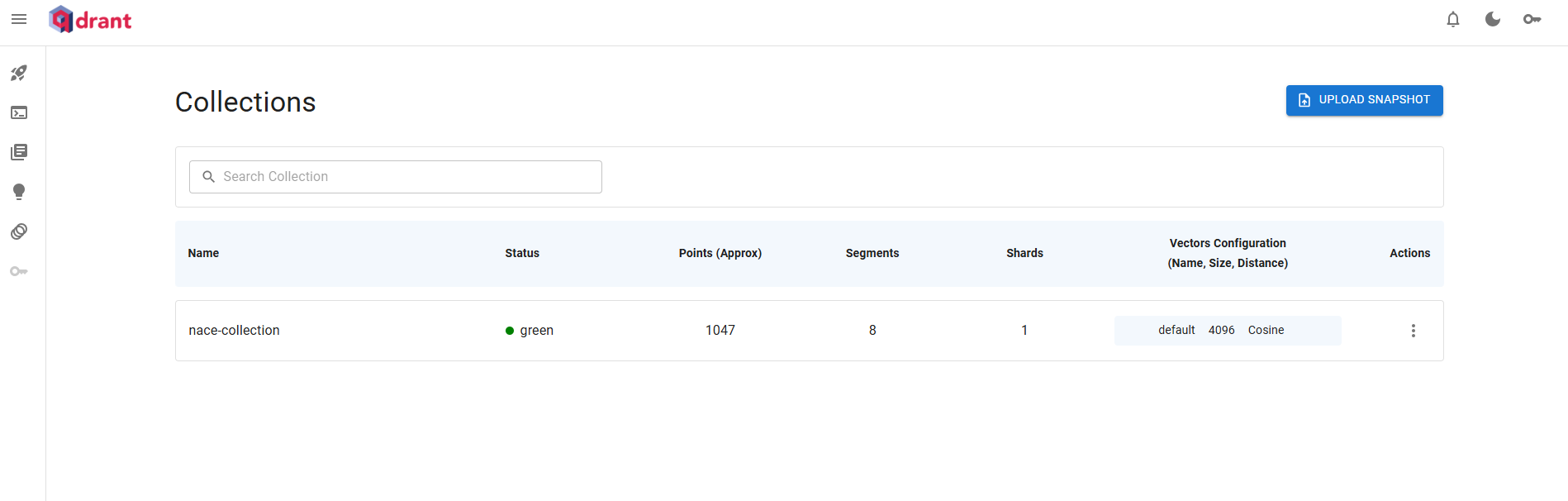
count = client_qdrant.count(collection_name=COLLECTION_NAME)
print(count)PointStruct is a Pydantic model provided by the qdrant_client library that represents a single vector database entry. It bundles together the three components Qdrant needs to store and query a point:
Passing raw dicts directly to the Qdrant API would require manual serialization and validation. PointStruct handles that for you and ensures the data is correctly typed before being sent to the server. It’s essentially the contract between your Python code and the Qdrant collection.
Please note that this workflow is not optimized at all.
Here, we intentionally adopt a step-by-step approach to support learning. In a production-ready setup, however, the workflow would be batched and asynchronous, with embeddings fed into the Qdrant store as soon as they are generated.
Advanced users are welcome to give it a try.
Below, please find a non-exhaustive list of good practices for production-grade workflows :
@dataclass and @classmethod
@dataclass: classes that hold dataWhen you build a class whose main purpose is to store data, writing the __init__, __repr__ and __eq__ methods by hand quickly becomes repetitive. The @dataclass decorator (introduced in Python 3.7) generates them automatically from your type annotations.
Without @dataclass — a lot of boilerplate just to store three fields:
class NaceDocument:
    def __init__(self, code, title, includes=None):
        self.code = code
        self.title = title
        self.includes = includes

    def __repr__(self):
        return f"NaceDocument(code={self.code!r}, title={self.title!r})"

    def __eq__(self, other):
        return (self.code, self.title, self.includes) == (other.code, other.title, other.includes)
With @dataclass — the same behavior, declared once:
from dataclasses import dataclass
from typing import Optional

@dataclass
class NaceDocument:
    code: str                            # required field
    title: str                           # required field
    includes: Optional[str] = None       # optional field, with default
A few things to know:
str, Optional[str], …) are mandatory — @dataclass uses them to discover the fields.to_embedding_text in NaceDocument).@dataclass(frozen=True) makes instances immutable (like a NamedTuple), @dataclass(order=True) adds comparison operators (<, >, …).@classmethod: methods that act on the class, not on an instanceMost methods you write receive self — the instance the method is called on. A method decorated with @classmethod receives cls instead — the class itself.
class NaceDocument:
    def to_embedding_text(self) -> str:    # instance method: needs an existing object
        return f"{self.code} — {self.title}"

    @classmethod
    def from_raw(cls, raw: dict) -> "NaceDocument":   # class method: builds a new object
        return cls(code=raw["CODE"], title=raw["HEADING"])
The typical use case is to define alternative constructors — different ways of building an instance from different sources:
doc1 = NaceDocument(code="A01", title="Crop production")     # via __init__
doc2 = NaceDocument.from_raw({"CODE": "A01", "HEADING": "Crop production"})  # via classmethod
doc3 = NaceDocument.from_json(json_string)                   # another classmethod, if you wrote one
Why cls instead of writing NaceDocument(...) directly? Using cls makes the method inheritance-aware: if SpecialNaceDocument inherits from NaceDocument, calling SpecialNaceDocument.from_raw(...) will correctly build a SpecialNaceDocument (not a NaceDocument), because cls resolves to the actual class on which the method was called.
In the NaceDocument class above, both decorators play complementary roles:
@dataclass removes the boilerplate of declaring fields and writing __init__.@classmethod provides from_raw, a clean entry point that parses a raw dictionary (with validation, cleaning, etc.) and hands back a fully built NaceDocument.This is a very common pattern in data pipelines: a lightweight container for the data + one or more classmethods to ingest it from external formats (CSV row, JSON, database record…).
The vector database is ready. In the next notebook you will build the generation side of the RAG pipeline: given a free-text activity description, retrieve the most similar NACE codes from Qdrant and prompt an LLM to pick the right one.
➡️ Continue with Part 2 — RAG: generation